Trial before Purchase
You can try out content before making a purchase. General members can access up to 3 packs and 10 items for trial. Workgroup and PRIME members can try up to 5 packs and 50 items per day.
The Smart Search panel offers an efficient alternate to explore and install free trial from the Reallusion Marketplace.
- Launch the Smart Search panel.
- Under the Asset Store tab, click the Filter button and make sure Marketplace is selected under the Source filter.
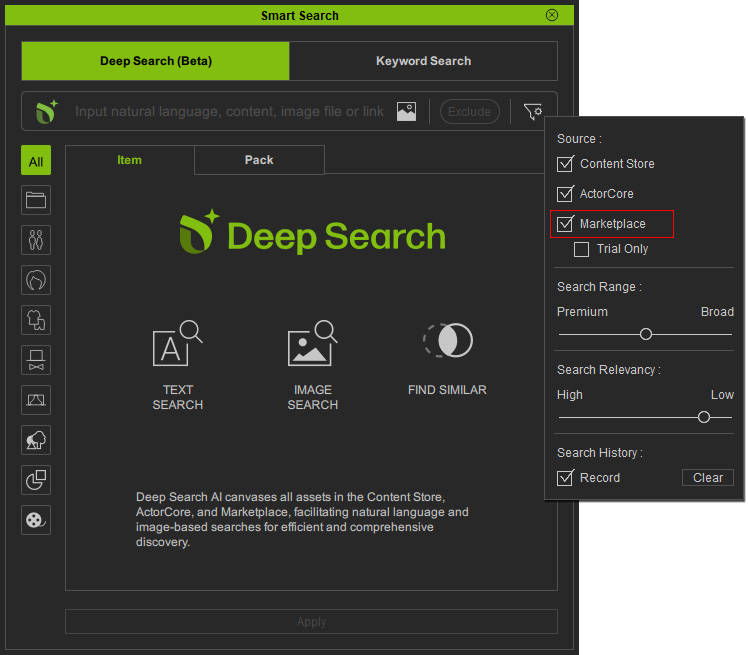
- Perform a text or image search.
The content overlaid with "Trial" label onto thumbnails and marked an
 icon in the top-right corner is ready for free download.
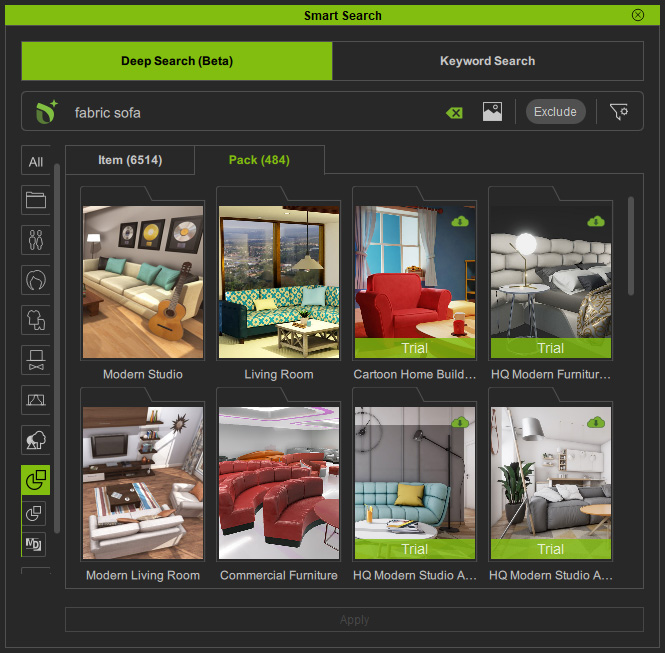
 Content StatusThe icons in the top-right corner of each thumbnail show the content status.
Icon
Content Status
Double-Click Behavior
(Empty)
The cloud content is ready for purchase and download.
View product page.
The cloud content is available for download.
Install content.

The content already exists in your local database.
Pack View: Find in Content Manager.
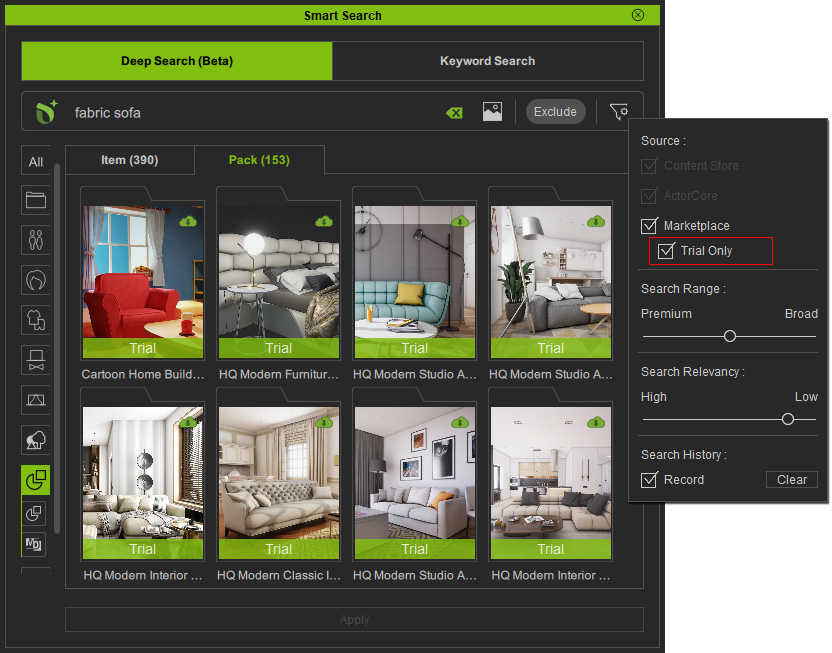
Item View: Apply content. - Activate the Trial Only checkbox in the Source filter to narrow down your search.
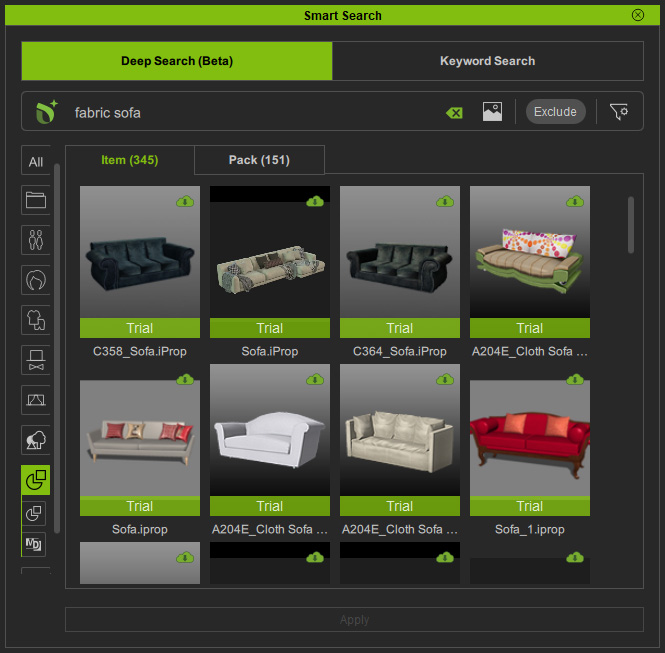
- If you wish to find multiple pack items at once, stay in the Pack View.
If you want to find a single item, switch to the Item View.
- Download and install the desired content using any of the following methods.
- Double-click on the selected content.
- Right-click on the selected content and choose Install Content from the context menu.
- Select content and click the Install Content button near the bottom of the panel.
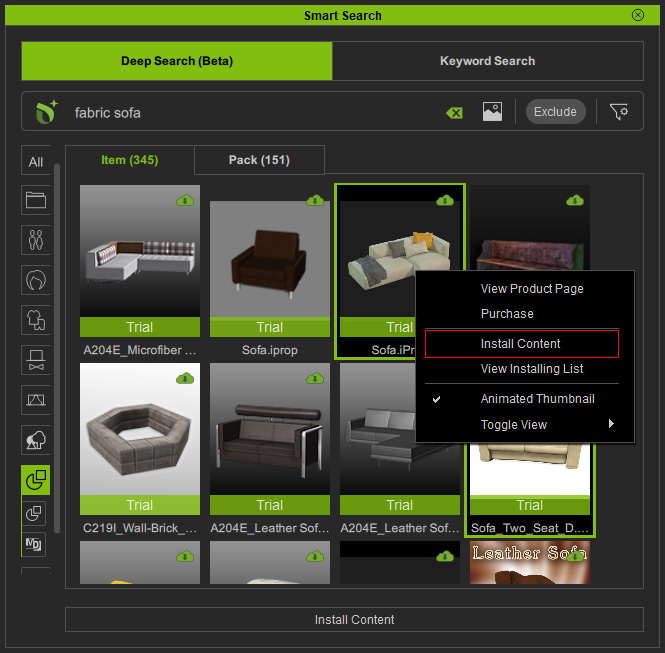
Open the Installing List to check the installation progress by choosing the View Installing List command from the right-click menu.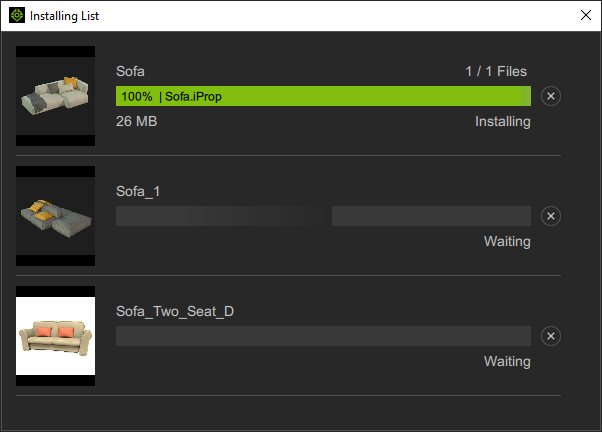
You can click the x button to stop the installation at any time. However, items already installed will not be removed. - Once the installation is complete, the top-right icon on the content thumbnail will change into .
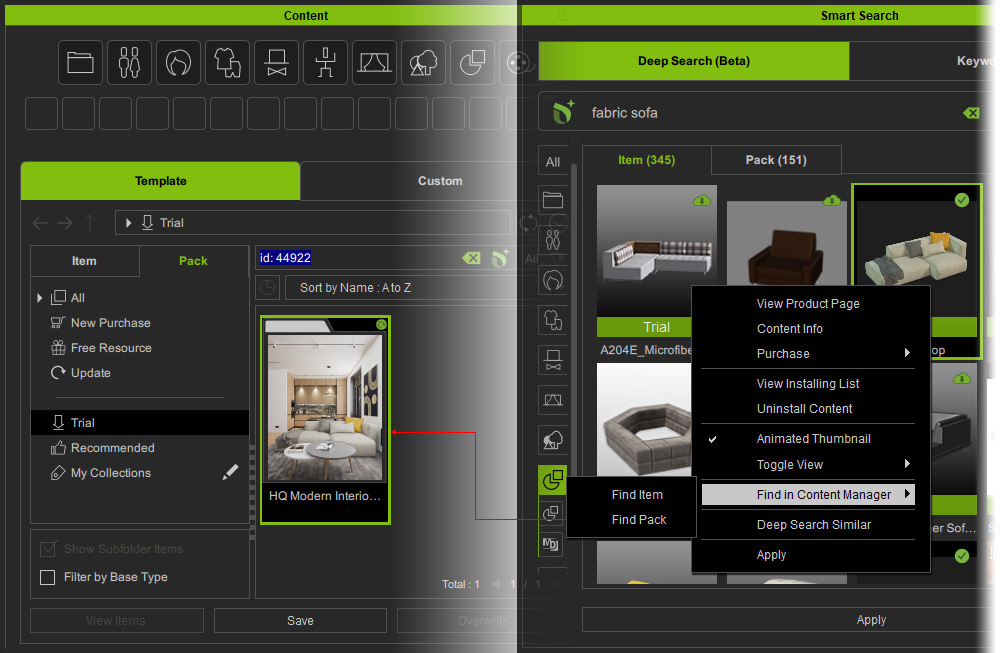
Right-click on it and execute the Find in Content Manager > Find Item or Find Pack commands.
This will categorize the content within the Trial category of Content Manager.
 Removing the Trials
In the Content Manager, you can remove uninstalled trial content from the Trial category by right-clicking on content, and choosing Remove from the context menu.
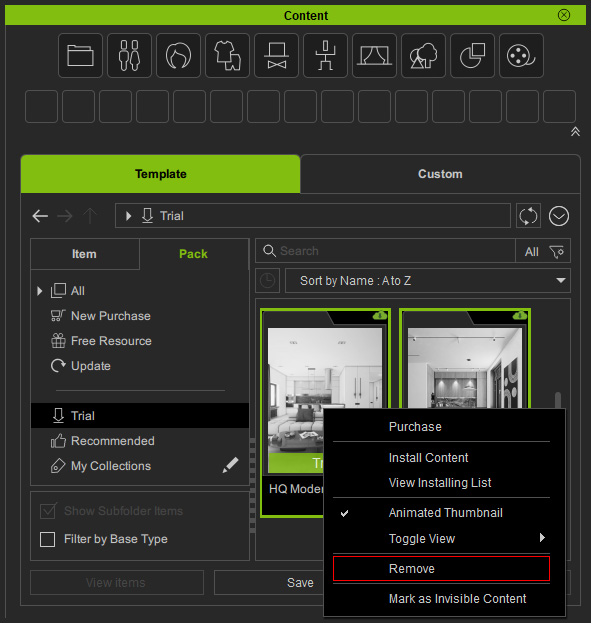
The trial content will then disappear from the Trial filter. - Apply the installed trial content to the scene, either from the Content Manager or Smart Search panel using any of the following methods.
- Double-click on the content.
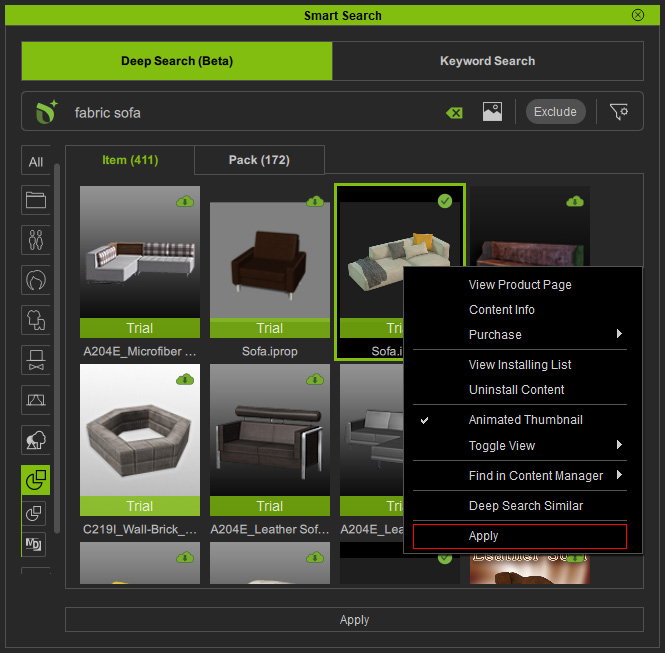
- Right-click on the content and choose Apply from the context menu.
- Select content and click the Apply button on the bottom of the panel.
- Drag the content to the viewport.
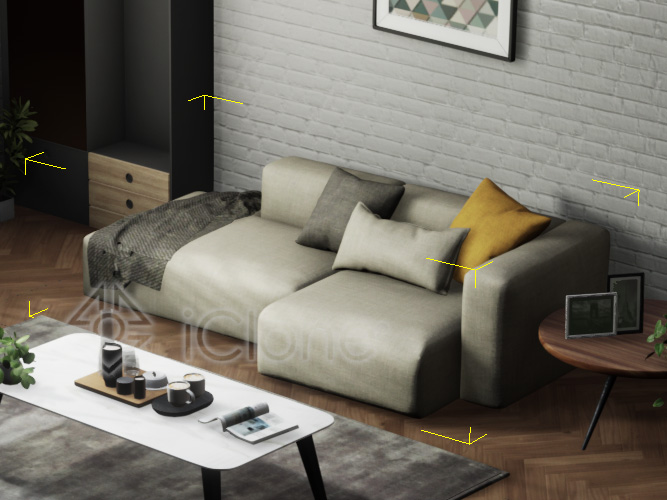
- Watermark will overlay the viewport when trial content is in use.
You are restricted to viewing and saving projects made with trial content;
rendering or exporting trial content is not allowed until purchased.
 Note for Cartoon Animator
In Cartoon Animator, you cannot save, render or export trial content.
