Searching by Image
Different from searching by text, the Deep Search supports a visual way to discover content with a similar mesh appearance by uploading, drag and dropping, copy and pasting of images.
To begin the image search, launch the Smart Search panel and switch to the Deep Search method.
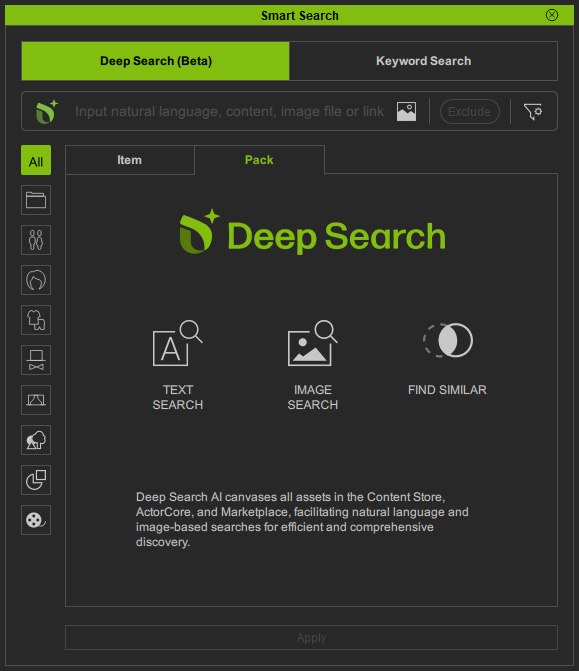
Input an image to the panel through either of the following methods.
 Uploading a Photo
Click the Image Search  icon in the search field.
Then, click on the area within the dotted line and choose an image file to upload.
A photo of military uniform for example.
icon in the search field.
Then, click on the area within the dotted line and choose an image file to upload.
A photo of military uniform for example.
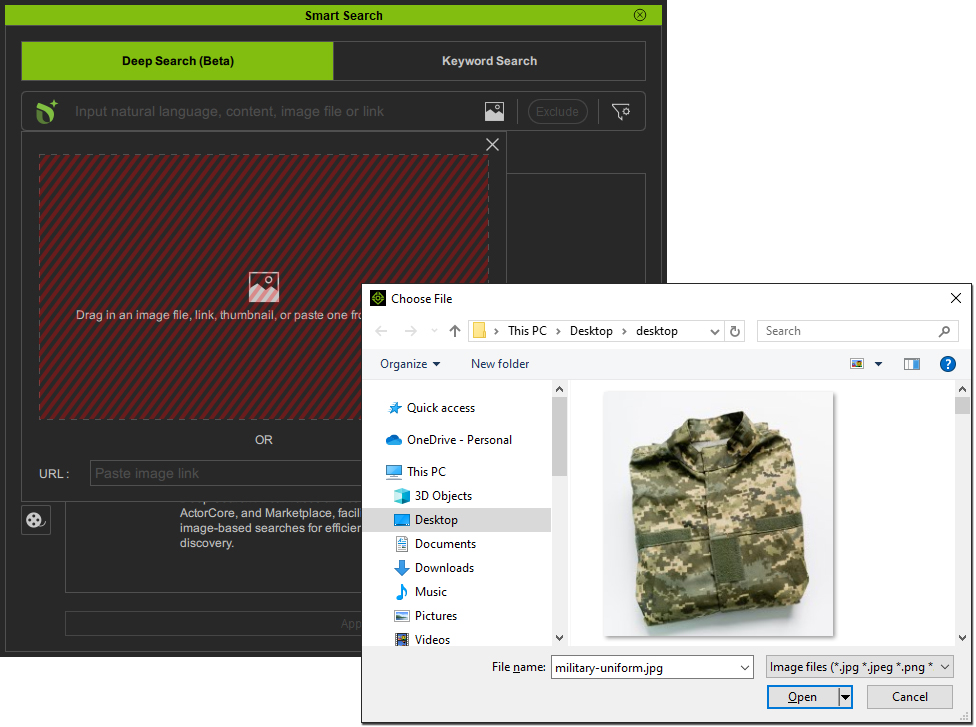
* The supported image formats are: *.jpg, *.jpeg, *.png, *.bmp, *.jfif, *.webp, and *.svg.
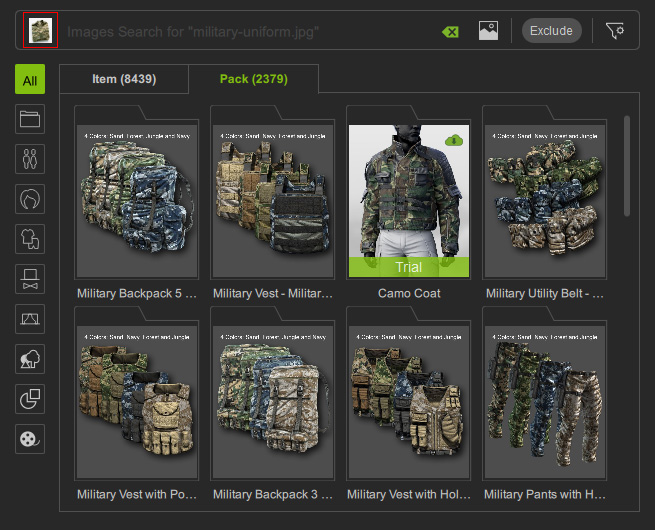
Deep Search will retrieve content with similar thumbnail images.
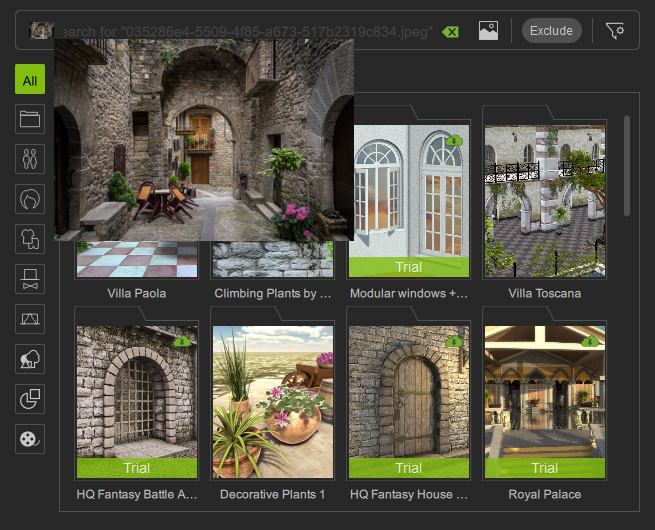
The input image remains above the search results for quick reference.
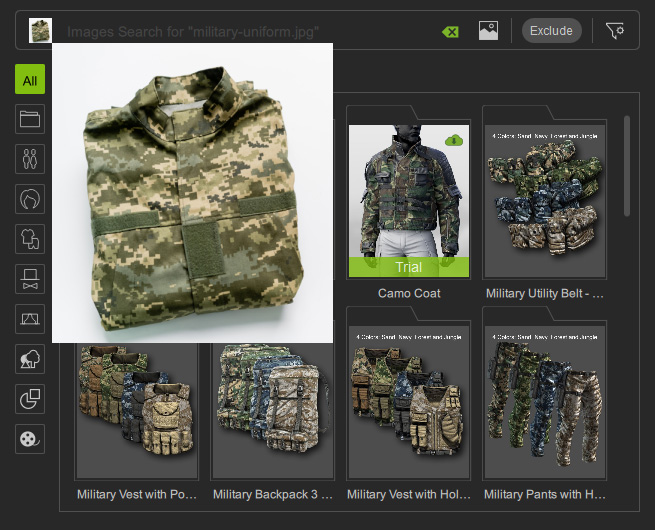
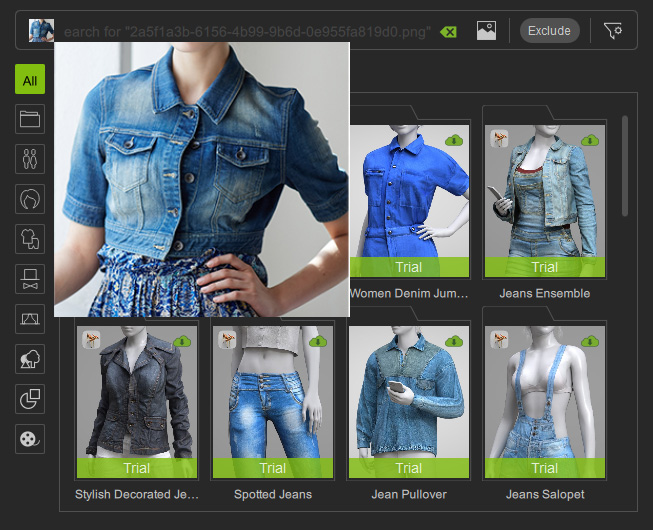
You can hover over the input image to enlarge it.
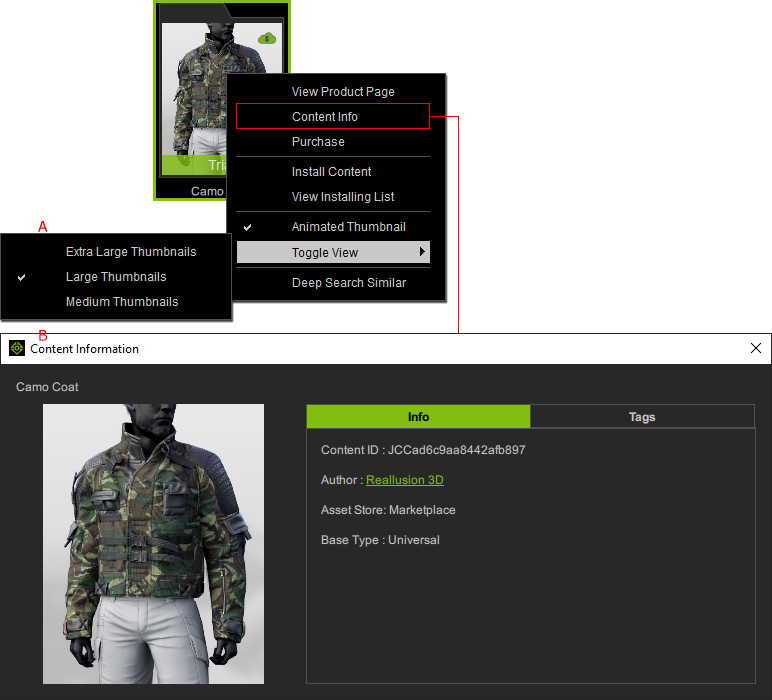
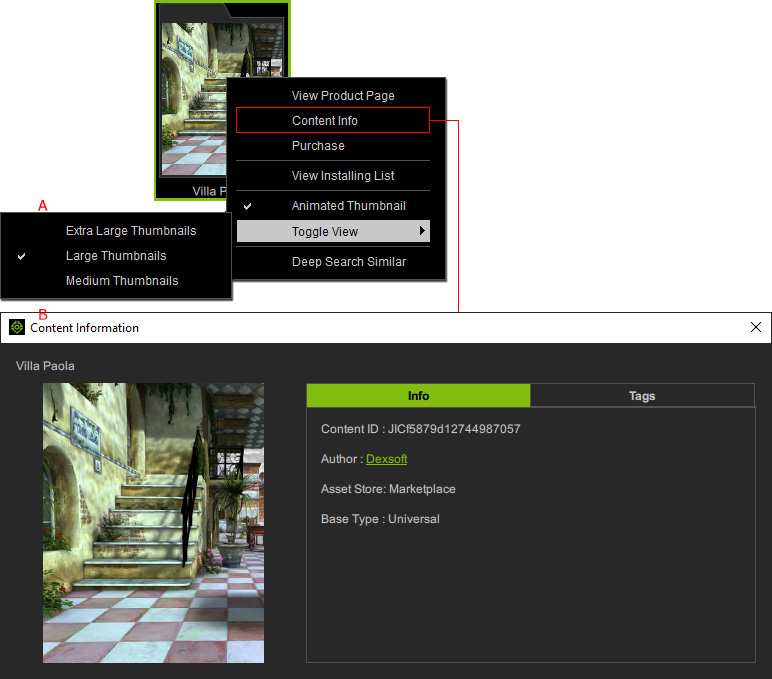
Thumbnail sizes can be changed via the right-click context menu (A) or the Content Information panel where details are listed (B).
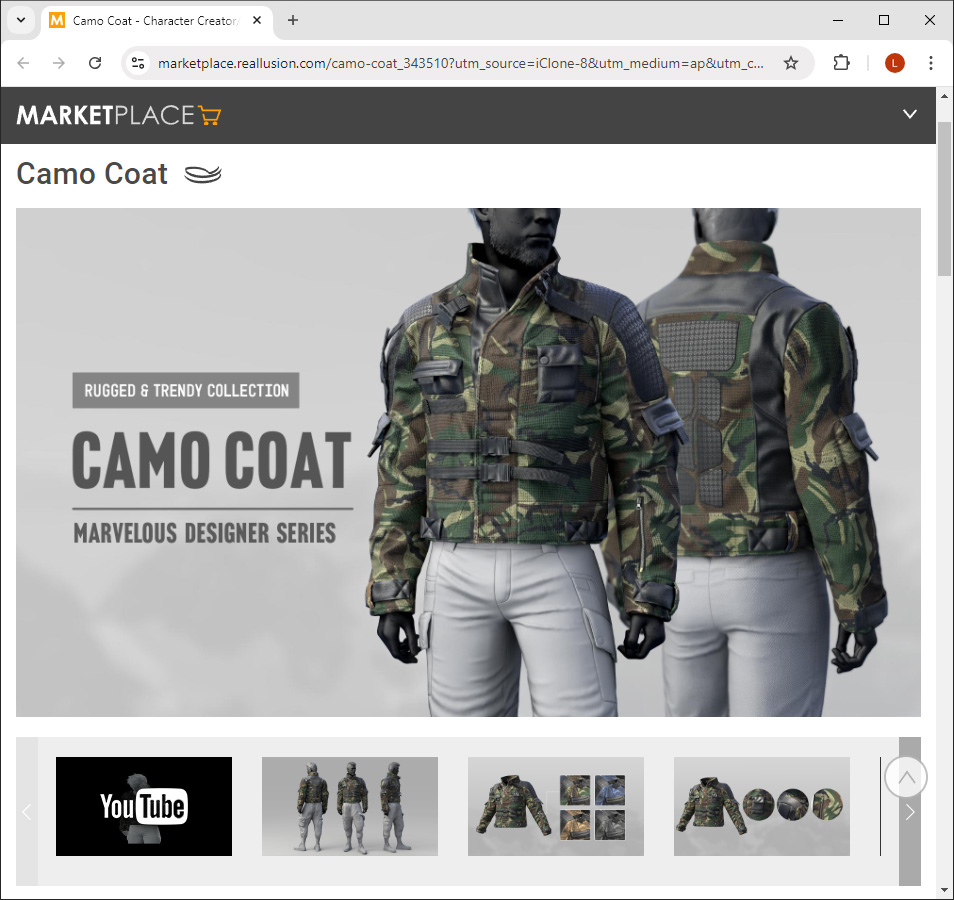
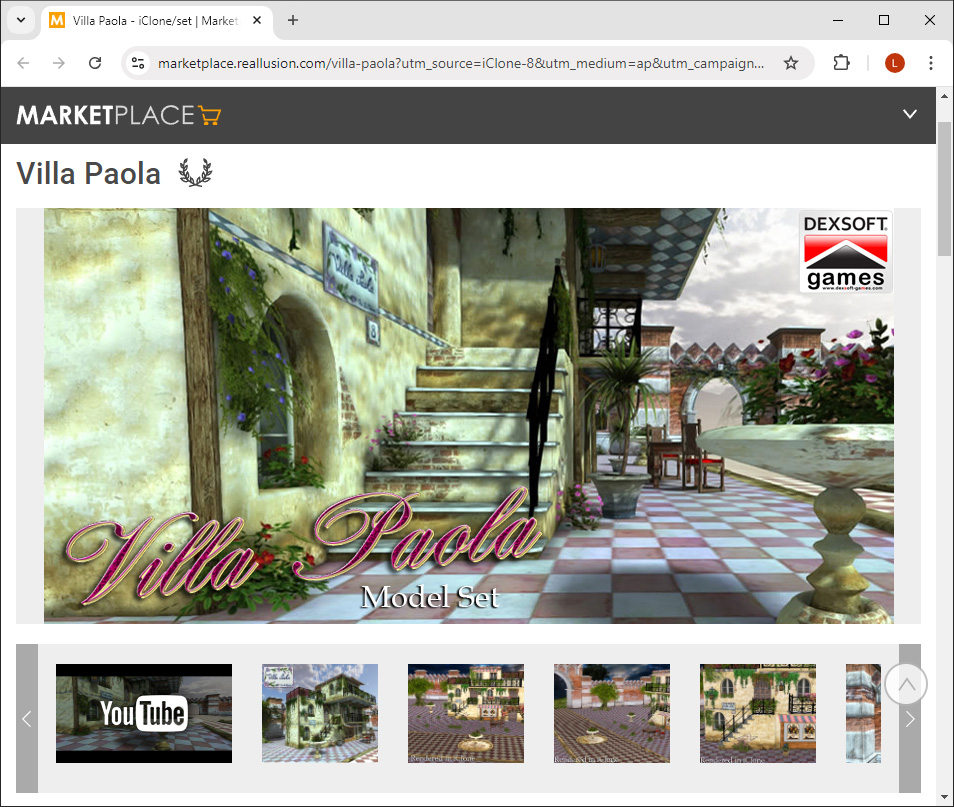
You can also click Product Page to browse the pack and its items in the online store.
Drag-and-Dropping an ImageDrag an image file (or image thumbnail) from File Explorer or a web browser into the Deep Search input box.
In this example, use an image of a medieval town from a web search.
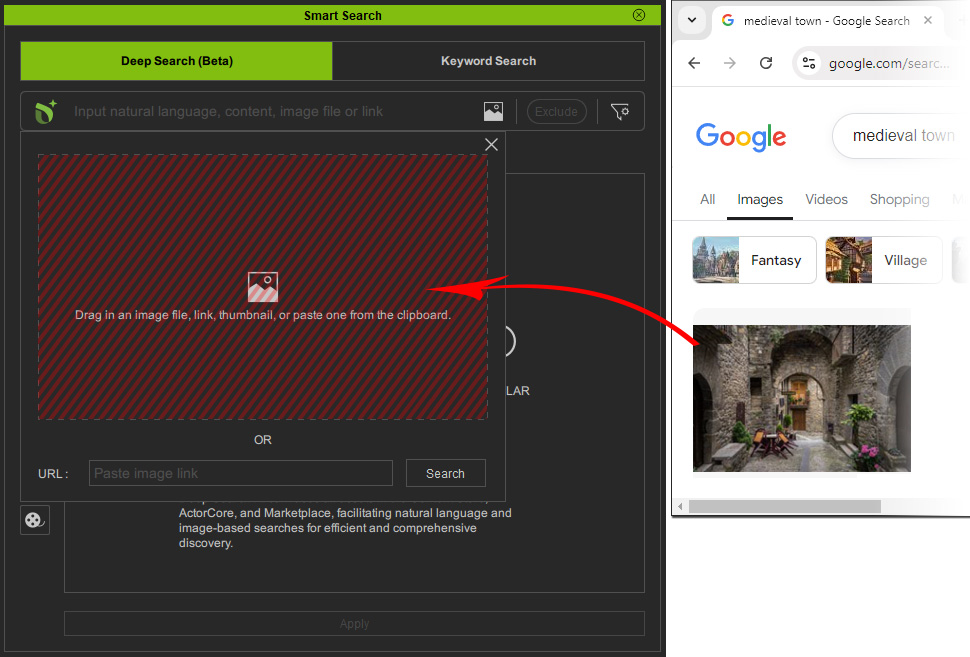
* Filepaths and urls can also be dragged into this area.
Deep Search will retrieve content with similar thumbnail images.
The input image remains above the search results for quick reference.
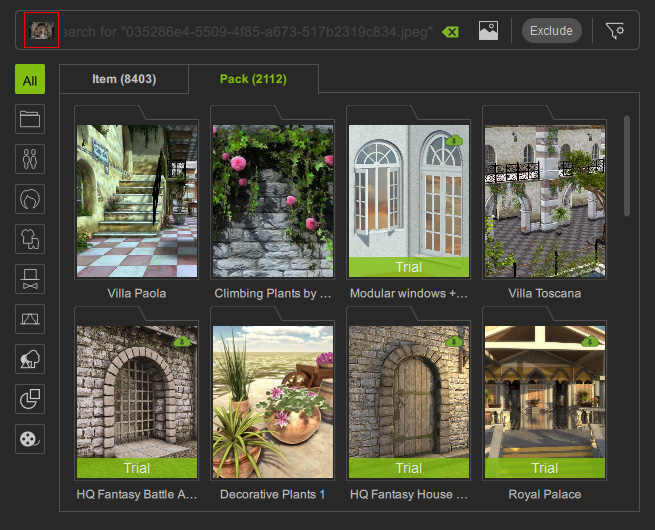
You can hover over the input image to enlarge it.
Thumbnail sizes can be changed via the right-click context menu (A) or the Content Information panel where details are listed (B).
You can also click Product Page to browse the pack and its items in the online store.
Copy and Pasting an ImageCopy an image from an image viewer or a web page, or take a screenshot (Windows shortcut: Start + Shift + S).
Then, click the Image Search icon in the search field, and press Ctrl + V to paste the image.
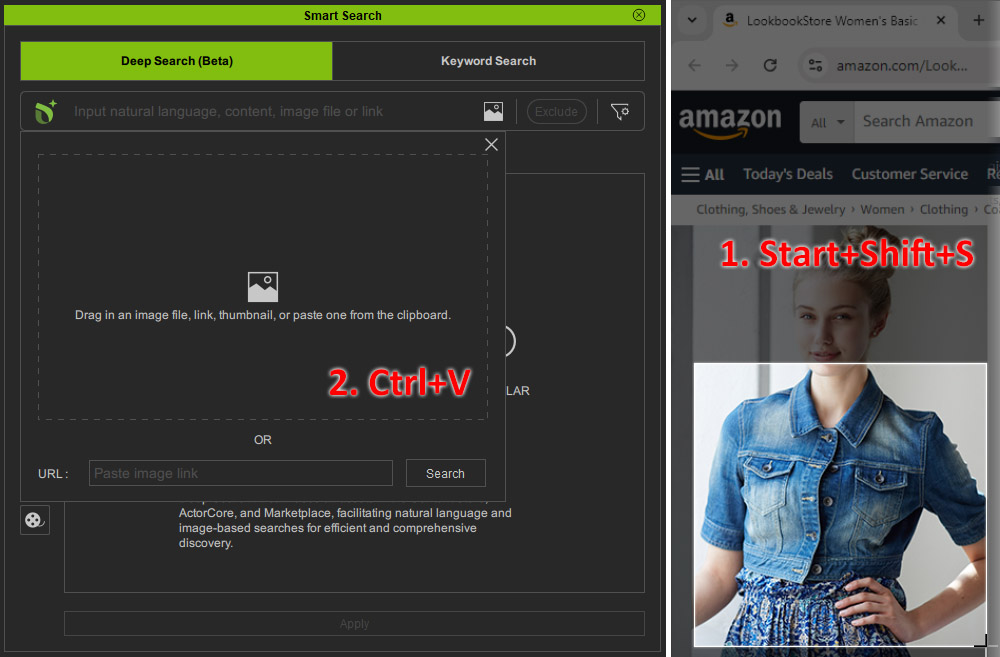
* The path of an image file or a web address (URL) can also be pasted to start an image search.
* The supported image formats are: *.jpg, *.jpeg, *.png, *.bmp, *.jfif, *.webp, and *.svg.
Deep Search will retrieve content with similar thumbnail images.
The input image remains above the search results for quick reference.
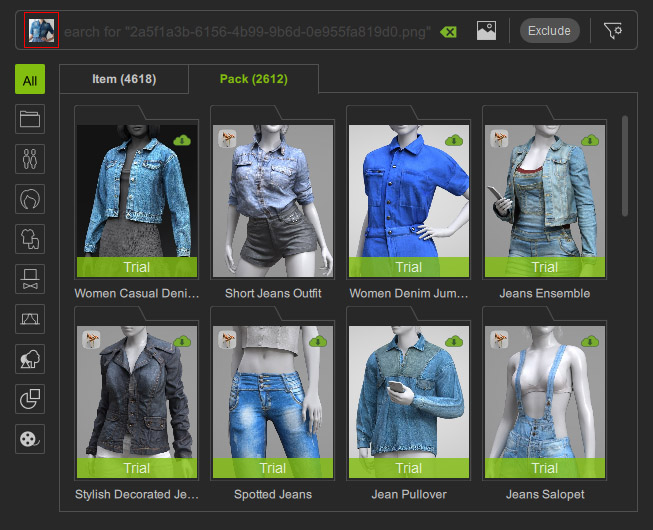
You can hover over the input image to enlarge it.
Thumbnail sizes can be changed via the right-click context menu (A) or the Content Information panel where details are listed (B).
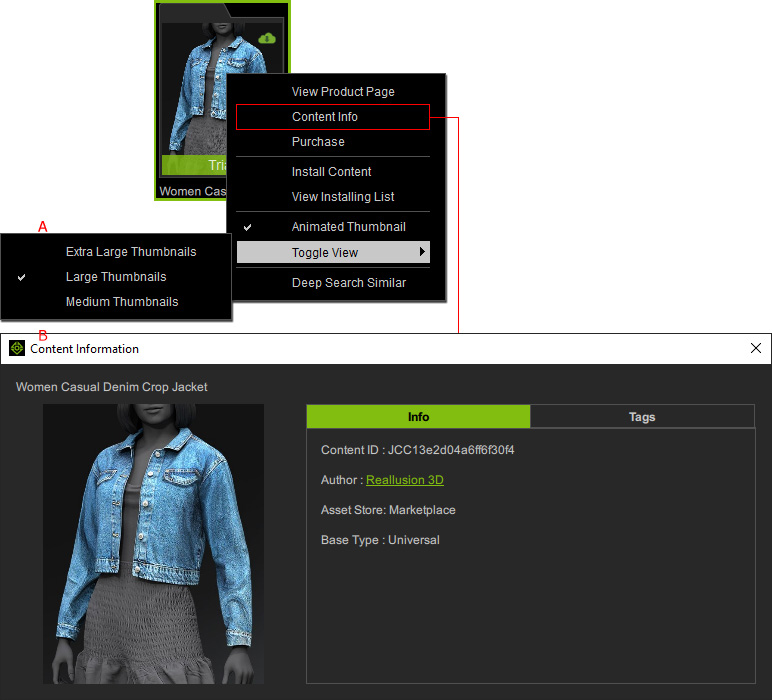
You can also click Product Page to browse the pack and its items in the online store.

Note:- Search range or relevance can be adjusted to show more content, or used to exclude certain content to narrow the search scope.
- Additional content can be obtained from starting a free trial or via purchase.
