Texture Editor
The Texture Editor transforms texture layers, manages material channels, and generates Normal and PBR maps.
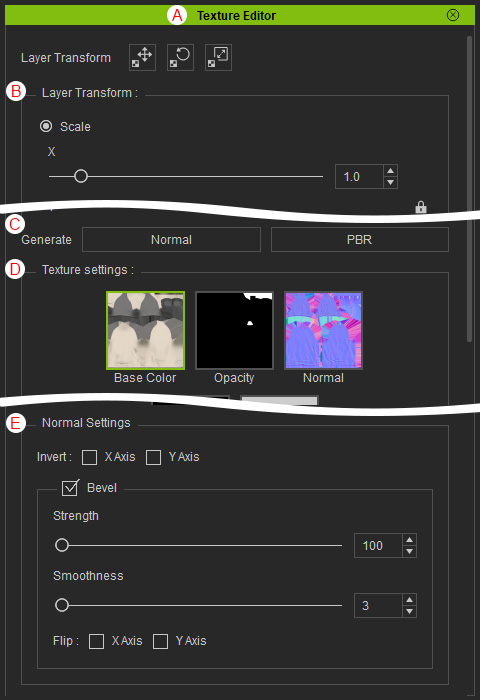
|
Function |
Description |
|
|
A |
Dock / Undock |
By double-clicking on the caption, docks the panel to the docking area or undocks the panel and make it float above the main window. |
|
B |
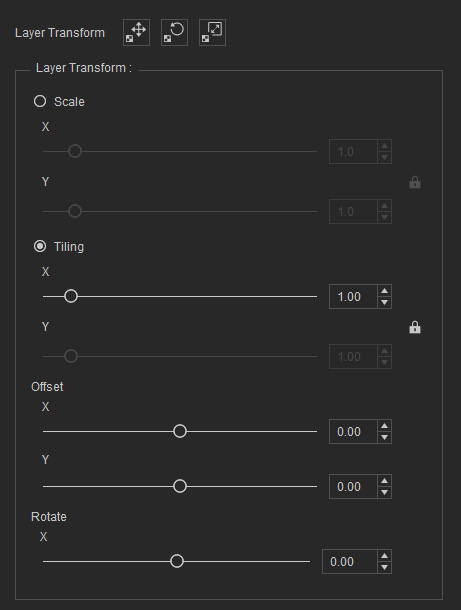
Click the Layer Transform buttons above the Layer Transform section, or adjust the sliders within the section, to scale decals, tile patterns, or offset and rotate the texture of the selected layer.
|
|
|
C |
Material Map Generation |
Generates the Normal and PBR maps for the current layer.
|
|
D |
Texture Settings |
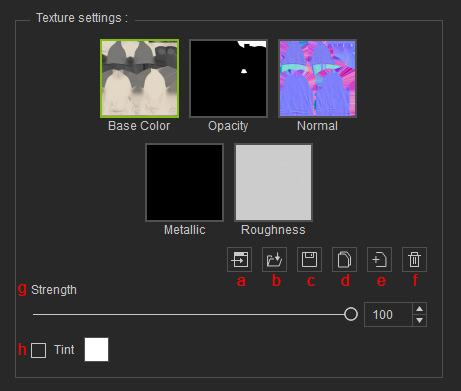
Displays the 5 material channels for the garment: Base Color, Opacity, Normal, Metallic, and Roughness. It also provides tools for editing the images in these channels.
|
|
E |
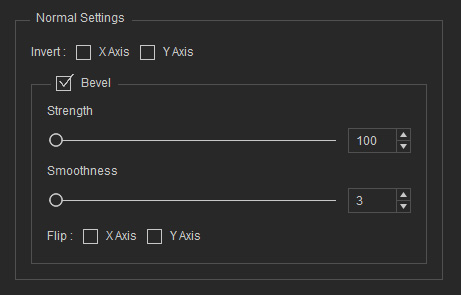
Modifies the Normal channel image to address visual defects or add bevels that enhance surface depth.
|

Right-click Context Menu for Channel Images
|
Command |
Description |
|
Load |
Imports a texture image into the selected material channel. |
|
Save |
Exports the texture of the selected material channel to a destination folder (*.png). |
|
Remove |
Deletes the generated images in the Normal, Metallic, or Roughness maps. |
The Opacity channel cannot be edited in FasionGen and only displays the alpha information from the Base Color channel. Alpha adjustments can be made after sending the texture back to CC.
