


Operating with Camera and Transform Tools
For the ease of use and convenience, iClone is designed with the same mouse controls for both camera operation and object transformation. This method of control allows you to edit scenes with one hand on the mouse and the other on the keyboard, saving you from moving your hand back and forth among the keys.
 Camera Tools
- Zoom In / Out:
- Icon:

- Mouse Operations (Buttons pressed and Drag): Roll Mouse Wheel / Both Mouse Buttons
- Hotkey (default): Z
- Icon:
- Pan:
- Icon:

- Mouse Operations (Buttons pressed and Drag): Left Mouse Button
- Hotkey (default): X
- Icon:
- Orbit / Roll:
- Icon:
 /
/ 
- Mouse Operations (Buttons pressed and Drag): Right Mouse Button
- Hotkey (default): C --> Orbit / V --> Roll
- Icon:
- Focus to Selected - Perspective View:
- Icon:

- Mouse Operations (Buttons pressed and Drag): Select the object and press the hotkey.
- Hotkey (default):
- Home
- A: Left
- S: Right
- D: Back
- F: Front
- G: Top
- J: Face
- K: All
- Icon:
Transform Tools
- Select:
- Icon:

- Mouse Operations (Buttons pressed and Drag):
- In Transform Mode, single click on the target object.
- In Camera Mode, double-click to select the target object.
- In Select Mode, hold down the Ctrl key and single click on objects may Multi-select them.
- Alternatively, you may drag a box on the 3D viewer to enclose desired objects.
- Hotkey (default): Q
- Icon:
- Move:
- Icon:
 /
/ 
- Mouse Operations (Buttons pressed and Drag):
- Along World or Local X Axis: Left Mouse Button + Cursor Moves Left/Right
- Along World or Local Y Axis: Left Mouse Button + Cursor Moves Up/Down
- Along World or Local Z Axis: Roll Mouse Wheel
- Hotkey (default): W
- Icon:
- Rotate:
- Icon:
 /
/ 
- Mouse Operations (Buttons pressed and Drag):
- Rotate Along World or Local Z Axis: Press Left Mouse Button and drag.
- Rotate Along World or Local Y Axis: Press Right Mouse Button and drag.
- Rotate Along World or Local X Axis: Press Both Mouse Buttons and drag.
- Hotkey (default): E
- Icon:
- Scale:
- Icon:

- Mouse Operations (Buttons pressed and Drag):
- Uniform Scale: Press Left Mouse Button and Drag.
- Local Z Scale: Press Right Mouse Button and Drag.
- Local XY Scale: Press Both Mouse Buttons and Drag.
- Uniform Scale: Press Left Mouse Button and Drag.
- Hotkey (default): R
- Icon:
Note:
-
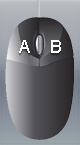
Throughout all the documents, we assume that you are using your right hand to control your mouse. Therefore, clicking the Left Mouse Button means click the A button as shown in the illustration, while Right Mouse Button means the B button. - Temp Switch: Hold down the ALT key will switch to the Pan of the Camera Mode temporarily.
- Accelerating: Hold the SHIFT key to 10X the operation unit
- Ctrl + G: Turn on/off the Grid for 3D space reference
- Snap to Terrain: Go to Edit >> Terrain Snap and choose Snap to Terrain. The Z movement will be locked to the terrain as you manipulate the camera or objects. Please refer to the Snap To or Follow Terrain section for more information.
- Follow Terrain: Go to Edit >> Terrain Snap and choose Follow Terrain. The Z movement will be locked to the terrain as you manipulate the camera or objects. Besides, the angle of the camera or objects also aligns to the face normals of the terrain. Please refer to the Snap To or Follow Terrain section for more information.
- Snap to Grid/Custom Grid: Please refer to the Grid Section for more information.
- Angle Snap: Please refer to the Control Section for more information.
