Curve Editor User Interface
|
A |
Menu Bar |
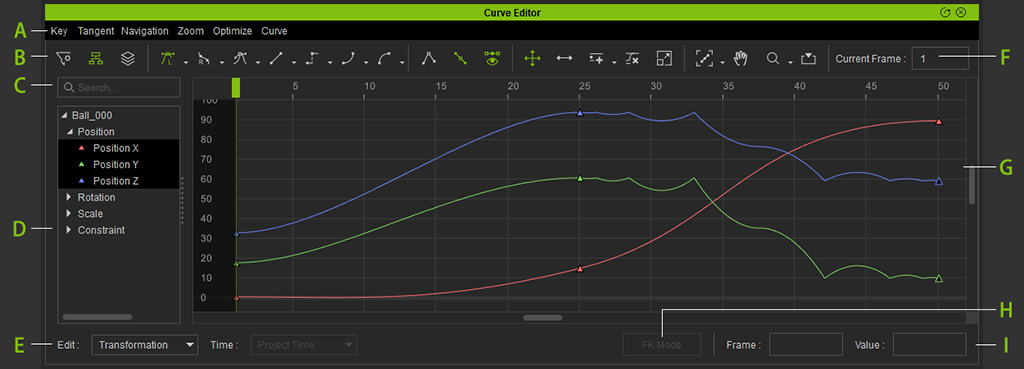
The Menu Bar contains all the commands available for editing. It includes Key, Tangent, Navigation, Zoom, Optimize and Curve menus. |
|
B |
Toolbar |
The toolbar is divided into Outliner Display Options, Tangent Tools, Handle Tools, Key Editing Tools, and Navigation Tools. |
|
C |
Search Bar |
Type keywords in this field to list the items containing the same string. |
|
D |
This pane displays the related nodes of the selected object, including structure nodes and curve nodes. Select the curve nodes to show the corresponding curves in the graph view. |
|
|
E |
Editing Modes |
There are two drop-down lists in this group:
|
|
F |
Current Frame |
The Current Frame field shows the current frame number. If the Time drop-down list is set to Project Time, then this field's range is the same as the timeline. However, if the Time drop-down list is set to Clip Time, then this field ranges from 1 to the final frame number of the current clip. |
|
G |
This view displays all the curves for further editing. |
|
|
H |
FK Mode |
Click this button to launch the Edit Motion Layer >> FK Mode to quickly select the target bone for curve editing. |
|
I |
Status Bar |
This bar contains two fields, Frame and Value for a selected key. You can enter precise numbers to determine the time and value of the key. |
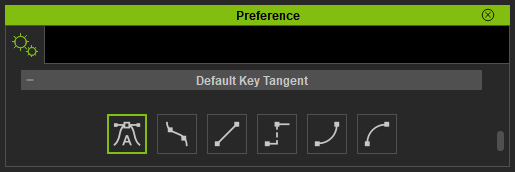
By default, the curve type for iClone 7.1 or above is set to Auto. If you have installed Curve Editor Plugin, then you can change the default tangent type in the Preference panel.