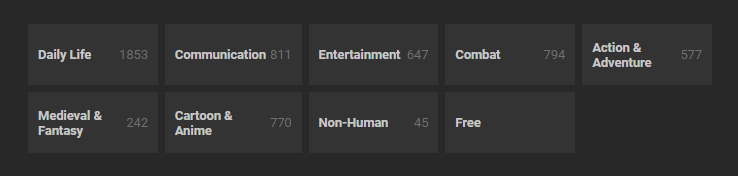
Browsing by Category
The ActorCore Motion libraries are directly presented in the Add Motions tab for you to quickly pinpoint the motions that best fit your characters.
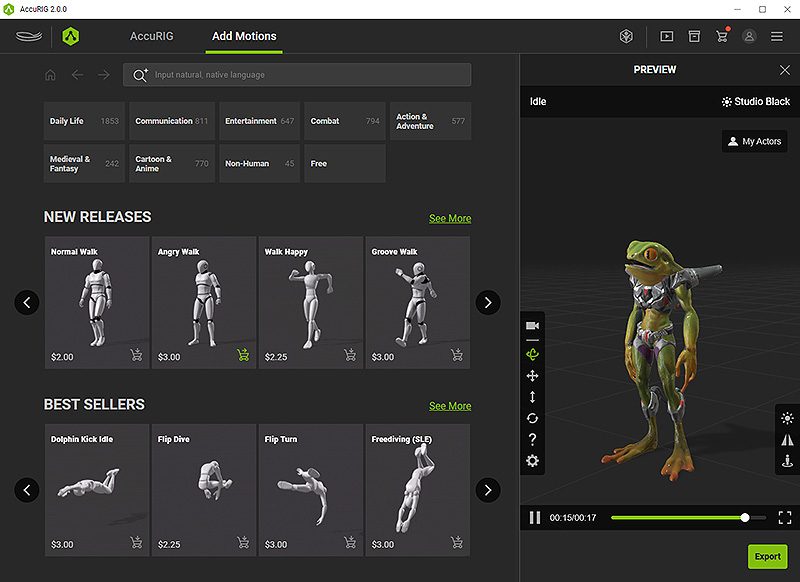
- Import a model for rigging.
After calibration, enter the final step, Add Motions by clicking on the namesake button.
An idle motion will be applied to the character.
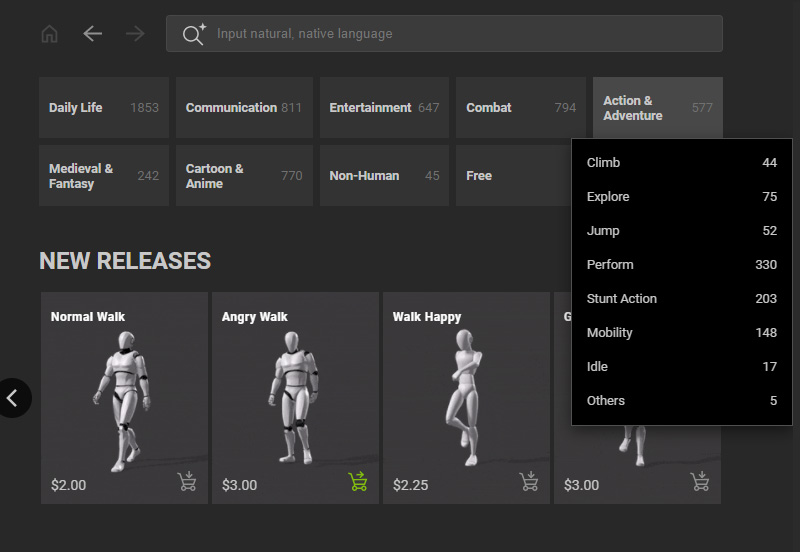
- Hover on a desired category for a run-down of its sub-categories.
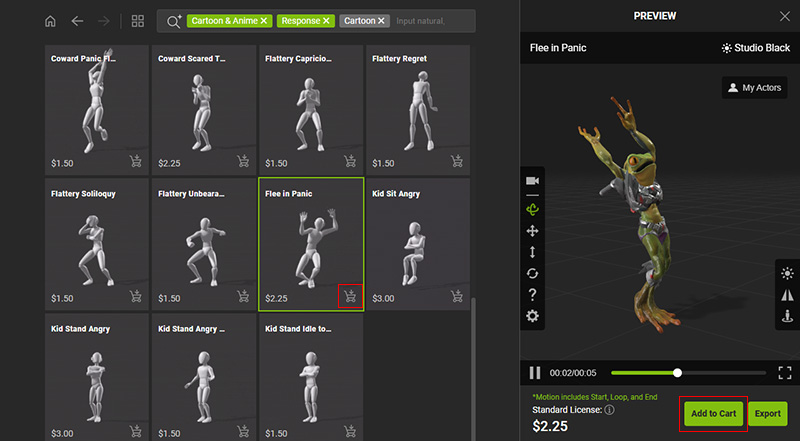
- Once a category is chosen, the page will refresh automatically to display corresponding motions and populate the search field.
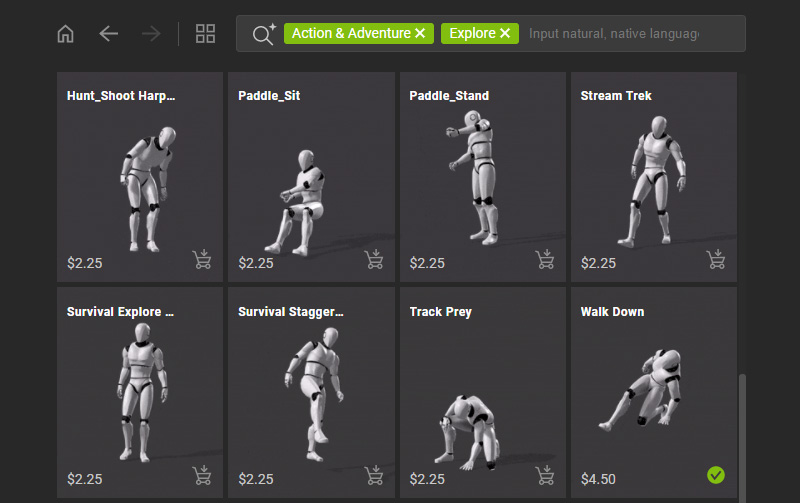
* The purchased motions are marked with a green checkmark on the bottom-right corner of the thumbnail. - Click on the category icon to switch to different categories.
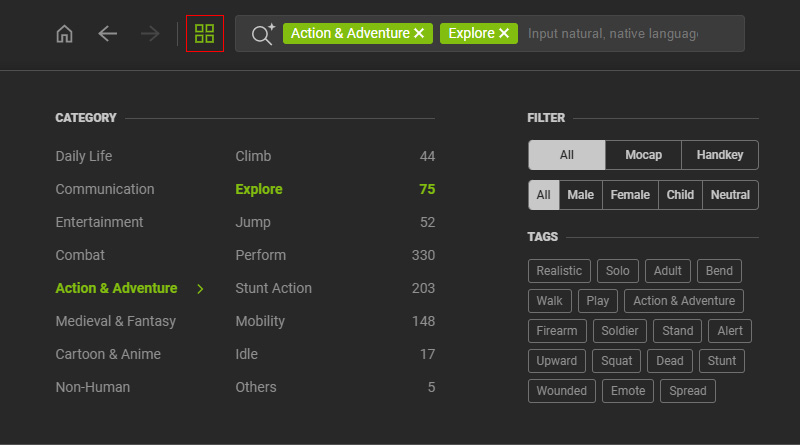
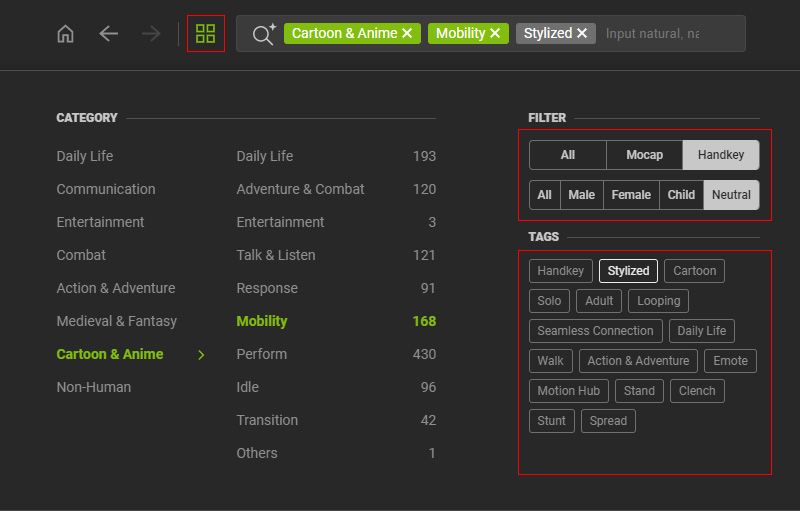
- Click on the category icon to set a filter by motion type (Mocap or Handkey), gender, and a specific tag to narrow down the search result.
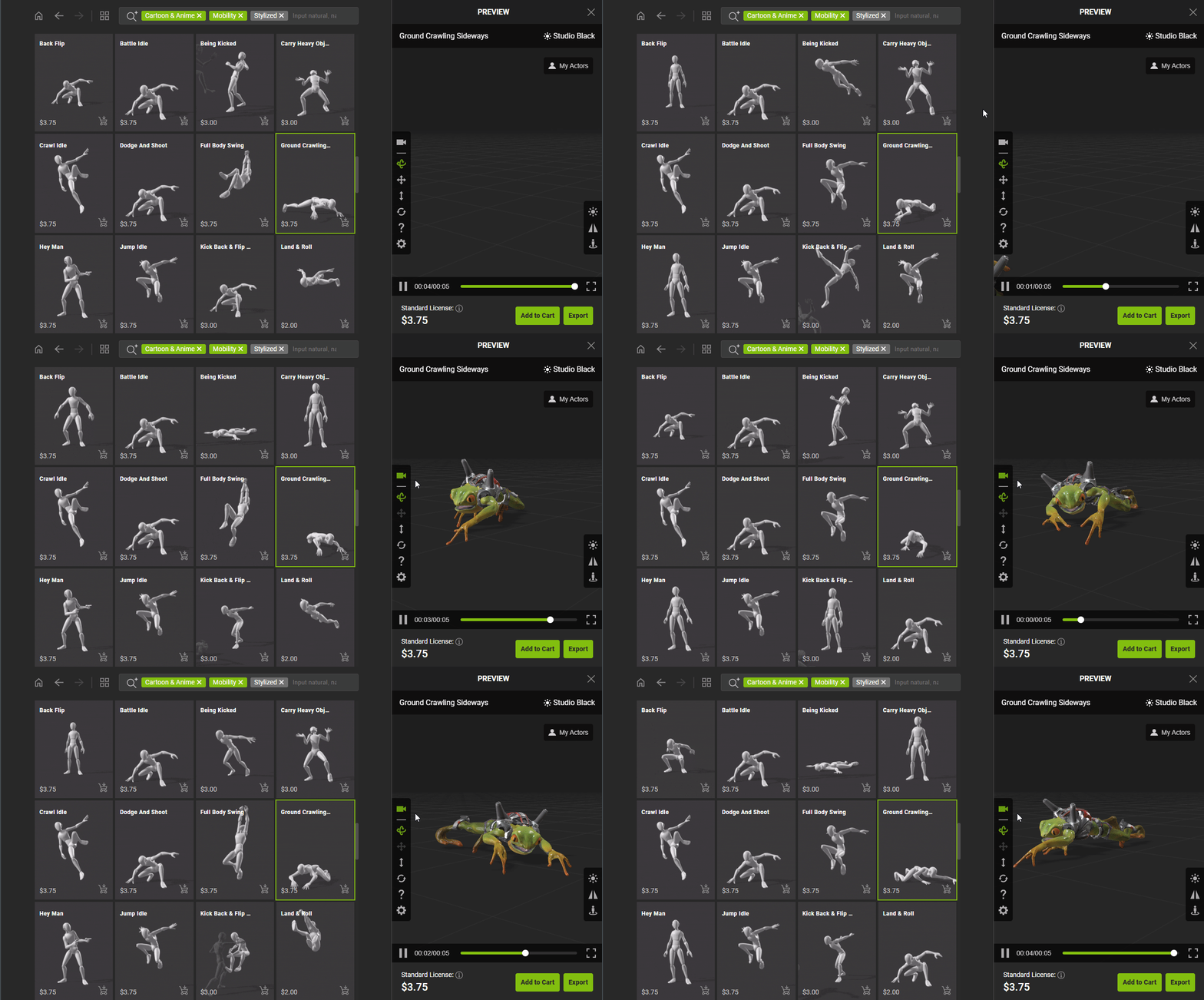
- Click on the desired motion for a preview.
- Alternatively, you can type in the description to search by text, or find similar motions or group motions via the thumbnail buttons.
- If you wish to export your character with additional motions, add the item to your shopping cart by clicking on the cart icon on the bottom-right corner of the thumbnail.
Or, click the Add to Cart button below the preview window.