


Resetting Values
There are several methods to reset values for the settings in the Modify Panel.
Resetting Values of Slider Type
-
Setting a value within a group by either way described in the
Setting Values section.
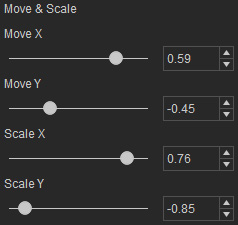
-
Double-click on one of the title of the slider, the value of it will be reset.
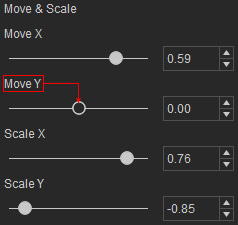
-
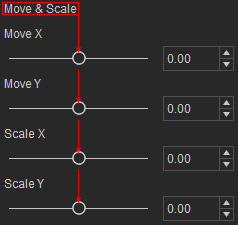
Double-click on the group name and each value within the group will be
reset.
 Note:
Note:If the parameter is a color pallet, then double-clicking on its title will return it to a default color.

Batch Resetting
If you want to reset a lot of parameters without double-clicking on the titles one after another, which can be tedious and time-consuming, then you may use the batch-resetting method listed below.
Note:
Before starting the steps, you need to make sure that you are familiar with the sections listed here in order to correctly show the desired parameters for resetting in the right pane of the Modify panel:
-
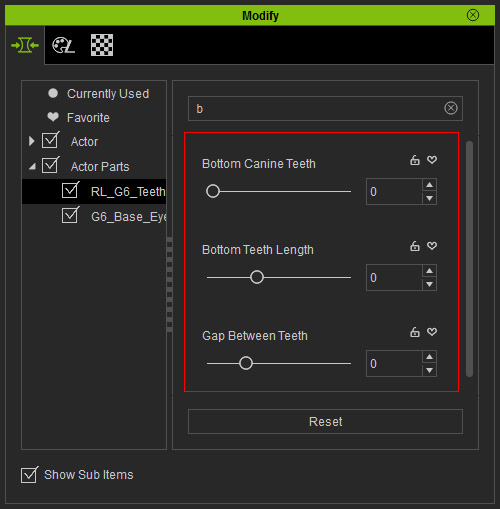
Make sure the desired sliders for resetting are correctly shown in the right pane of the
Modify panel.
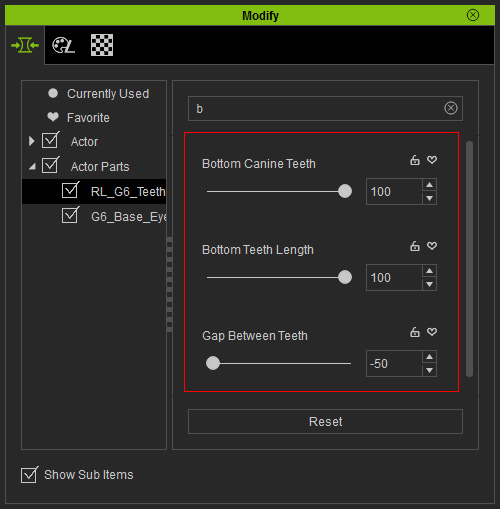
-
Click the Reset
 button at the bottom of the pane.
-
Each setting listed will be reset.
 Note:
Note:-
If you ever activate the Lock icon of a
slider, then when you click the
Reset button, its value will not be reset.
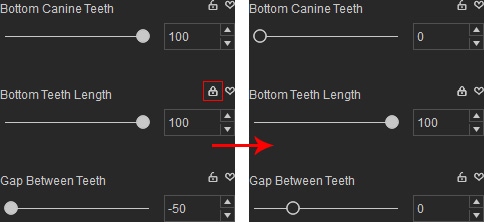
- Locking prevents the slider from being reset by the Reset button.
-
If you ever activate the Lock icon of a
slider, then when you click the
Reset button, its value will not be reset.
