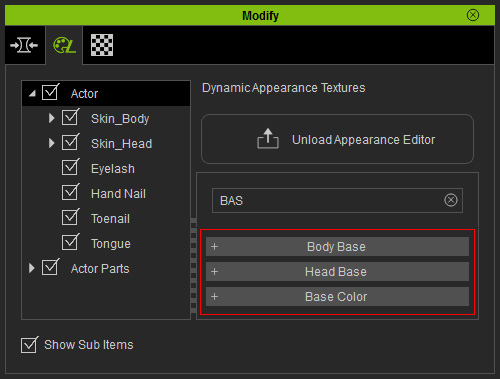
Search Function in Modify Panel
After you utilize different methods, such as showing or hiding parameters, using currently used item or grouping parameters into favorite item, there still can be too many parameters shown in the modify panel.
However, by using the Search feature provided, you can further filter out the unwanted parameters while only the relevant results appear.
Searching Morphing Parameters
In the Morphs tab, using searching function may help you find the specific body part or parameters more efficiently and quickly, rather than searching section by section.
-
Select an object and switch to the Morphs tab in the Modify panel.

-
Make sure the Show Sub Items box is activated.

-
Select the parent node in the Tree View (in this case, the Actor node, because the target
parameters are all under it).
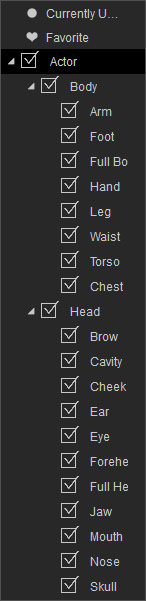
-
The parameters belong to its sub nodes will be listed in the right pane of the panel (the number of the
parameters can be over 90, in this case). It is hard to find the target parameter you want to use.
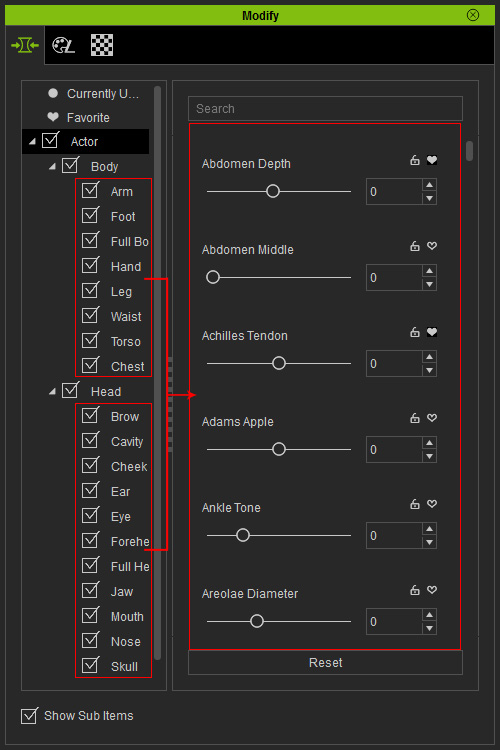
-
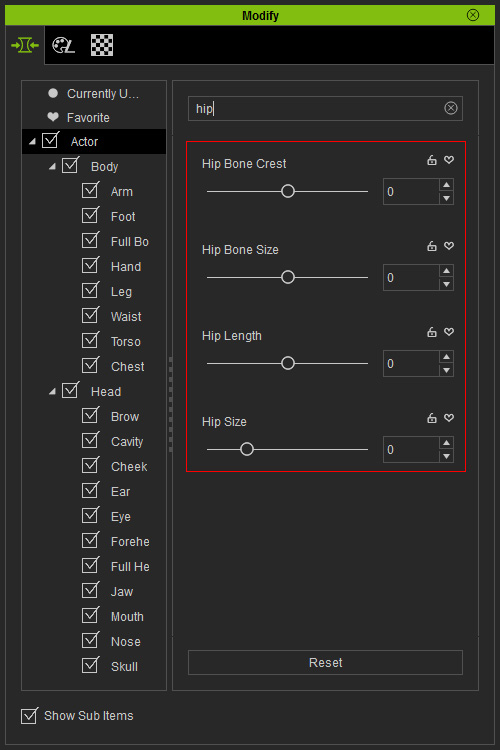
In the Search field, type in text to which the titles of the parameters are related.
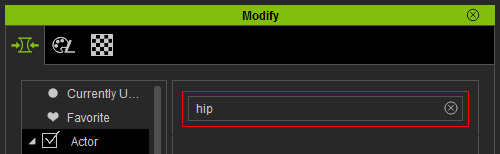
-
The relevant parameters will be shown in the right pane.
Searching Appearance Sections
In the Appearance tab, you can search and display the caption names of the desired section, which is ideal for adjusting the texture of any object.
-
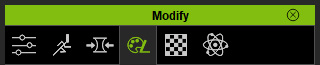
Select an object and switch to the Appearance tab in the Modify panel.
-
Make sure the Show Sub Items box is activated.
-
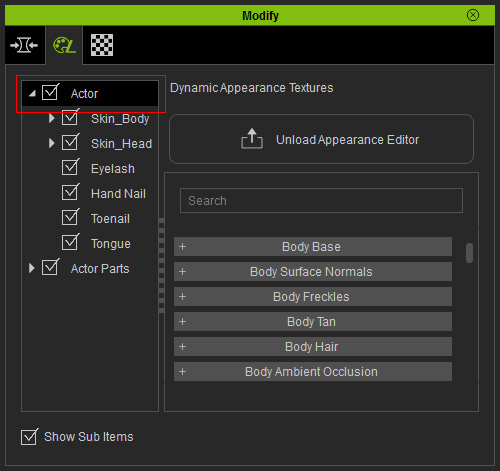
Select the desired object for texture-adjusting in the Tree View and
click the Activate Appearance Editor button.

-
Make sure the desired node is selected.
-
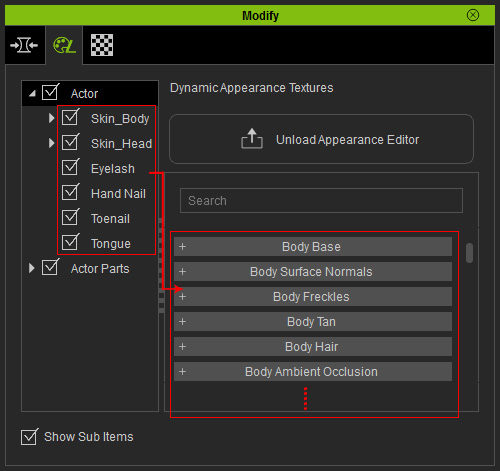
All sections belong to its sub nodes will be listed in the right pane.
-
In search field is dynamic so typing partial words can work as well.
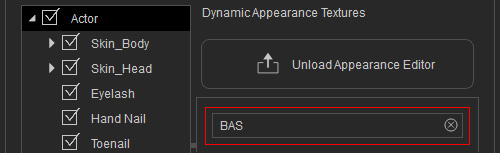
-
Only names of sections containing the search string will be shown in the right pane.