Texture Adjustment
Texture Adjustment panel is loaded with texture related tools for customizing the appearances of the head:
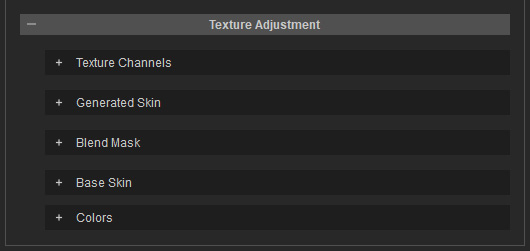
- Texture Channels: This section manages all the texture maps and maximum texture size of your headshot character.
- Generated Skin: This section includes a number of tools to help refine the character’s skin photo texture maps, including Upscale, De-Lighting, etc.
- Blend Mask: This is the section loaded with blend mask options for fixing texture defects.
- Base Skin: The section for altering Base Skins of the head by picking skin types.
- Colors: The section for picking colors for both eyes and skin on your character.
Whenever a texture adjustment is made, the Update Skin Texture button appears, allowing you to apply all confirmed changes at once after reviewing the texture maps and blend masks in the texture channels. This prevents unnecessary texture baking and saves time during the testing process.
If preferred, you can enable Auto Update in the Texture Channels to apply changes immediately.
