Texture Channels Sub-section
|
A |
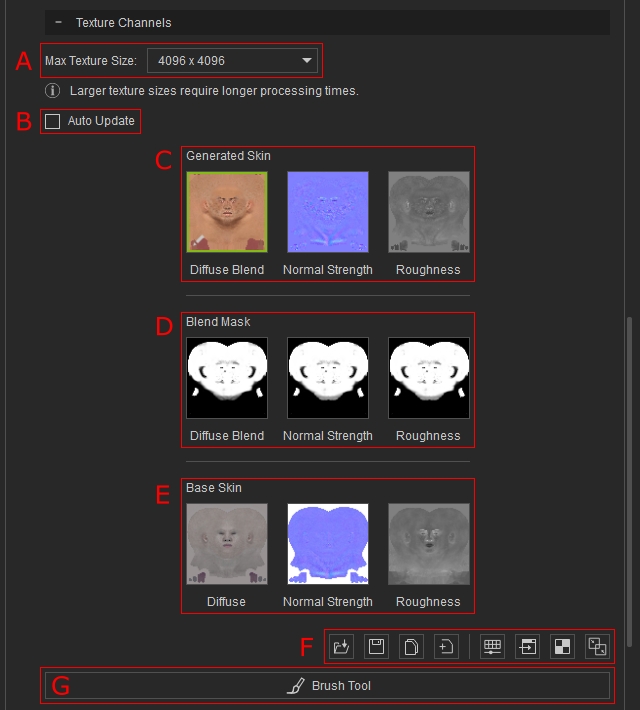
Max Texture Size |
Show / hide the A pull-down menu for you to choose the texture size generated by Headshot. Available options are 512 x 512, 1024 x 1024, 2048 x 2048, 4096 x 4096 and 8192 x 8192, with 4K being the default resolution of the generated head texture.. |
|
B |
Auto Update |
A checkbox for enabling auto update for changes made to the character’s texture among the whole Texture adjustment section, except for settings in Generate Skin Photo section and Color Setting section, for adjustments made in Generate Skin texture takes longer time to load and adjustments made in color settings are directly linked to digital human shader material. |
|
C |
Stores the texture maps generated from the imported photo. Changes to these maps can be made via settings in the Generated Skin Photo section, refer to the page Generate Skin Photo for more information. |
|
|
D |
Stores the Blend masks for blending skin photo maps and Base Skin maps. Changes to these masks can be made via settings in the Blend mask section, refer to the page Blend Mask for more information. |
|
|
E |
Stores the texture maps for Base Skin. Changes to these maps can be made via settings in the Base Skin section, refer to the page Base Skin for more information. |
|
|
F |
Texture Tools |
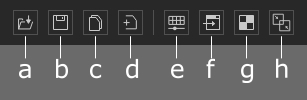
A number of tools for managing and modifying the texture maps and masks.
|
|
G |
Activate the Brush Tool for direct painting on the character in the viewport.
|
 Note:
Upon entering the Brush Tool, the Normal Modification controls in Generated Skin are disabled. To adjust the overall intensity of generated normal details, use the Global Normal Strength setting in the CC5 Modify panel.
