Layer Manager
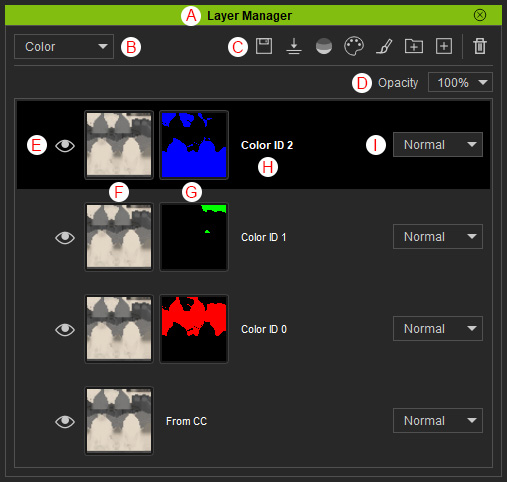
The Layer Manager helps to create garment textures by stacking and managing texture layers.
|
Function |
Description |
|
|
A |
Dock / Undock |
Double-clicking on the caption docks the panel to the docking area or undocks the panel and make it float above the main window. |
|
B |
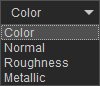
Material Channel View |
Switches layer thumbnails between different material channel views using the drop-down list.
|
|
C |
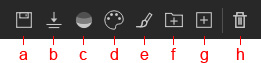
Layer Tools |
Manages texture layers using the following tools:
|
|
D |
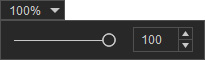
Opacity Setting |
Changes the opacity of the selected layer texture.
|
|
E |
Layer Visibility |
Show or hide the material layers. |
|
F |
Layer Image from Material Channel |
Displays the texture image from the current Material Channel. |
|
G |
Displays the assigned color mask from the Color ID map for the layer. |
|
|
H |
Layer Name |
Displays the name of the layer. |
|
I |
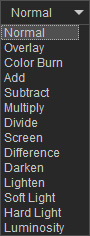
Changes the texture blending mode.
|
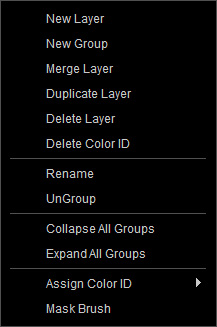
Right-click Context Menu
|
Command |
Description |
|
New Layer |
Inserts a new layer above the selected layer, or at the top of the list if no selection is made. |
|
New Group |
Places the selected layers inside a new group. |
|
Merge Layer |
Merges the selected layers. |
|
Duplicate Layer |
Duplicates the selected layer. |
|
Delete Layer |
Deletes the selected layer. |
|
Delete Color ID |
Removes the color mask from the selected layers. |
|
Rename |
Renames the selected layer. |
|
Ungroup |
Separates layers which are assembled into a selected group. |
|
Collapse All Groups |
Hides all layers in each group. |
|
Expand All Groups |
Shows all layers in each group. |
|
Designates a color mask for a selected layer. |
|
|
Provides the brush and eraser tools to fine-tune the AI Details. |
