Multi-pass Recording
The most flexible and productive way of utilizing mocap for fast production is to separate mocap sessions for the face, body, and fingers, and layer them together to form a full body animation. Then one can go about perfecting the animation by using the timeline to edit the key frames.
For example, adding hand capture to an existing body mocap project, or adding facial expressions to a character that only has body animation. ( Watch Video )
A: | B: | C: |
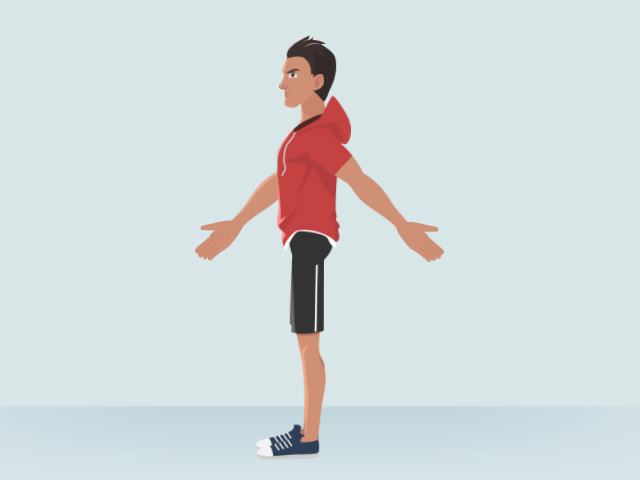
- Prepare a character in the scene.
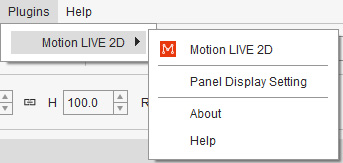
- Click the Motion LIVE 2D
 button on the Add-on Toolbar.
Alternatively, go to Plugins > Motion LIVE 2D > Motion LIVE 2D.
button on the Add-on Toolbar.
Alternatively, go to Plugins > Motion LIVE 2D > Motion LIVE 2D.
-
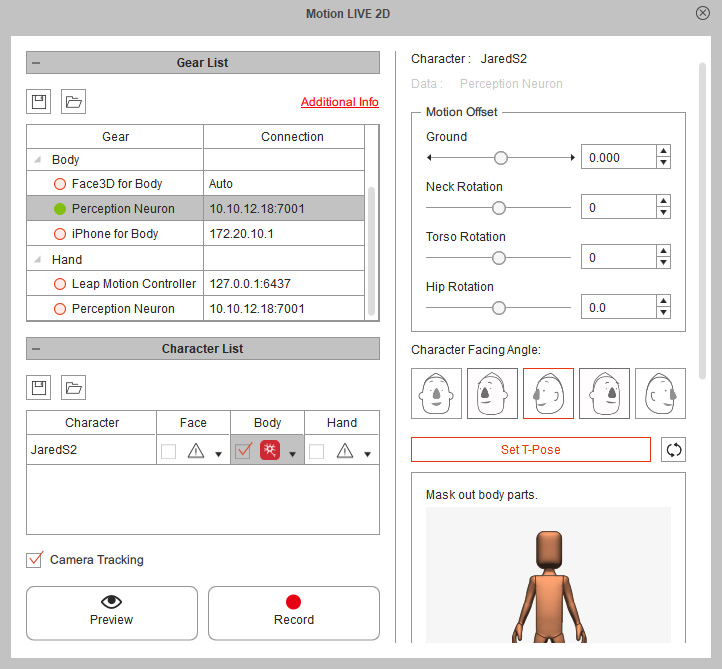
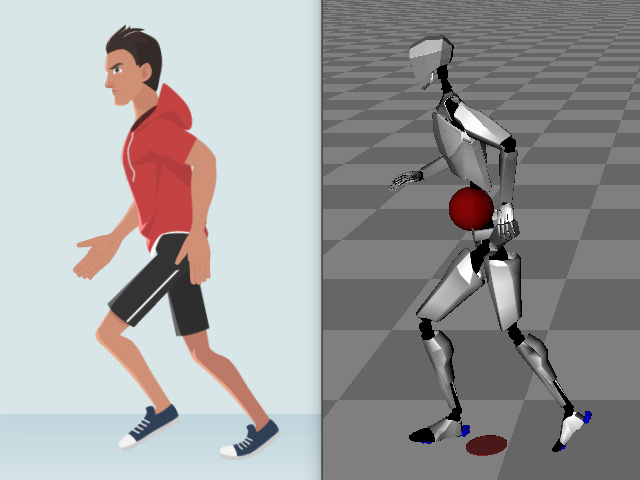
First follow the Body Mocap Workflow to capture the body motions.
-
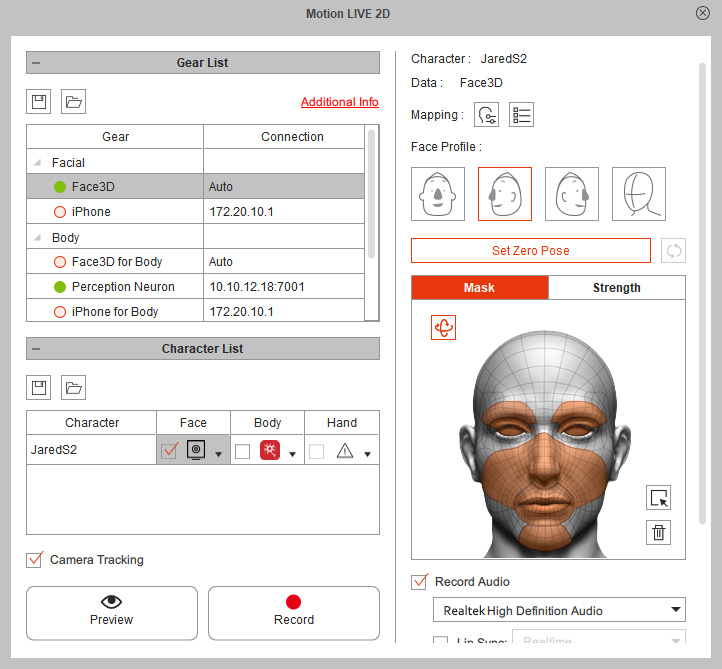
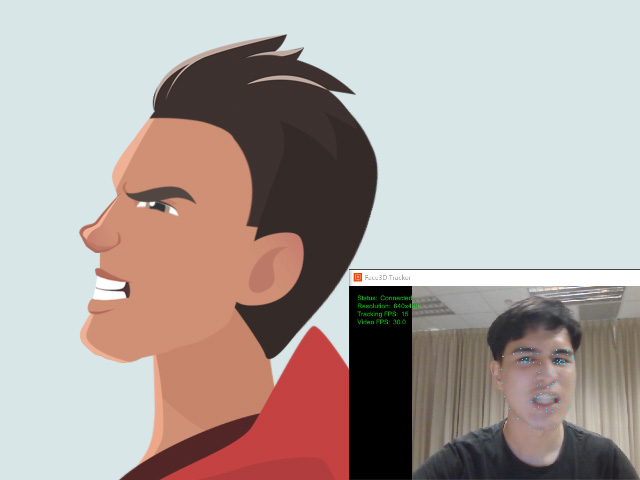
Next follow the Facial Mocap Workflow to add facial expressions.
-
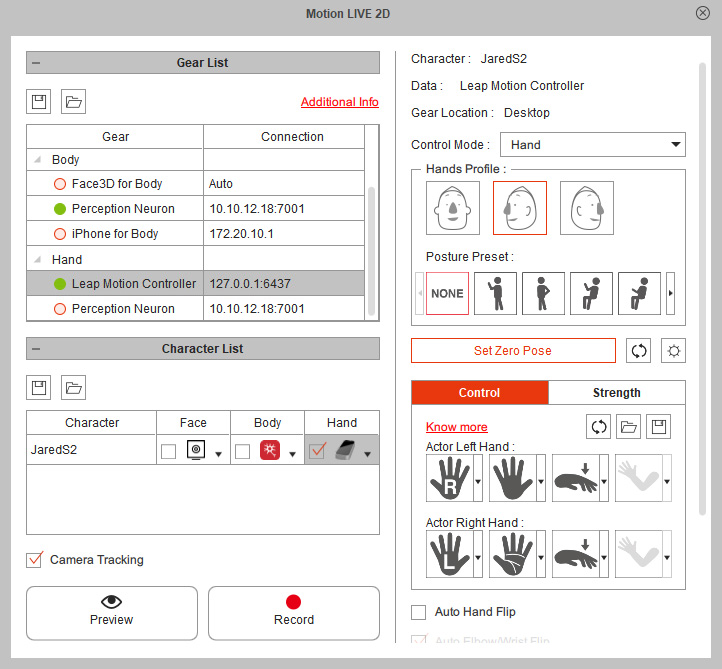
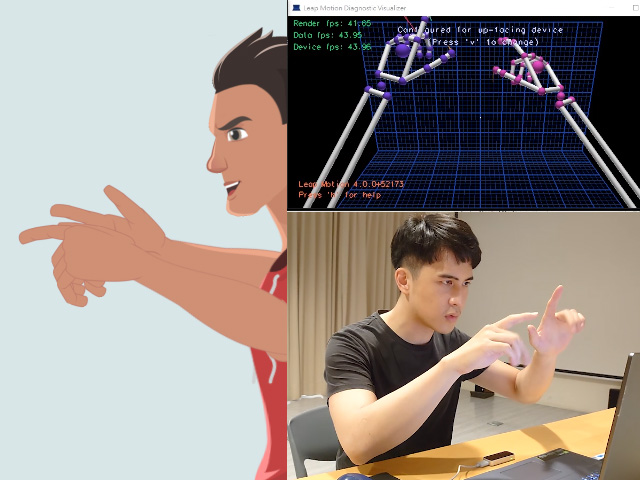
Finally follow the Hand Mocap Workflow to track hand gestures.
-
After the full body animation is completed,
modify the layering results on their separate timeline tracks for post production.
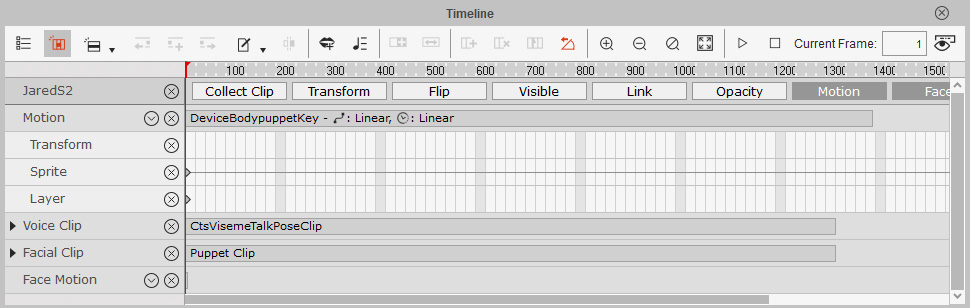
- Facial Mocap data is stored in the Facial Clip track.
Refer to the Creating Facial Animation and Motion Clip section for more details. - Body Mocap data is mainly stored in the Motion track,
with the head rotation data stored in the Head sub-track under the Facial Clip track,
and the hand flipping data stored in the Hand Facing tracks.
Refer to the Blending Mocap Motions section for more details. - Hand Mocap data is mainly stored in the Motion track,
with the hand flipping data stored in the Hand Facing tracks.
Refer to the Modifying Motion Captured Hand Gestures section to edit or switch the hand gestures.
- Facial Mocap data is stored in the Facial Clip track.
