Quick Guide
The following workflow demonstrates how to convert a static external model into an animatable CC5 HD character while preserving its original body shape.
- Import a biped model in iProp, FBX, or OBJ format.
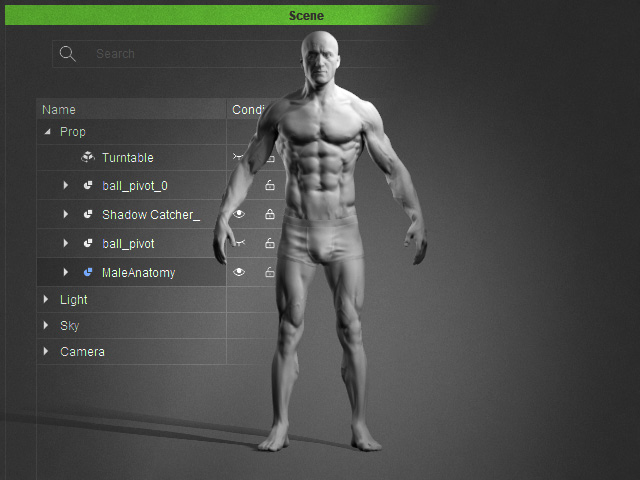
- iProp: Supports props composed of a single mesh or multiple meshes.
- FBX: Supports both skinned and non-skinned models.
- OBJ: Supports static mesh models.
- Please note that the models may be imported from external sources or generated using AI Mesh Generator (iProp, FBX).
- See Preparing Models for Body Wrap section for details.
- Open the Body Wrap panel and select a point mapping method, select either one of the methods and click the OK button:
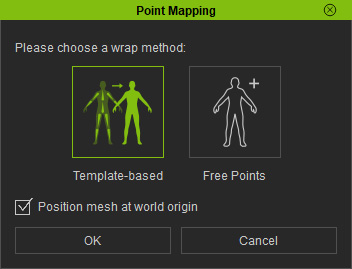
- Template-based: Starts from the DETECT JOINTS step with predefined guide points. You can reposition the guide points to match the imported model and generate its skeleton.
System then determines where alignment points are created accordingly in the next ALIGN POINTS step.
Rays extend outward from each bone and intersect the mesh surface to generate alignment points around the model (typically four per bone for Torso and limbs, three per bone for shoulders). - Free Points: Skips joint detection and starts directly from ALIGN POINTS, allowing you to manually define the alignment points without using guide points or a generated skeleton. skip to step 5 if you choose this template.
- Position Mesh at World Origin: Relocates the mesh to the world origin to ensure the character's center is aligned with the world origin, allowing the system to correctly wrap the character.
 Note:
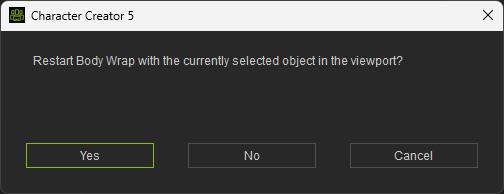
Note:If you have previously used the Body Wrap feature, selecting another source mesh and launching Body Wrap will prompt you to choose whether to restart the panel with the currently selected source mesh model or the previous one.
- Template-based: Starts from the DETECT JOINTS step with predefined guide points. You can reposition the guide points to match the imported model and generate its skeleton.
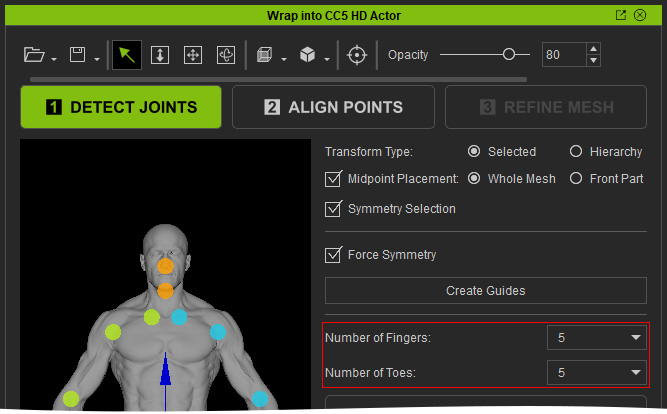
- In the DETECT JOINTS step, reposition the guide points to match the corresponding joints of the imported model. Use the reference diagram in the lower-right corner as a guide.
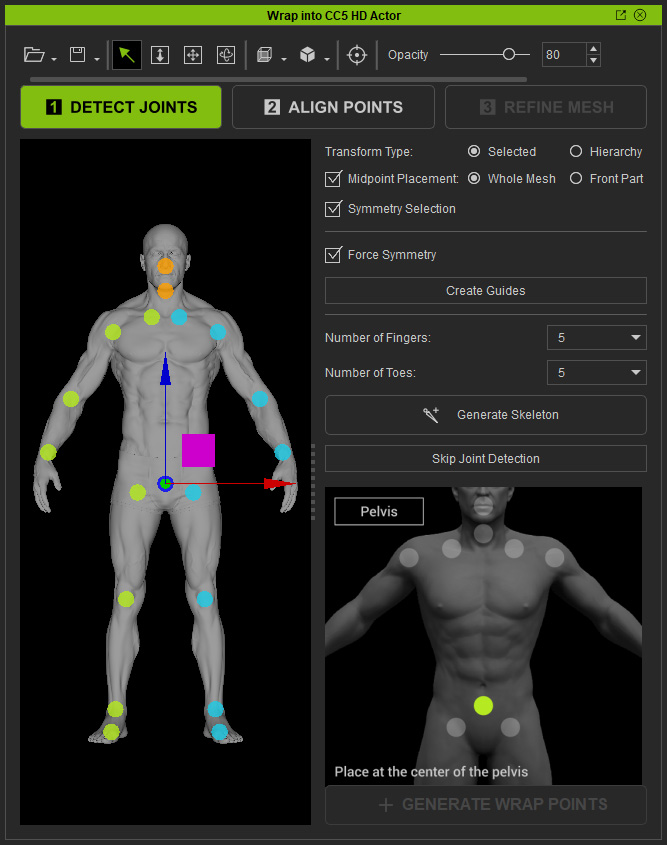
- Set the numbers of fingers and toes.
- Click Generate Skeleton to generate a skeleton based on the guide points.
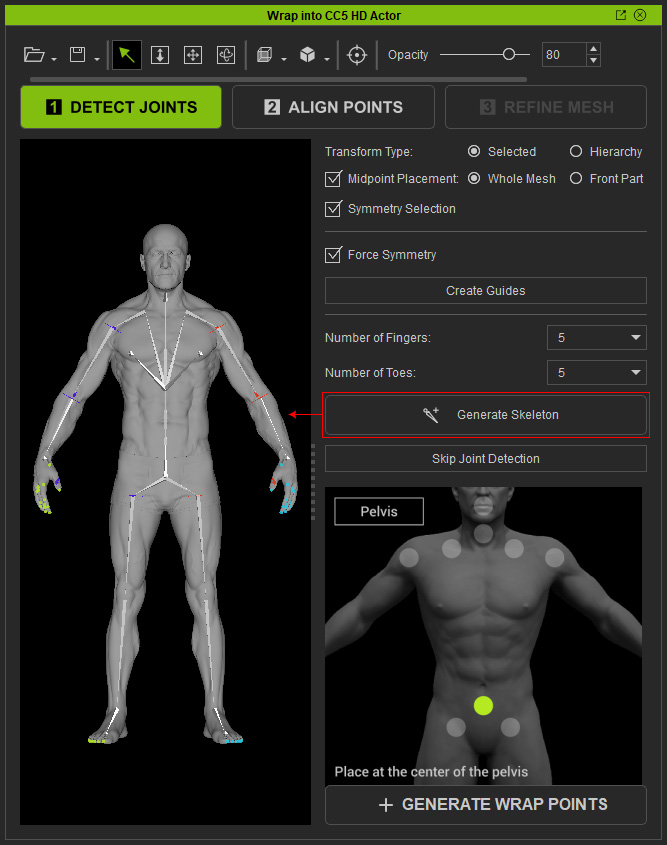
- You can optionally adjust the position of each bone at this point to generate the Align Points based on the bones.
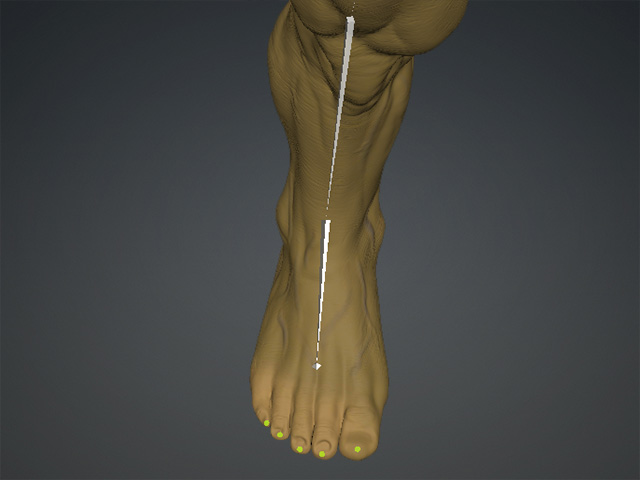
- Adjust the position of the finger and toes Guide Points.
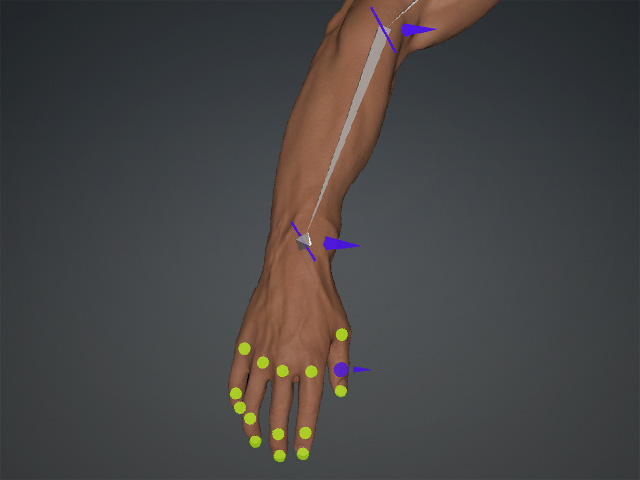
Fingers
Toes
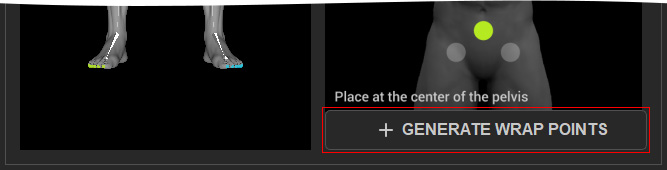
- Click GENERATE WRAP POINTS to proceed to ALIGN POINTS step.
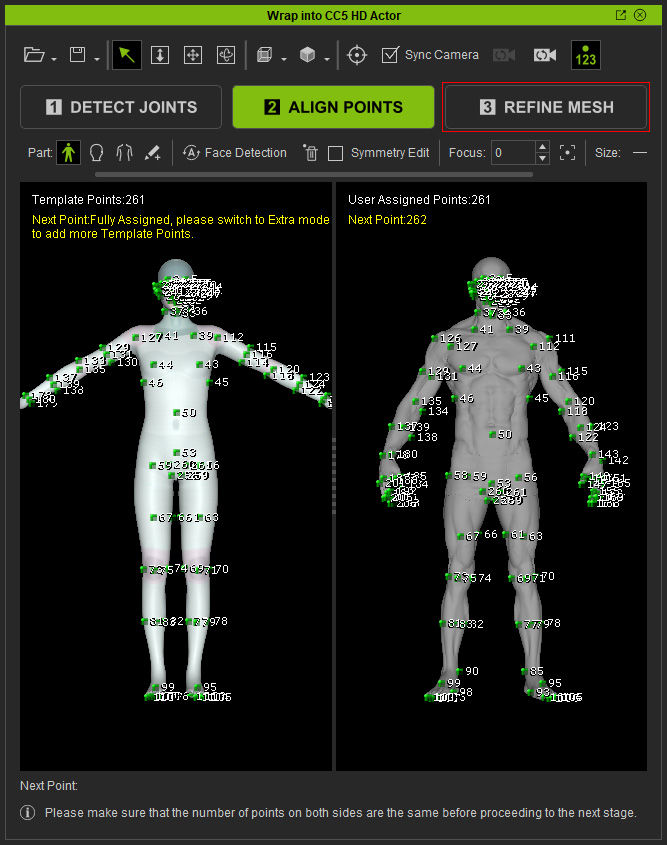
- In ALIGN POINTS, the left viewport displays the CC5 HD Neutral Character, while the right viewport displays the imported human model.
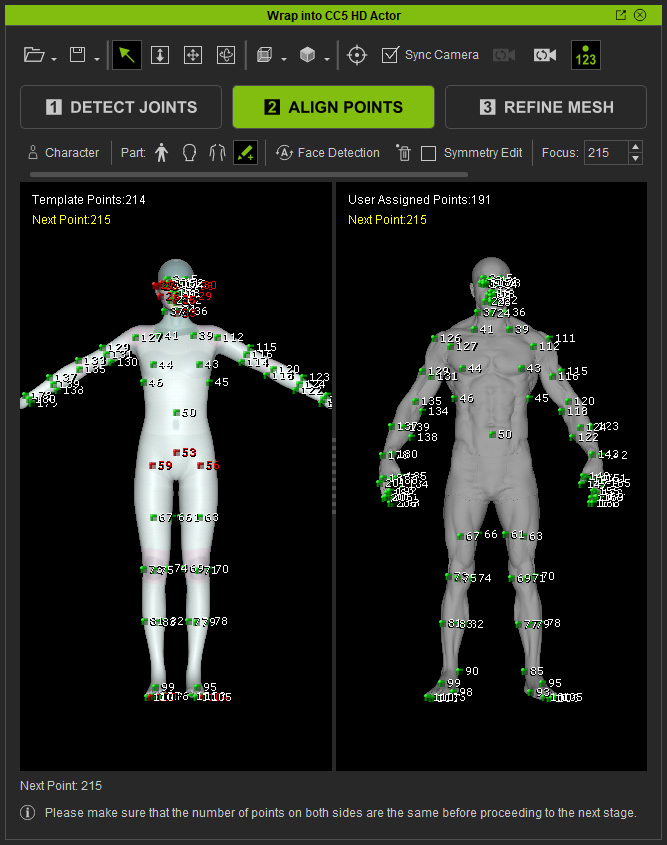
- Match the Align Points on both models according to their corresponding numbers and positions.
- Move the Align Points with green numbers in both the left and right viewports to their corresponding ideal positions. The system usually aligns them automatically, but you can still adjust them manually.
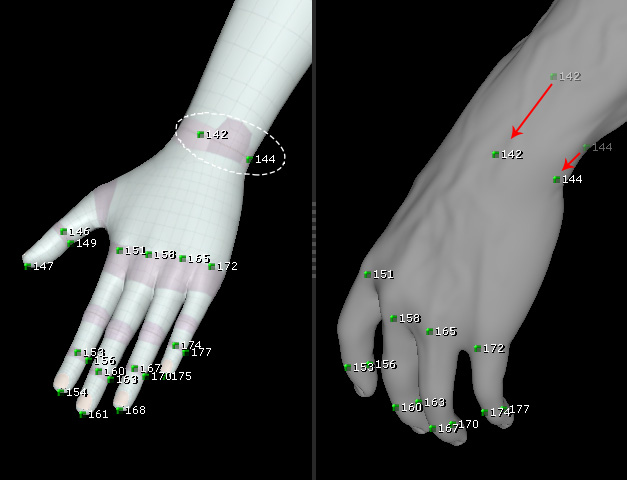
- If either the left or right viewport contains an Align Point with a red number, it means that the corresponding Align Point is missing from the other viewport.
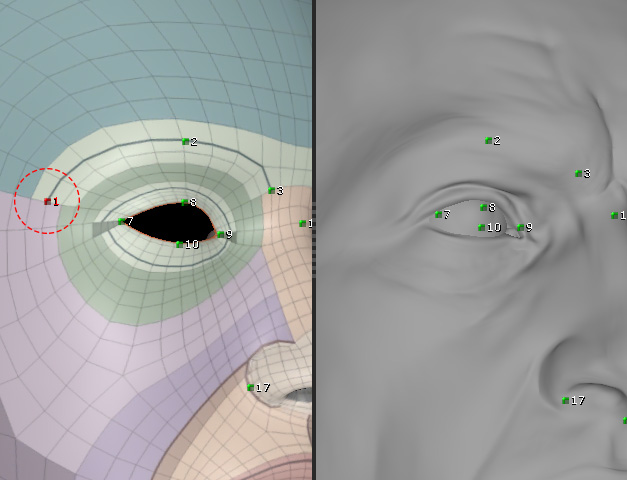
First, switch to Head or Body Part mode.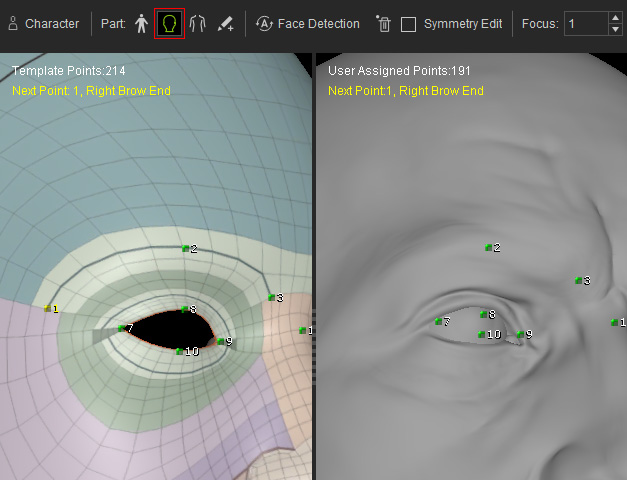
Click on the other viewport to add the missing Align Point (Ctrl + Click on the point to remove the point). Then move it to the corresponding ideal position.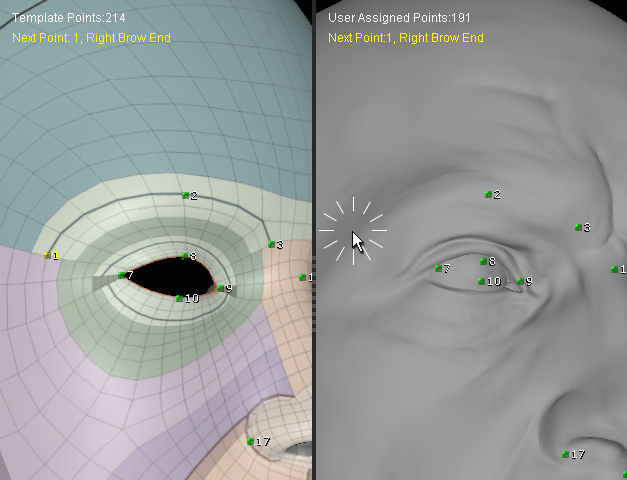
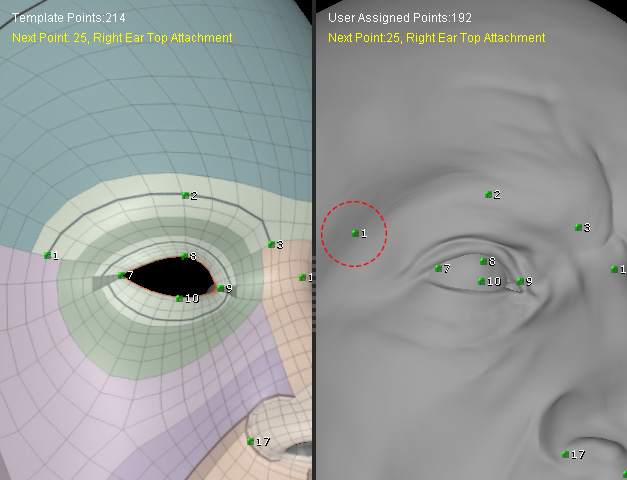
Before
After
- Move the Align Points with green numbers in both the left and right viewports to their corresponding ideal positions. The system usually aligns them automatically, but you can still adjust them manually.
- You can also add more Align Points in Extra mode (in both the left and right viewports) to help the Body Wrap function wrap the details more accurately.
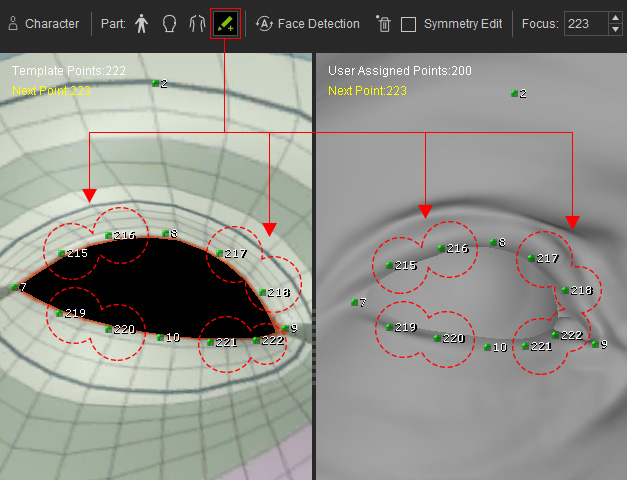
- When the alignment is complete (face and body), click the REFINE MESH tab to proceed to the next step.
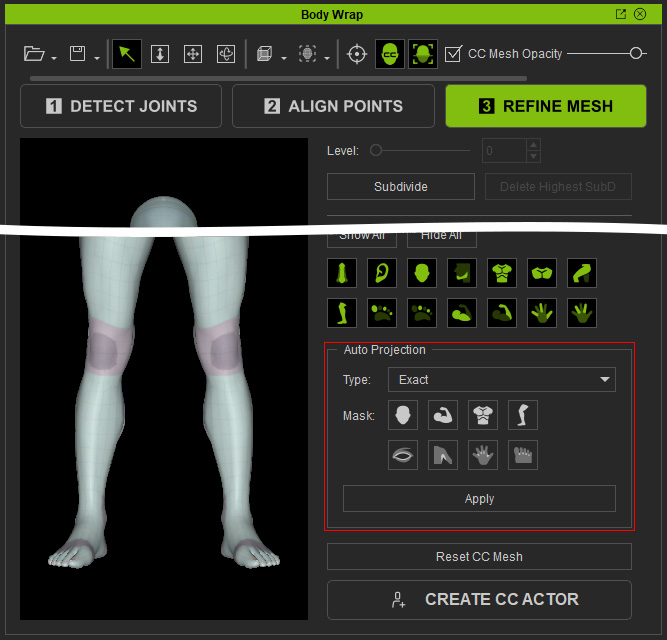
- In REFINE MESH, use the Auto Projection tool in the lower-right corner to automatically conform the CC5 HD character's surface to the imported model.
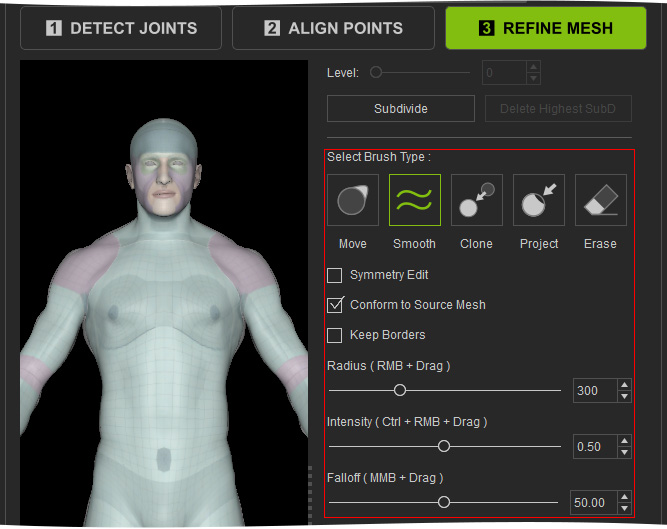
- If some areas are not aligned accurately enough, use the available brush tools on the right side of the panel to manually refine the surface and match the details of the imported model.
 Note:
Note:If the imported model contains a high level of surface detail, consider setting the Subdivision Level to 2 to preserve more surface detail during refinement.
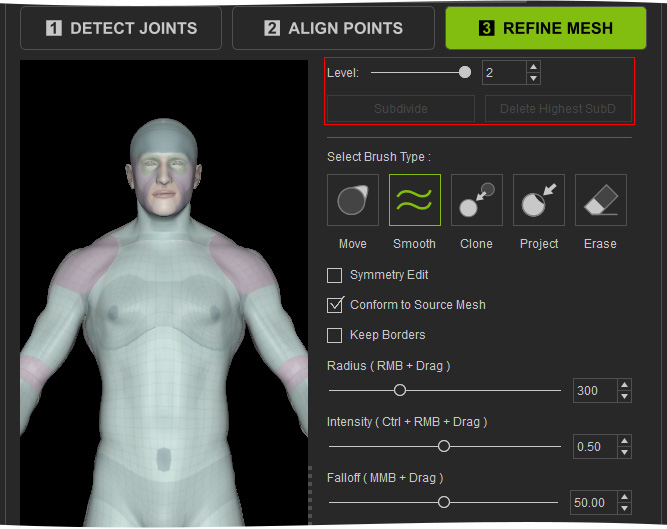
Different Subdivision Levels display different levels of surface detail.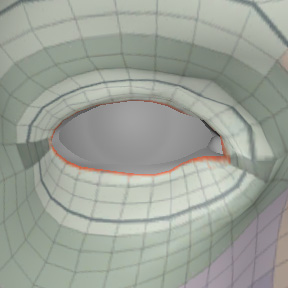
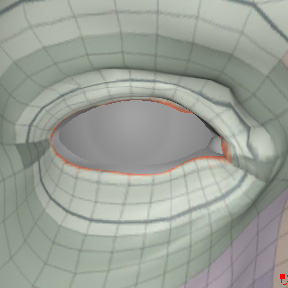
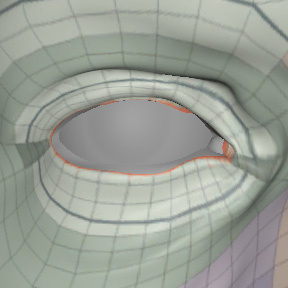
Subdivision Level = 0
Subdivision Level = 1
Subdivision Level = 2
- If the wrapping result is not perfectly aligned in Refine Mesh, return to step 9 to align the CC5 HD topology guides with body features such as nasolabial folds and under-breast contours before using the Brush tools.
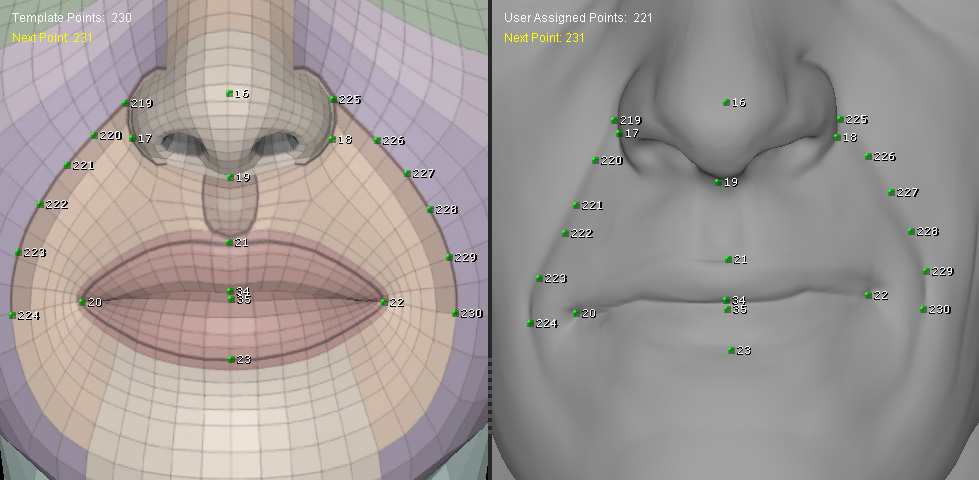
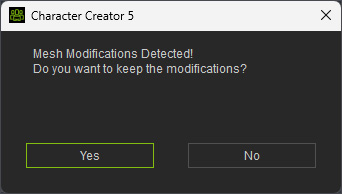
- You can switch between Align Points and Refine Mesh as needed. When returning to Refine Mesh, click Yes to keep previous Brush edits, or No to discard them.
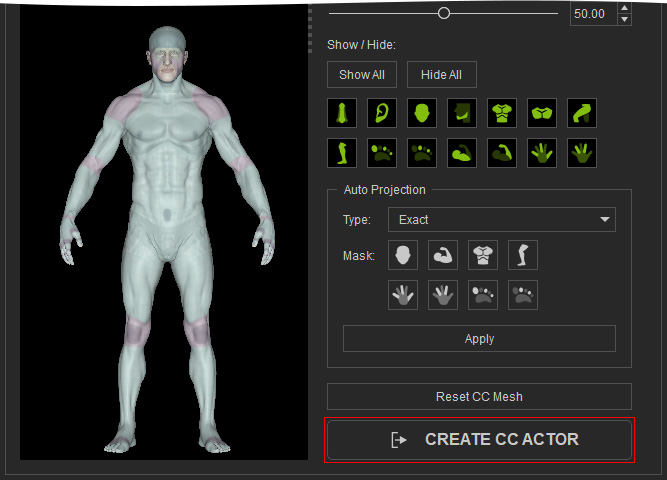
- When the surface refinement is complete, click Create CC Actor to generate a CC5 HD character that matches the appearance and shape of the imported model.
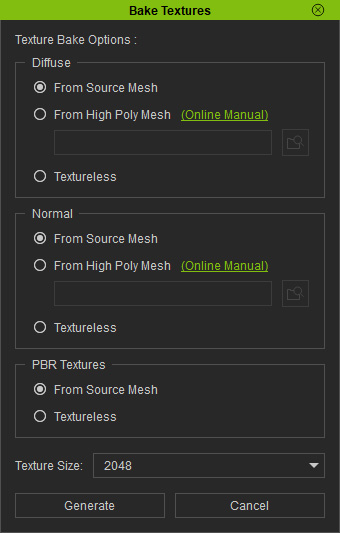
- In the Bake Textures panel, configure the texture settings, then click the Generate button.
The resulting character can then use the features and capabilities available to standard CC5 characters.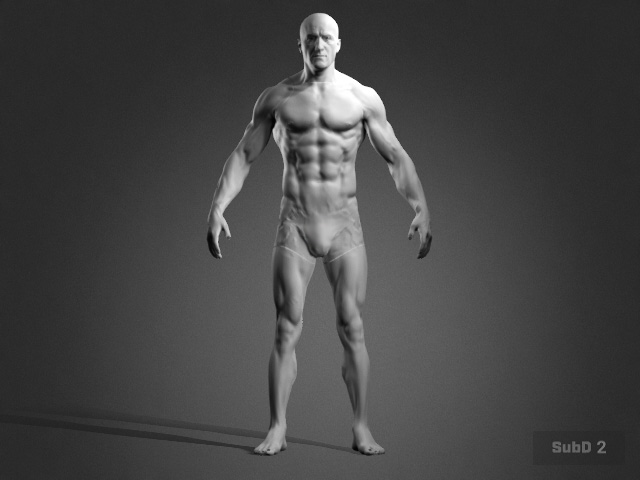
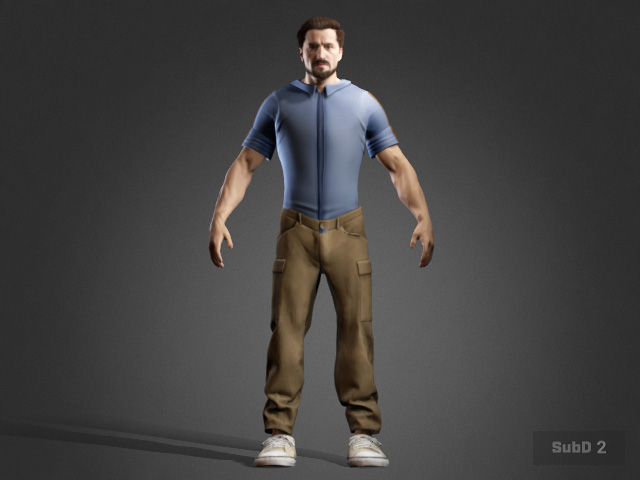
A CC Actor created by Body Wrap
Apply SkinGen, Clothing, and Smart Hair templates
