Animation Triggers - Keywords Trigger
The Keywords Trigger node triggers animation when specific keywords appear in scripted text or LLM-generated text, which is processed into a .wav file by TTS (Text-to-Speech).
Create the node by right-clicking on the empty area of the Speech Graph, and selecting Driver > Driver Node > Keywords > Keywords Trigger.
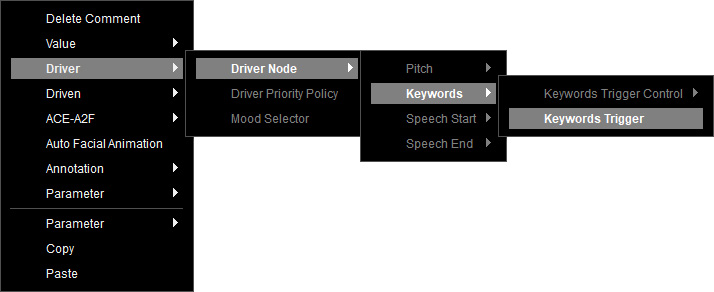
The Keywords Trigger node is created.
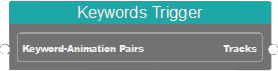
Before connecting it to the Speech Root, the following sub-nodes are necessary for the node to function properly.
- Keyword-Animation Pairs node for deciding the keywords-driven animation results.
- Keywords Policy node for the linking and priority setting of Keywords Groups.
- Keywords Group node acts as a dictionary for detecting keywords.
Keyword-Animation Pairs
Right-click on the empty area of the Speech Graph, and select Driver > Driver Node > Keywords > Keywords Trigger Control > Keyword-Animation Pairs to show the available driven animations in the node.
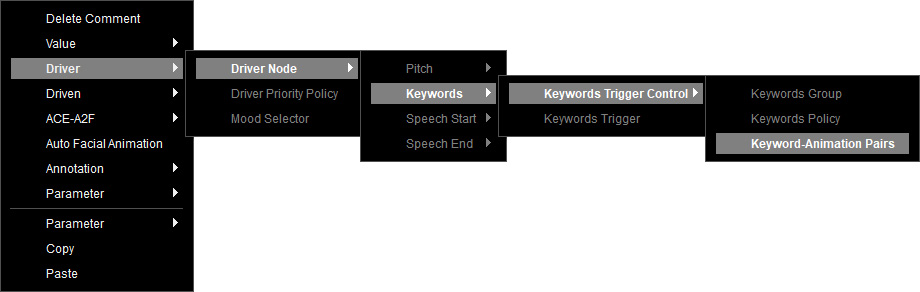
The Keyword-Animation Pairs node is created for the following controls:
- Creating a Keywords Policy for keyword usage.
- Connection with driven animation sources, including the head, brow, blink, saccade, and clip animations.
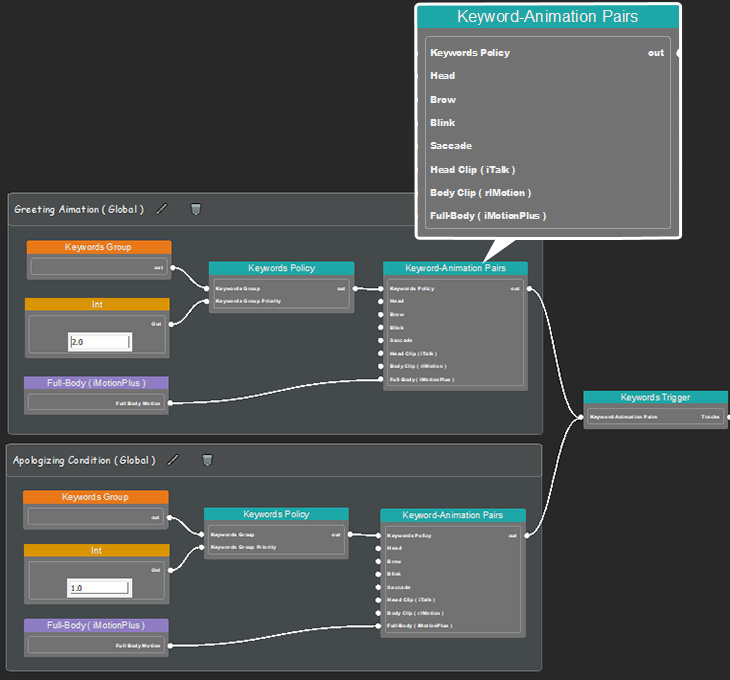
Keywords Policy
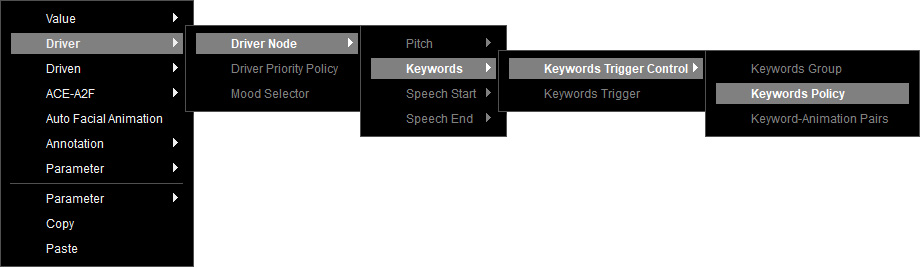
Right-click on the empty area of the Speech Graph, and select Driver > Driver Node > Keywords > Keywords Trigger Control > Keywords Policy.
The Keywords Policy node is created for keyword controls.
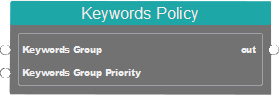
- Keywords Group: The collection of keywords.
- Keywords Group Priority: The priority order of Keywords Groups.
Keywords Group
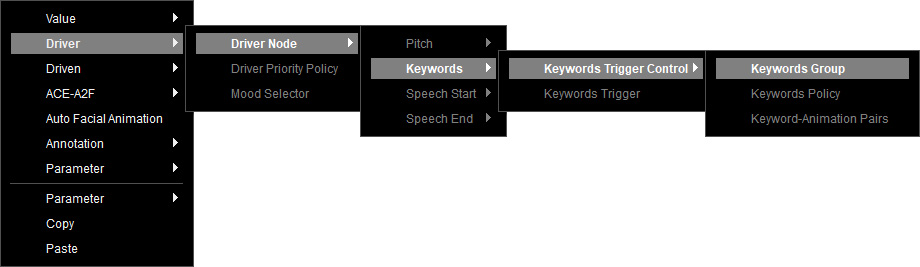
Create a dictionary to collect your keywords by right-clicking on the empty area of the Speech Graph, and selecting Driver > Driver Node > Keywords > Keywords Trigger Control > Keywords Group.
The Keywords Group node is created.
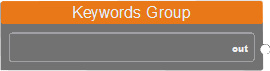
Select this node to manage your keywords in the Parameters section.
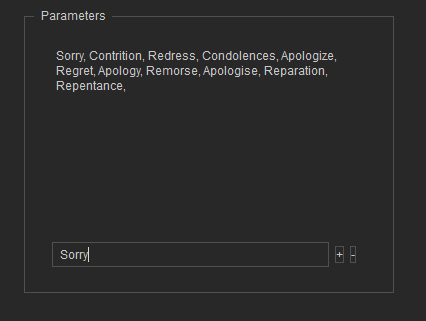
Type keywords in the text field, and click the + or - button on the side to add or delete keywords.
Keywords Group Priority
When there are multiple Keywords Groups in the Speech Graph, determines their priority order from value input of the Int node.
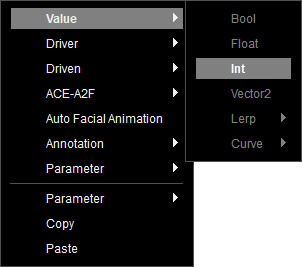
To create a Int node, right-click on the empty area of the graph, and select Value > Int from the context menu.
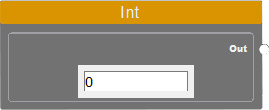
Set a integer value.
The smaller the number, 1 for example, the higher the precedence is.
Upon execution, the configured value will be transmitted to a connected node.
Driven Animation
Refer to the following sections for more information on each driven animation node.
- Saccade: Contains parameters to control Saccade animation.
- Blink: Contains parameters to control Blink animation.
- Brow: Contains parameters to control Brow animation.
- Head: Contains parameters to control Head animation.
- Clip Animation:
- Head Clip: Contains facial animation clips (.iTalk).
- Body Clip: Contains body animation clips (.rlMotion).
- Full-Body: Contains combined face & body animation clips (.iMotionPlus).
Make sure the data is properly set for the driven nodes and insert additional nodes for the following situations (before linking the Keywords Trigger node to the Speech Root).
- When multiple drivers exist, link all the drivers to a Driver Priority Policy node for priority setting.
- If the character responses require mood analysis based on text content for mood-driven animation, use a Mood Selector to connect between the driver node and Speech Root.
