Facial Mocap User Interface 
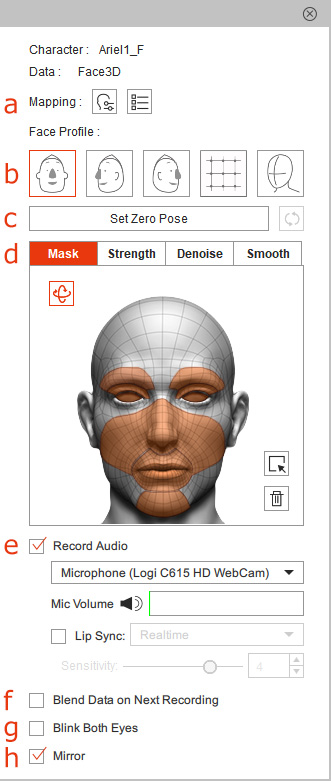
You can adjust the settings within the panel or record masked/non-masked data stream from motion-tracking devices.
 a. Detail Setting Tools
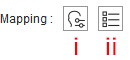
- Expression Mapping Panel: Click to show more than 70 morph profiles in the form of sliders for you to customize the results of the facial mocap.
- Tracking Data Inspector: Click to use the inspector to observe the Face ID stream from Face3D Tracker or LIVE FACE for further adjustments.
b. Face Profile

Click on the profiles to change the preset facial mapping settings.
c. Zero Pose Settings
Click the Set Zero Pose button to toggle between the gear and custom initial pose in Preview or Record mode.
When Set Zero Pose is activated, you can click the Reset Zero Pose  button to resume to the original face pose received from the gear.
 |  |
Set Zero Pose is deactivated. | Set Zero Pose is activated. |
The Zero Pose settings work for the current character only, and therefore you may have to configure the Zero Pose settings for each character on the Character List.
d. Mask, Strength, Denoise and Smooth Tabs
- Use the Mask pane to record the facial expression stream data.
- The Strength tab switches the pane to show sliders for setting movement strength for different facial features.
- The Denoise tab (default: deactivated) switches the pane to show the sliders for denoising various facial features.
- The Smooth tab (default: deactivated) switches the pane to show sliders for smoothing different facial parts.
e. Audio Recording
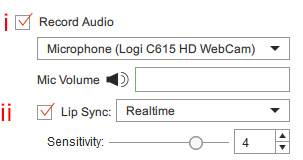
- Record Audio:
Activate the checkbox and pick the camera that supports recording audio from the drop-down list to voice-capture while making the expressions.
You may raise or lower the microphone volume according to the Mic volume detector.



No sound is detected, or the voice is too quiet.
The voice volume is within appropriate range.
The voice is too loud.
- Lip Sync:
When Record Audio is enabled, activate the checkbox to control the character's lip shapes by the voice input.
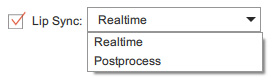
From the drop-down list, you can choose either the Real-time or Post-process method.- Real-time: The new simplified lip-sync solution to create lip shapes and users are able to control the Sensitivity of the lip shapes changing speed in real-time.
- Post-process: The traditional audio lip-sync method to generate more precise lip shapes and users are able to do further editing for post production.
f. Blend Data on Next Recording
Activate the Blend Data on Next Recording checkbox to record the facial expression stream data in multi-layered manner.
g. Blink Both Eyes
Activate this checkbox to close both eyes when either eye is closed.
h. Mirror
Mocap and record the facial expressions in a mirror mode.
