Right-Click Menu (New for v1.2)
Right-click context menus with different executable commands are available for selected packs and items.
Right-click Menu for Installed Packs
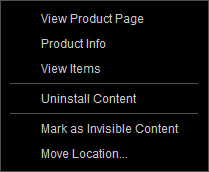
- View Product page: Choose this command to show the pack's store website.
- Product Info: Choose this command to show the product information panel.
- View Items: Choose this command to show the items included in the currently selected pack.
- Install / Uninstall Content: Choose this command to install or uninstall the pack.
- Mark as Invisible Content: Choose this command to set the pack invisible.
- Move Location...: Choose this command to relocate the pack to a specified folder.
Right-click Menu for Items in Installed Packs
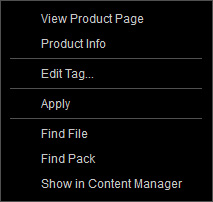
- View Product page: Choose this command to show the web page of the pack including the currently selected item.
- Product Info: Choose this command to show the product information panel.
- Edit Tag (multiple items supported): Choose this command to launch the tag page of the product information panel to append tag for the currently selected items.
- Apply: Choose this command to apply the currently selected item.
- Find File: Choose this command to display the currently selected item with your system file browser.
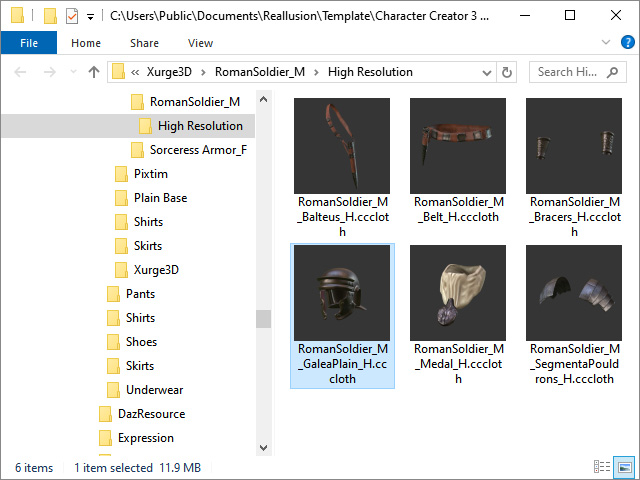
- Find Pack: Choose this command to find the pack that includes the currently select item.
- Show in Content Manager: Choose this command to find the content location in the Content Manager.
Right-click Menu for Items in "Single Item" Category
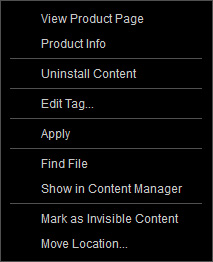
- View Product page: Choose this command to show the web page of the pack including the currently selected item.
- Product Info: Choose this command to show the product information panel.
- Install / Uninstall Content: Choose this command to install or uninstall a single item.
- Edit Tag... (multiple items supported): Choose this command to launch the tag page of the product information panel to append tag for the currently selected items.
- Apply: Choose this command to apply the currently selected item.
- Find File: Choose this command to display the currently selected item with your system file browser.
- Show in Content Manager: Choose this command to find the content location in the Content Manager.
- Mark as Invisible Content: Choose this command to set a single item invisible.
- Move Location...: Choose this command to move the item to a specified folder.
Right-click Menu for Custom Packs
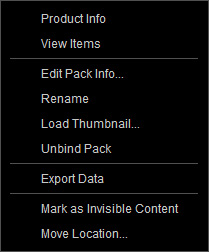
- Product Info: Choose this command to show the product information panel.
- View Items: Choose this command to show the items included in the currently selected pack.
- Edit Pack Info...: Choose this command to edit the information of a custom pack.
- Rename: Choose this command to rename a custom pack.
- Load Thumbnail...: Choose this command to load an image as the thumbnail of a custom pack.
- Unbind Pack: Choose this command to remove a custom pack. The items in the pack will be moved to the default custom pack.
- Export Data: Choose this command to export the Metadata with / without the assets in the pack.
- Mark as Invisible Content: Choose this command to set a single item invisible.
- Move Location...: Choose this command to move the pack to a specified folder.
Right-click Menu for Items in Custom Packs
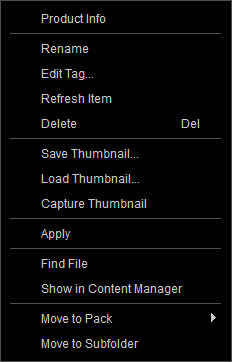
- Product Info: Choose this command to show the product information panel.
- Rename: Choose this command to rename the selected item.
- Edit Tag... (multiple items supported): Choose this command to launch the tag page of the product information panel to append tag for the currently selected items.
- Refresh Item: Refresh the status of the selected item on the local database.
- Delete: Choose this command to delete an item from the pack.
- Save Thumbnail...: Choose this command to save the current thumbnail of the pack as an image.
- Load Thumbnail...: Choose this command to import an image as the thumbnail for the pack.
- Capture Thumbnail: Choose this command to capture a thumbnail of the current item in the viewport.
- Apply: Choose this command to apply the currently selected item.
- Find File: Choose this command to display the currently selected item with your system file browser.
- Show in Content Manager: Choose this command to find the content location in the Content Manager.
- Move to Pack: Choose this command to move the item into another custom pack.
- Move to Subfolder: Choose this command to move the item into a subfolder in the same pack.
