Managing Tasks
You can start to manage the Video Mocap tasks after importing your video clips into the Task Queue of the Video Mocap panel.
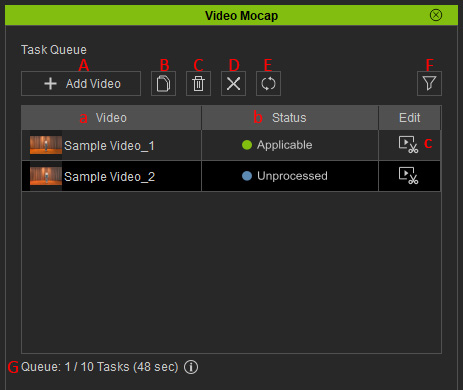
Task Queue
- Task Editing
- + Add Video: Browses to a destination folder for target videos. You can import multiple ones into the panel at once.
- Duplicate Task(s): Duplicates selected task(s).
- Delete Task(s): Removes selected tasks from the task list.
- Motion Generation
- Cancel Waiting Task(s): Cancels motion generation for the selected tasks. Available only for tasks in the "Waiting", "Uploading", or "Preparing" status.
- Retry All Errors: Restarts the motion generation process for tasks with Error status.
- Filter: Only display tasks of a specific status.
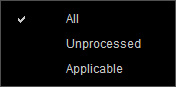
- All: Displays all tasks in the list.
- Unprocessed: Displays tasks that hasn't been processed for motion generation.
- Applicable: Displays tasks that have successfully generated a motion.
- Queue: Displays the total seconds of the selected tasks queued for motion generation. To reduce wait times, up to 10 videos can be processed at once. After completion, another batch may be submitted.
Task List
- Video: Displays the imported video thumbnails and names. You can hover over the thumbnail to enlarge the image. There are 2 sample videos embedded by default.
- Status: Indicates the task status.
- Edit / Preview Video: Launches the Edit Video panel to preview the imported video, trim the clip, and configure motion capture settings for the selected task.
Right-click Context Menu
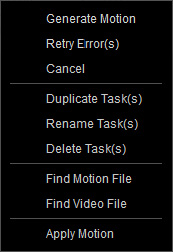
- Motion Generation
- Generate Motion (multiple tasks allowed): Payment confirmation and starts the motion generation process for queued tasks. Available only when there is selected tasks with "Trimmed" or "Unprocessed" status.
- Retry Error(s) (multiple tasks allowed): Restarts the motion generation process for the selected tasks. Available only when there is selected tasks with the "Error" status.
- Cancel (multiple tasks allowed): Cancels motion generation for the selected tasks. Available only for tasks in the "Waiting", "Uploading", or "Preparing" status.
- Task Editing
- Duplicate Task(s) (multiple tasks allowed): Duplicates the selected tasks.
- Rename Task(s) (multiple tasks allowed): Rename the selected tasks.
- Delete Task(s) (multiple tasks allowed): Removes the selected tasks from the queue list.
- Content Management
- Find Motion File: Locate the converted rlMotion in the preset motion path. The default storage path is set to the custom VideoMocap library folder under the Animation > Motion category in Content Manager.
- Find Video File: Locate the source video file in the custom VideoMocap library folder under the Media > Video category in Content Manager.
- Motion Application
- Apply Motion: Applies the generated motion to the selected character in the scene. Available only when there is a selected task with the "Applicable" status.
Shortcut
|
Commands |
Shortcuts |
Description |
|
Rename Task(s) |
F2 |
Renames a selected task. |
|
Delete Task(s) |
Del |
Deletes a selected task. |
|
Traverse Tasks |
Up / Down |
Traverse the task list. |
|
Select All Tasks |
Ctrl + A |
Selects all tasks in the list. |
