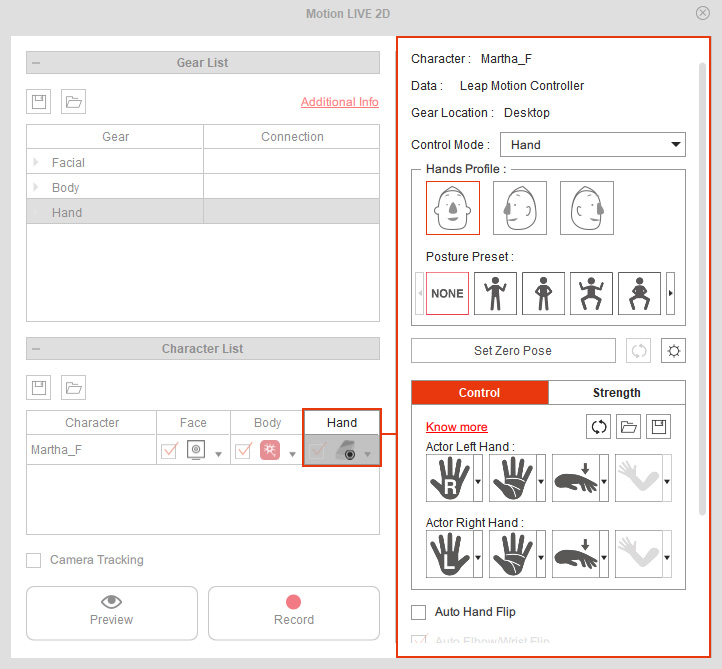
User Interface Introduction
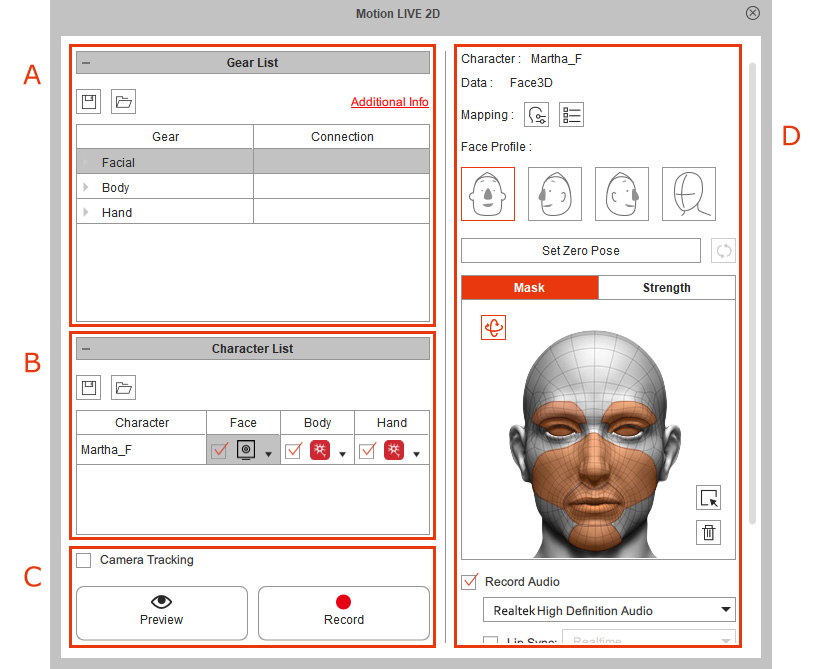
 A. Gear List
* Notice that you must install the gear profiles before the gears can be shown in the list.
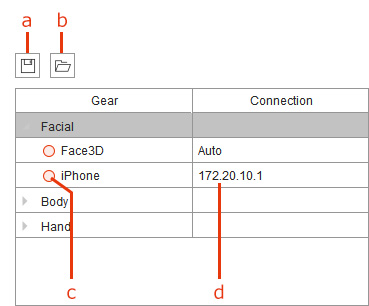
- Save Gear List: Save the settings in the list as a file (*.json).
- Load Gear List: Load the saved Json file. Please refer to the Saving and Loading Gear List section for more information.
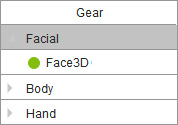
- Gear Status: This circle shows the connection status between the gear and Motion LIVE 2D.
When the gear is successfully connected to the panel, it shows a green circle. If it shows a hollow circle, then the connection is either broken or not yet established.
You can click on the hollow circle to try to re-connect to the gear.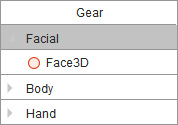
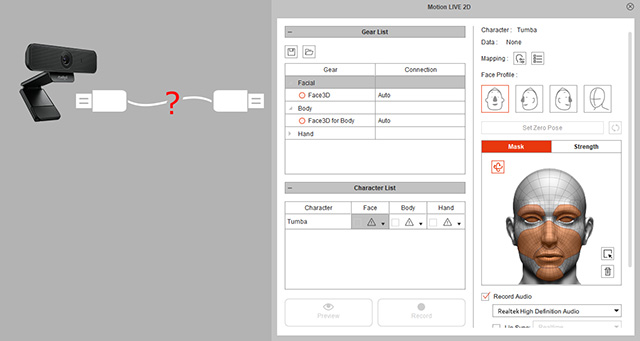
The Face3D gear is Not connected.
The Face3D gear is connected.
- Connection: If the gear is installed on another computer within your intranet, type in the IP address where the gear software is installed in this field.
B. Character List
Supported Characters
The available Cartoon Animator characters for motion capture are as shown in the table below:
Character Types | ||||
G3 360 / G3 Human | V | V | V | V |
G3 360 / G3 Animals | V | V | X | X |
G3 360 / G3 Spine | V | V | X | X |
G3 360 / G3 Wings | V | V | X | X |
G3 360 / G3 Free Bone | V | X | X | X |
G2+ | V | X | X | X |
G2 | V | X | X | X |
G1 | V | X | X | X |
Morph Head | V | X | X | X |
Currently, Motion LIVE 2D supports one selected character to be displayed in the Character List only, no matter how many characters shown on the viewport of Cartoon Animator.
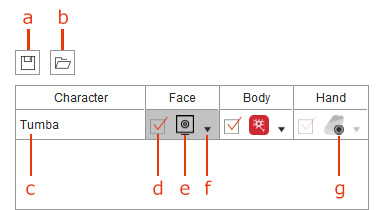
- Save Character Settings: Save the settings in the list and its corresponding character settings at the right (Section E) as a file (*.json).
- Load Character Settings: Load the saved Json file. Please refer to the Saving and Loading character Settings section for more information.
- The selected target character for receiving motion-captured data.
- The checkboxes in the Face, Body and Hand columns are used to temporarily mask out the data from the motion-captured devices.
- The selected gear profile for capturing your facial motions. Click the gear icon to switch to the user interface of the face or body mode.
- Click the drop-down button to determine from which devices you want the character to receive the motion-captured data.
- When the gear devices are offline or not connected successfully to the character, the icon will show a hollow circle on it. Check out the connection to make sure every setting is correctly adjusted.
C. Preview / Record
Click the Preview button or Record button and follow the instructions to start preview or record mode.
You can activate the Camera Tracking checkbox to ensure your character stays in the center of the screen, so that you can preview the captured motions even when the character moves outside the camera's field of view. Please refer to the Capturing Body Motions with Camera Tracking section for more information.
D. Mocap Settings
Use the panel and the checkboxes to do further settings or record the masked or non-masked stream data transferred from the motion-captured devices.
Please click the space area in the cells of the Face, Body or Hand column in the Character List to toggle this panel to different modes.
- Face Mode
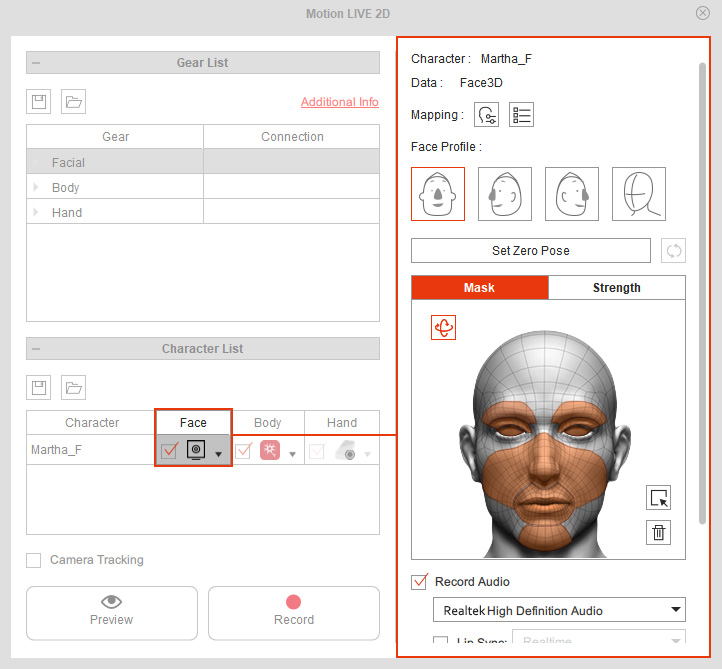
- Body Mode
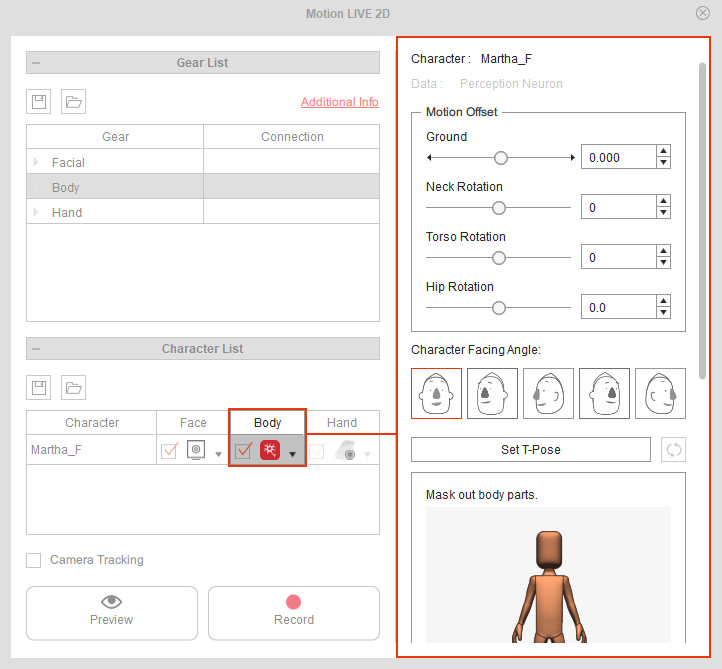
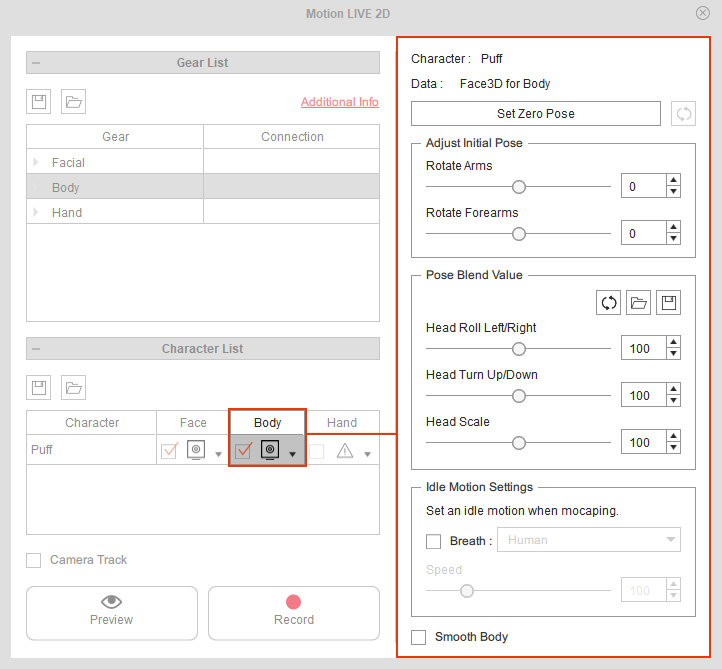
- Head Driven Body Mode (when purely using a webcam or iPhone)
- Hand Mode: