Body Mocap User Interface
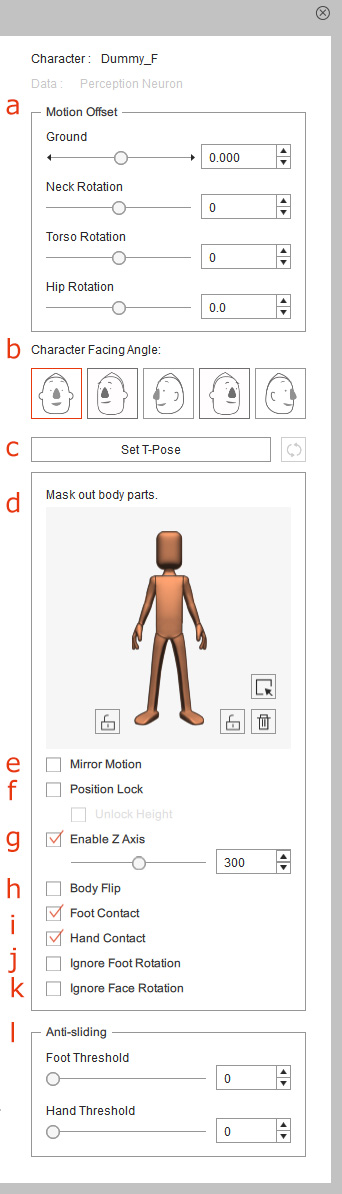
 a. Motion Offset
Use the Motion Offset sliders to adjust the ground height or rotate the neck, torso or hip of the character to match the personality of the character. Please refer to the Adjusting Body Height and Posture section for more information.
b. Character Facing Angle
Click to assign an appropriate Character Facing Angle according to the character's facing angle.
* If you are using the iClone Motion Link profile for controlling the character's body,
directly determine the Projection Angle for the character in Motion Link Plug-in.
c. T-Pose Settings
Click the Set T-Pose button to toggle between the gear and custom initial pose in the Preview or Record mode.
When Set T-Pose is activated, you can click the Reset  button to resume to the original body pose received from the gear.
 |  |
Set T-Pose is deactivated. | Set T-Pose is activated. |
The T-Pose settings work for the current character only, and therefore you may have to configure the T-Pose settings for each character on the Character List.
d. Mask Pane
Use the dummy to filter out the motion of the body parts you do not wish to capture. Please refer to the Creating Body Animation and Motion Clip section for more information.
e. Mirror Motion
Activate this checkbox to mocap characters in a mirrored manner. Please refer to the Capturing Body Moitons with Mirror Mode section for more information.
f. Position Lock
Use these two checkboxes to determine if you want to keep the character in place while you control it with mocap device. Please refer to the Locking the Hip Position section for more information.
g. Enable Z Axis
This checkbox is activated by default so that the character can be animated with Z depth during the body mocap. You can drag the slider to increase or decrease the moving strength of the Z axis. Please refer to the Enabling Z Axis section for more information.
h. Body Flip
Activate this checkbox if you wish the character flips automatically
while you control it with mocap device so that a 2D character can also be animated with an opposite facing angle.
Please refer to the Flipping Character to Another Side section for more information.
* If you are using the iClone Motion Link profile for controlling the character's body,
directly flip the character while sending motion to CTA with Motion Link Plug-in.
i. Floor Contact Settings
The Foot Contact and Hand Contact checkboxes are activated by default so that you can capture 2D character's ground motions, such as sitting on the floor, kneeling, or push-ups. You can also deactivate these two checkboxes for capturing special body motions, such as space walking or swimming.
j. Ignore Foot Rotation
Activate or deactivate this checkbox to allow or avoid the foot rotation on ankle and toes, in order to capture correct feet motions in different angles of the foot sprite. Please refer to the Ignoring Foot Rotation section for more information.
k. Ignore Face Rotation
When you capture facial and body motions at the same time, you can activate this checkbox to allow the webcam or iPhone to control the head turning movements during the body mocap.
l. Anti-sliding
Use these two sliders to remove the mocap data noise or fix the foot or hand sliding issues. Please refer to the Fixing Foot and Hand Sliding Issues section for more information.
