Steps Panel
At the left side of the AccuRIG tab is the Steps panel, which guides the creation and characterization of a model from the beginning in the course of several steps.
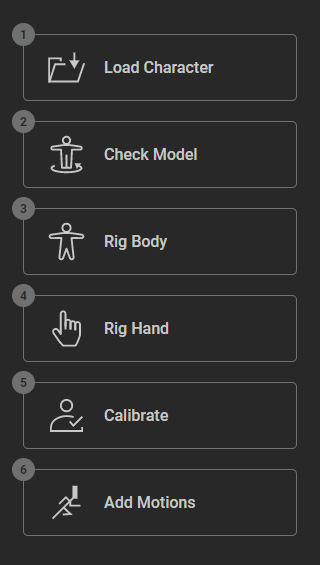
 Step 1. Load Character
- Click this step to start loading static model file in FBX or OBJ format.
- You can drag and drop your file into the input box, or click Choose File to load a file from the browser.
- Otherwise, click the Load Sample Character button to load a sample character to demonstrate the rigging process.
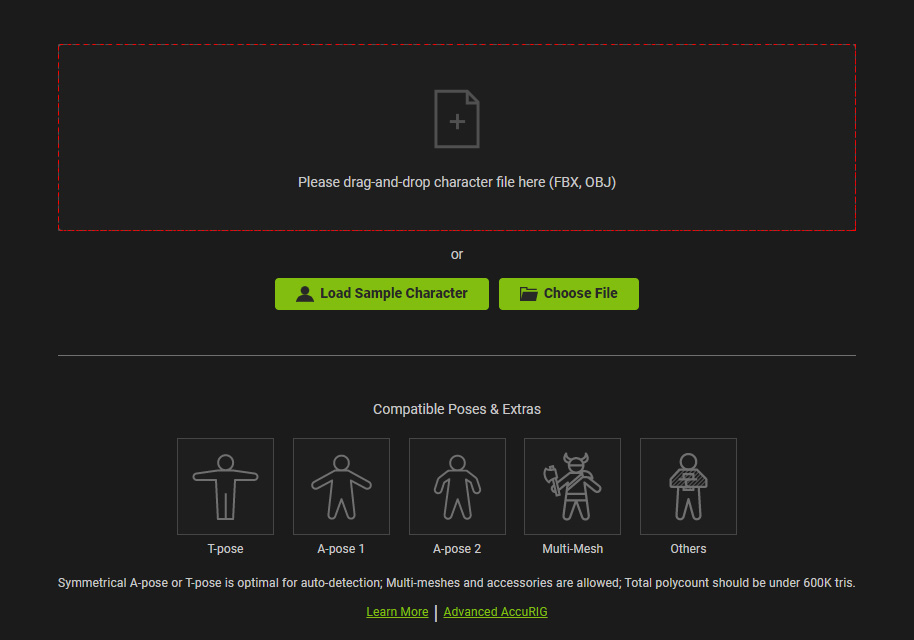
- Click Learn More to find the Reallusion courses for AccuRIG.
- Click Advanced AccuRIG to enhance your rigging with a trial of Character Creator. This will unlock more detailed binding options, such as distinguishing hard surfaces and optimizing skin weights. .
Step 2. Check Model
In this step, you can check the direction and the center line of the model.
- Direction: Due to the source 3D application with different coordination system, the imported model maybe in different orientation. You can adjust the direction of the model by 3 axis in 90 degrees.
- Center Line: The center line can be used to relocate the root of the model in case the model is not in the world center when it is exported from other 3D tools.
Step 3. Rig Body
- AccuRIG will automatically and properly distribute the reference joints to the model.
- You are free to drag the joints to be relocated to appropriate positions with Midpoint Placement feature.
- The unnecessary joints can be masked out in this step.
- Rotating the camera view is allowed if necessary.
Step 4. Rig Hand
- The number of the fingers can be set in this step.
- You can drag and set the finger joints to the proper position.
- Besides, you need to adjust the angle of the thumbs.
- Rotating the camera view is allowed if necessary.
Step 5. Calibrate
- When you access this step, AccuRIG will build bone structure based on the reference joints you placed in the previous two steps.
- You can apply different poses or motion to check out the movement result. Repeat the previous steps if necessary.
- You can also fine-tune the bone directions in this step.
- The characterized actor can thus be saved in iAvatar format (for iClone and Character Creator) or be uploaded to ActorCore and then share on social medias.
Step 6. Add Motions
- Deep search available motions from ActorCore libraries.
- Preview AcotorCore motions with the newly rigged character.
- Add the desired motions to your shopping cart on ActorCore.
- Export the rigged character for third-party applications.
