Toolbar
The toolbar contains quick-access buttons for switching between different camera views and lighting presets, accessing texture generation tools, and toggling various function panels.
General Toolbar
Use the General Toolbar to manage data transfer, control the camera, and switch lighting presets and display modes.

-
 Data Transfer

Button
Description
a
Keeps the layers and sends the asset to CC to create a master version that remains fully editable in FashionGen. File size may become large depending on the number of layers.
b
Flattens the layers and sends the asset to CC to generate a lightweight version optimized for character animation. Can be upscaled to increase texture resolution.
-
Editing Actions

Button
Description
c
Undo
Undoes the previous action.
d
Redo
Redoes the undone action.
-
Camera Manipulation
Button
Description
e
Zoom
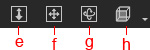
Dollies the camera.
f
Pan
Pans the camera.
g
Orbit
Rotates the camera.
h
Camera View
Switches the camera view to display the clothing from the front, right, left, or back angles.
-
Lighting Adjustment
Button
Description
i
Rotate Lighting
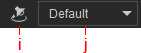
Pans the light around the clothing for detailed inspection of materials and textures.
j
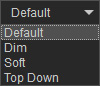
Switches between different lighting conditions (Default, Dim, Soft, and Top Down) to view the clothing under various lighting conditions.
-
Display Mode
Button
Description
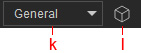
k
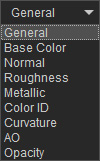
Switches between the 8 material channels (General, Base Color, Normal, Roughness, Metallic, Color ID, Curvature, and AO) in the viewport for detailed texture inspection.
l
Switches the viewport between 3D and 2D Views.
-
Stamp Tool

Button
Description
m
Opens the Stamp Tool for stamping custom images directly onto the clothing.
AI Gen Toolbar
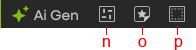
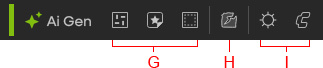
Use the AI Gen Toolbar to access AI generation tools for creating Pattern, Decal, and Detailing textures, generating aging effects, configuring the ComfyUI connection, and connecting to ComfyUI.
-
AI Aging Tool

Button
Description
q
Opens the AI Aging panel to generate realistic aging effects to textures.
-
ComfyUI Connection

Button
Description
r
Opens the Settings panel to install AI models, configure the connection with ComfyUI, and set the resolution for AI-generated textures.
s
Toggles the FashionGen connection with ComfyUI to enable or disable AI-based texture generation features.