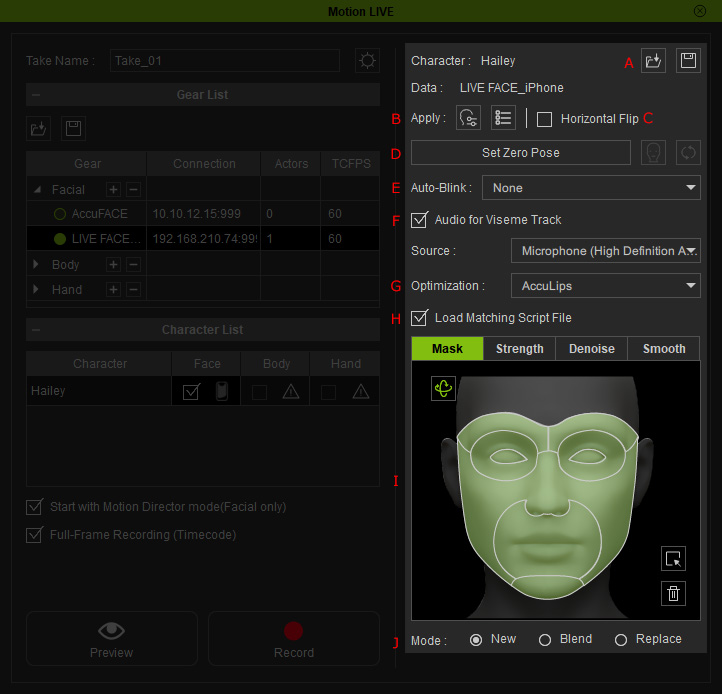
Face Mode Interface
|
|
UI Name |
Function |
||||
|
A |
Save / Load |
|
||||
|
B |
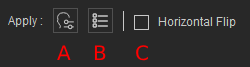
Apply |
|
||||
|
C |
If the character’s aligned visuals are confusing during recording, activate Horizontal Flip to have the character's facial expressions mirror yours. |
|||||
|
D |
Set Zero Pose |
Click the Set Zero Pose button to calibrate your neutral face position and expression, then click Set Neutral Orientation and Expression to
fine-tune your neutral facial pose.
Alternatively, you can click the Reset Zero Pose
The Zero Pose settings work for the current character only, and therefore you may have to configure the Zero Pose settings for each character on the Character List.
|
||||
|
E |
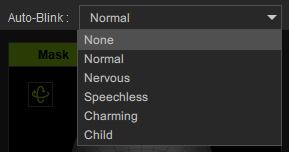
Auto-Blink |
Use this drop-down list to set the auto-blinking algorithm while performing the facial mocap. |
||||
|
F |
Audio for Viseme Track |
Activate the Record Audio for Viseme Track checkbox and pick the camera that supports recording audio from the drop-down list in order to voice capture while making the expressions. |
||||
|
G |
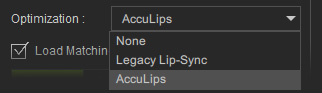
Optimization |
Select the preferred audio optimization method for your voice recording.
*Tongue movement is only available when AccuLips is selected. |
||||
|
H |
Load Matching Script File
|
Activating this function will allow Motion LIVE to utilize the corresponding text file (.txt) located in the same folder as your imported video to enhance your character's visemes. Note: For Motion LIVE to connect the imported video and the text file, they must have the same name. |
||||
|
I |
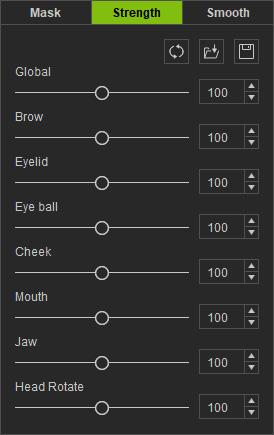
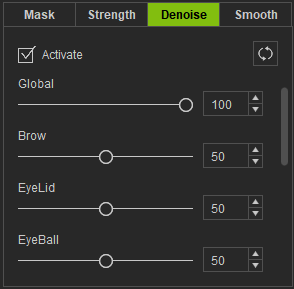
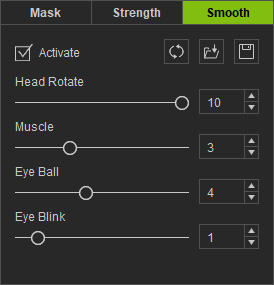
Mask, Strength, Denoise and Smooth |
|
||||
|
J |
Choose one of the radio buttons for New, Blend or Replace. These modes are identical to the use of the iClone Face Puppet Panel. |
 button to revert to the original face position received from Facial in the Gear section.