AI Workspace (v1.1)
The AI Studio interface overlaid on iClone or Character Creator is divided into five sections: AI Tools, AI Settings, AI Render View, History, and Account Information.
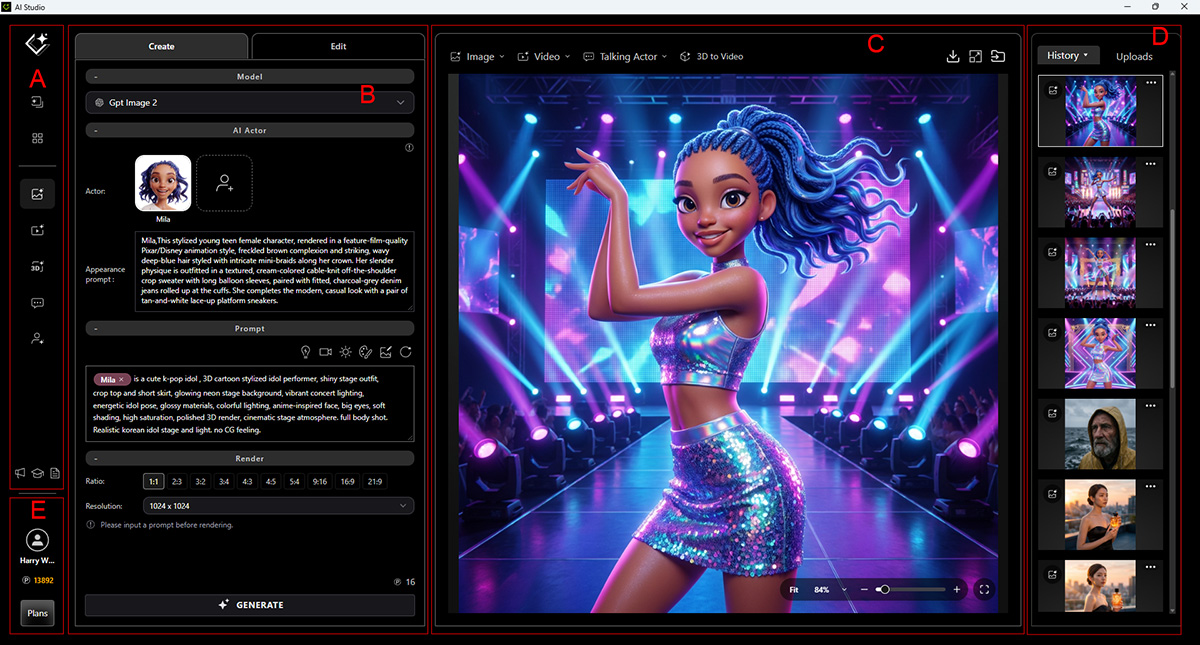
A. AI Tools
The left panel of the AI Studio provides access to templates, history, AI tools, release notes, and tutorials.
Button | Function |
 | Opens the Templates page, where you can browse templates for each AI tool and create custom media by applying and modifying them. |
 | Opens a full-page History view of all custom AI-generated media, where you can perform follow-up actions, refine outputs, and upscale renders. |
 | Image Gen lets you create characters, scenes, and landscapes from text prompts, and edit images by combining, replacing, or removing elements, or applying custom modifications such as camera angles and character outfits. |
 | Video Gen creates animation clips from still images, swaps video actors with image-based actors, or applies a video’s motion to animate an image actor. |
 | 3D Guided Gen captures images and videos directly from the 3D viewport, ensuring more accurate and consistent AI output. |
 | Talking Actor allows you to generate talking animations for single or multiple actors. |
 | Create Actor lets you create custom AI Actors from custom images in Basic mode or 3D characters (iAvatar or ccAvatar) in Advanced mode. |
 | Buttons from left to right provides quick access to the following resources:
|
B. AI Settings
The AI Settings section responds to the AI Tools on the left of the AI Studio, allowing you to select the AI model, upload source media, enter prompts, and configure render settings.
C. AI Render View
The AI Render View displays AI-generated results and provides options to perform follow-up actions, download the selected AI-generated result, upscale the rendering resolution, and rework outputs.
D. History
The History panel on the right side of AI Studio displays previously generated AI outputs for quick review, rework, download, or deletion. Captured frames from generated videos can also be saved to the Uploads library.
E. Account Information (v1.1)
The account information in the bottom-left corner allows you to log in to AI Studio and, after signing in, displays the logged-in account name and total available AI Points, DA Points, and Bonus Points.
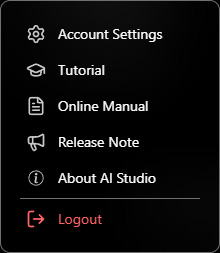
- Click the ⋮ button to access Account Settings for the logged-in account, view tutorials and the online manual, check the AI Studio release notes and product version, or log out of the current account.
- Click Plans or Review All Plans to view all subscription options on the official website.
AI Studio Workspace in iClone or Character Creator
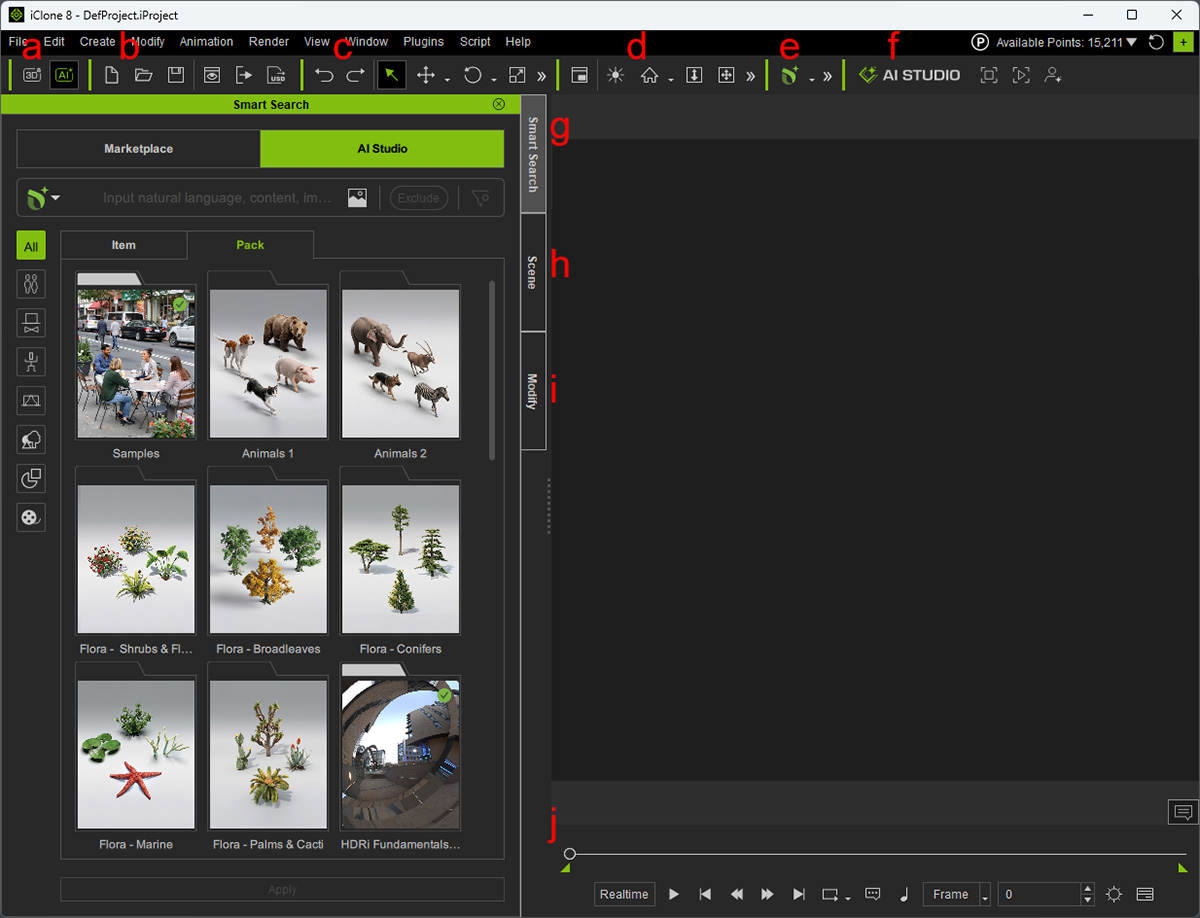
The iClone or Character Creator interface beneath the AI Studio interface is divided into the following toolbars and panels.
|
Toolbar |
Function |
|
|
a |
Workspace Toggle |
Switches between the AI Studio interface (AI Studio workspace) and the iClone or Character Creator interface (3D Standard workspace). |
|
b |
Project |
Creates, opens, and saves projects, and imports or exports objects. |
|
c |
General |
Moves and rotates objects, aligns objects, and shows or hides objects. |
|
d |
Camera |
Controls camera movement, switches camera views, and adjusts the visual quality of the 3D Viewport. |
|
e |
Smart Search |
Searches for available previsualization content for 3D to Image and 3D to Video projects. |
|
f |
AI Studio Tools |
|
|
Panel |
Function |
|
|
g |
Smart Search |
Displays available previsualization content packs and items for AI Studio. |
|
h |
Scene Manager |
Displays the objects and actors in the current project. |
|
i |
Modify |
Displays the editable properties of the currently selected object. |
|
j |
Play Bar |
Controls real-time scene playback. |
