Capturing Full Body Motion
iClone Video Mocap is able to detect the target actor in the video with some proper guidance from the user.
The Video Mocap detects the target actor and its full body part in the video for motion capture.
Follow the instruction below to capture motion from any clear actor in your video.
See also: Tutorial - Getting Started with Video Mocap
- Make sure your video follows the Video Guidelines and the actor's full body is clearly visible.
Import the video to the Video Mocap panel.
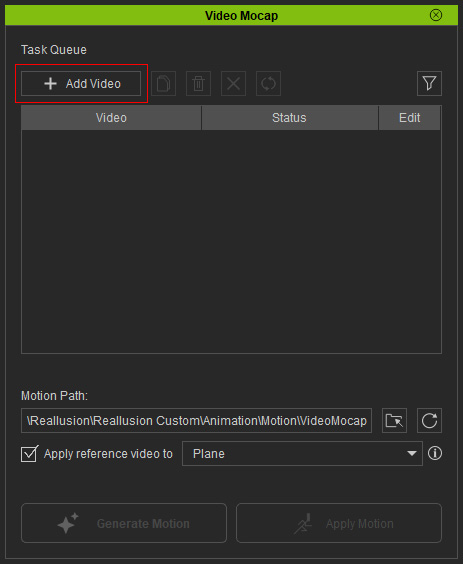
- The Edit Video panel will appear automatically.
Alternatively, select the imported video in the Task Queue, and click the Edit button to open it manually.
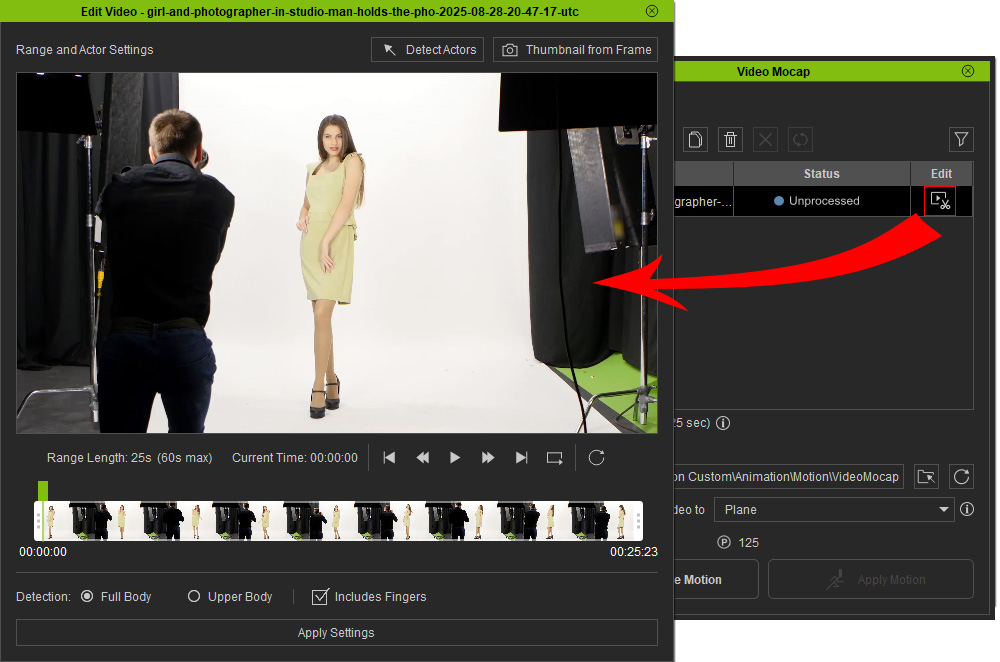
- Preview the video and trim it to isolate a region for motion capture.
Set the Start Time and End Time for the motion capture length (between 1 to 60 seconds), or hover over and drag the range to several frames behind to focus on the motion in another range.
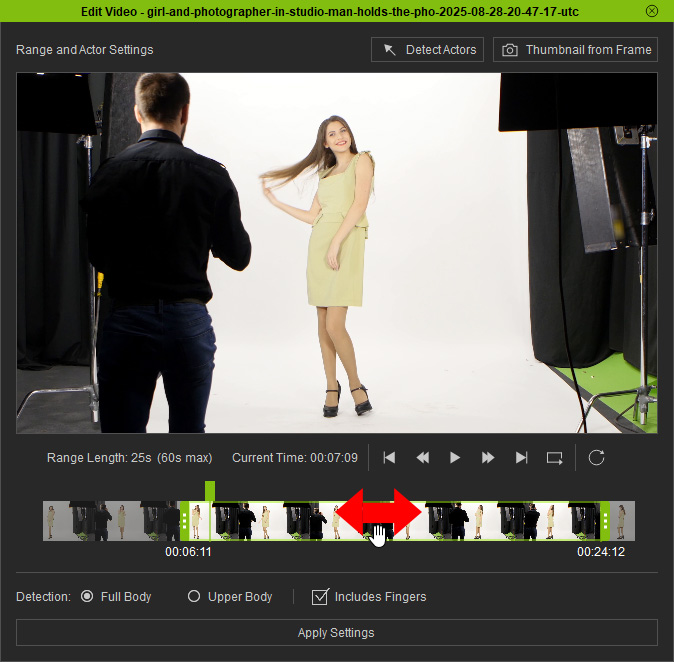
 Working with Multiple Actors
When there are multiple actors in your video, you'll need to set a tracking target for motion generation.
Go to a frame where the target actor is clear visible, and click the Detect Actors above the preview. Pick the target actor for motion capture and the surrounding frame will turn green.
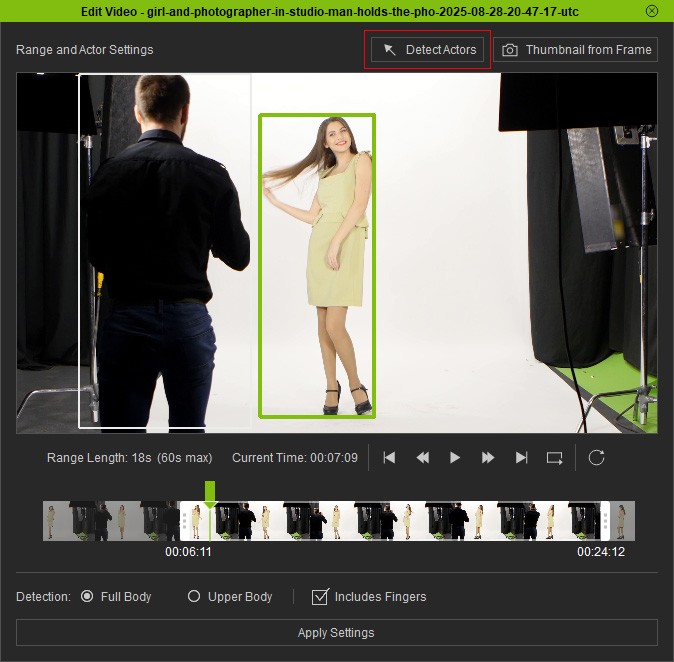
To better identifying the task and framed actor, you may click the Thumbnail from Frame button near the top-right corner to apply a new thumbnail for the task.
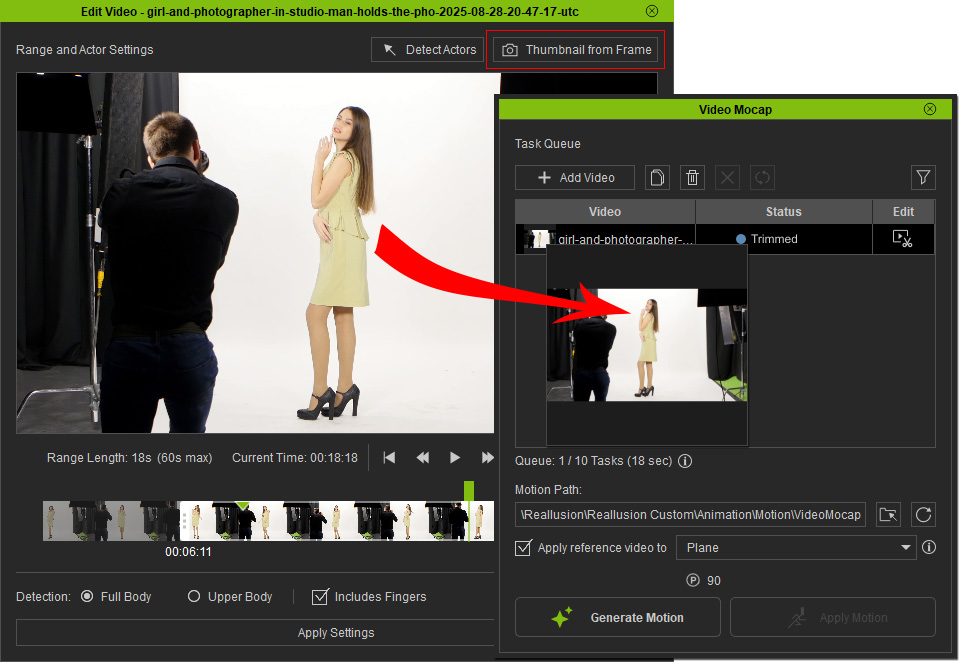
Go to a frame where the target actor is clear visible, and click the Detect Actors above the preview. Pick the target actor for motion capture and the surrounding frame will turn green.
To better identifying the task and framed actor, you may click the Thumbnail from Frame button near the top-right corner to apply a new thumbnail for the task.
- Now decide which body part to capture by using the Detection section.
Full Body is selected by default to generate full-body motions, and ensure that Includes Fingers option is enabled if needed.
Click the Apply Settings button at the bottom to confirm your settings and exit the window.
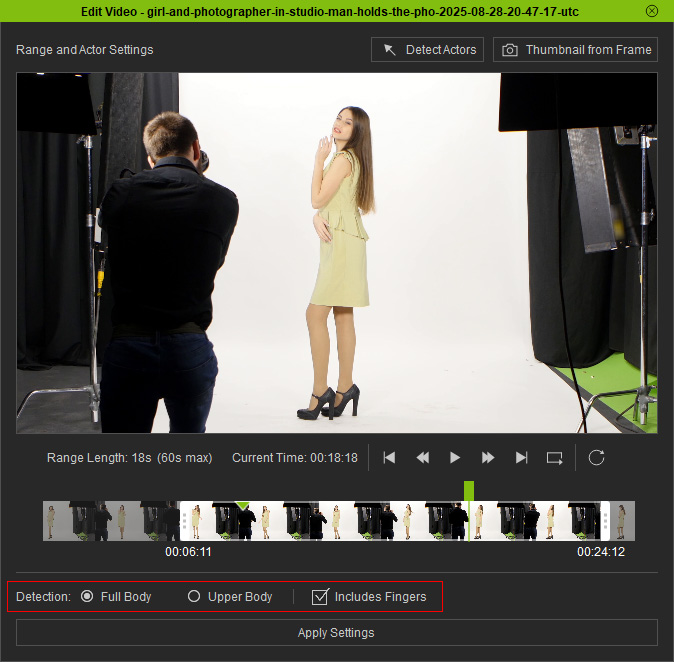
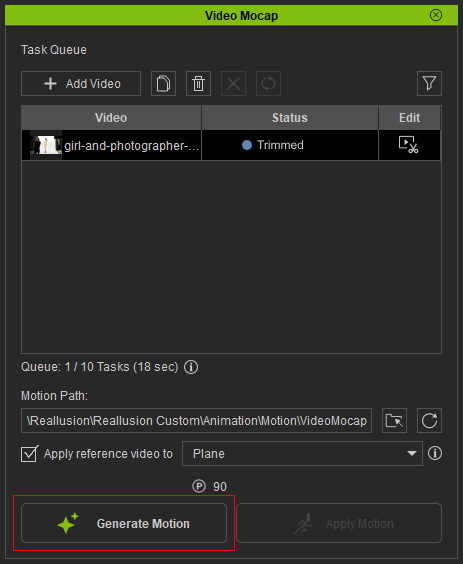
- Return to the Video Mocap panel, where the task status should now display as "Trimmed".
Click the Generate Motion button near the bottom-left corner, and review the task price displayed above the button before proceeding.
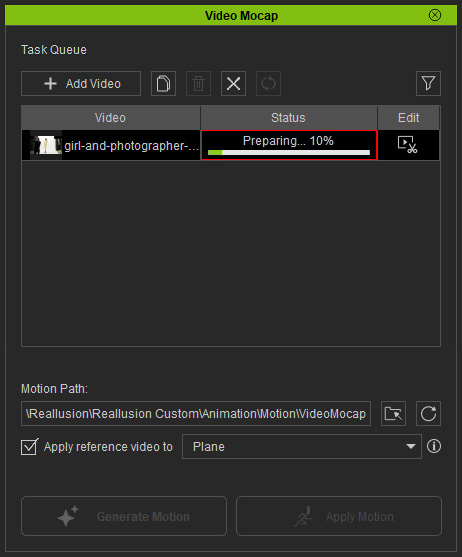
- In case of errors, monitor the progress bars shown in the Status column while processing.
The whole process may take 5–8 minutes to complete.
- Once the motion is successfully generated, the task status will display "Applicable".
You are now able to click the Apply Motion button near the bottom-right corner to apply the motion to a selected character in the scene.
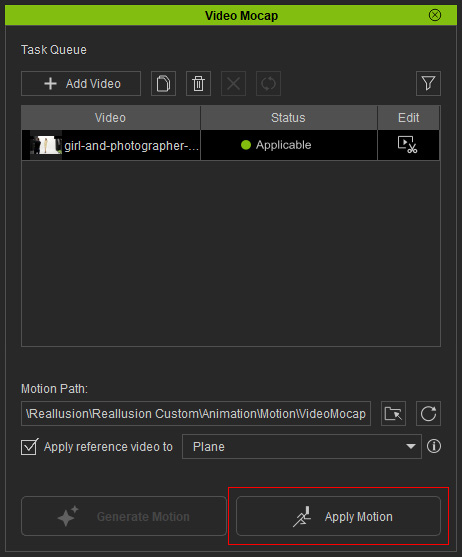
With the Apply reference video to checkbox enabled, a source video object will appear in the scene. - The motion will be applied to the character with the reference video appearing behind it.
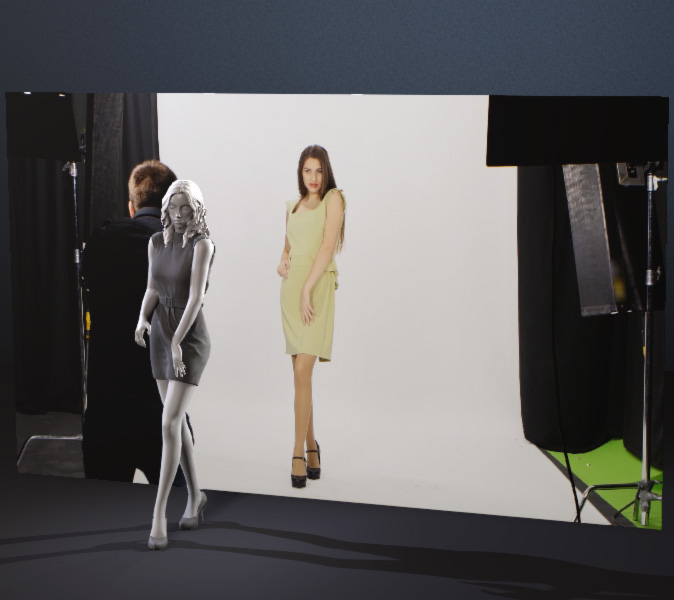
- Playback and you will see the full-body motion (including hands) keeping pace with the reference video.
You are now free to refine the motion using the built-in animation tools in iClone.
