Deep Search vs. Keyword Search
Under the Asset Store or AI Studio tab in the Smart Search panel, use the search method drop-down menu to switch between Deep Search and Keyword Search.
The differences between the two search methods are listed below.
( Watch Tutorial - Introduction to Search Content Methods )
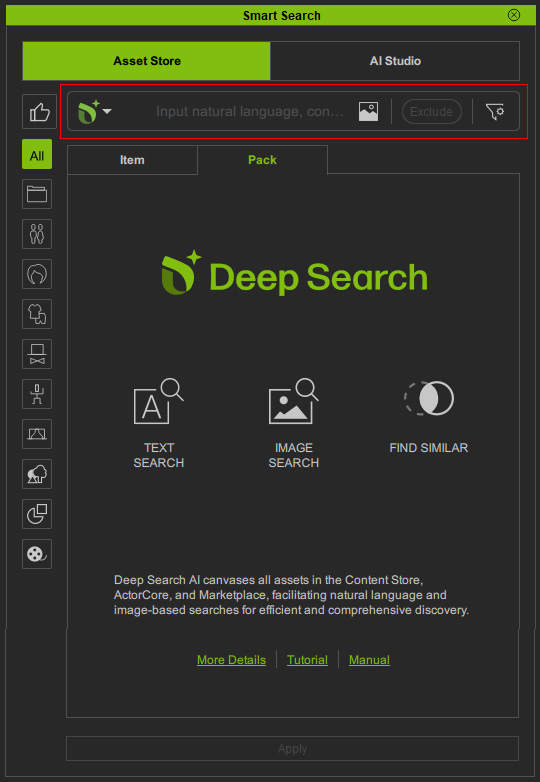 | 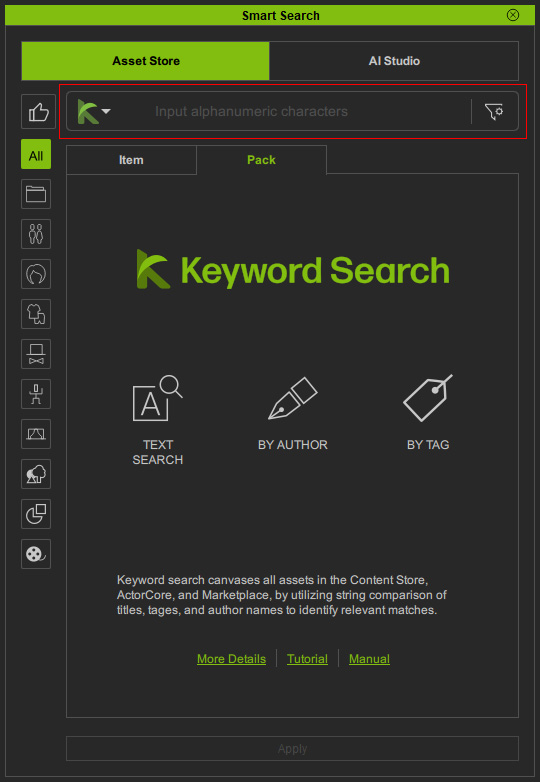 | |
Search Method |  Deep Search Deep Search |  Keyword Search Keyword Search |
Advanced AI-powered semantic search and image search. Recognizes the regular spoken language and returns more relevant results. | Simple text search. Finds content with titles, tags or author names matching the keywords. | |
Image Search Support | Able to use an image or content input to fulfill a search query. | Not supported. |
Language Support | Built-in ability to recognize more than a hundred languages. | English only, as the content information (titles, tags or authors) are all recorded in English. |
Supported Content Type |
| Every content type, including those without mesh images, such as Skin and Makeup. |

Deep Search
Searches content available for purchase, or free-trial, based on semantic analysis or image comparison in an AI algorithm.
It is divided into Item and Pack sub-tabs.
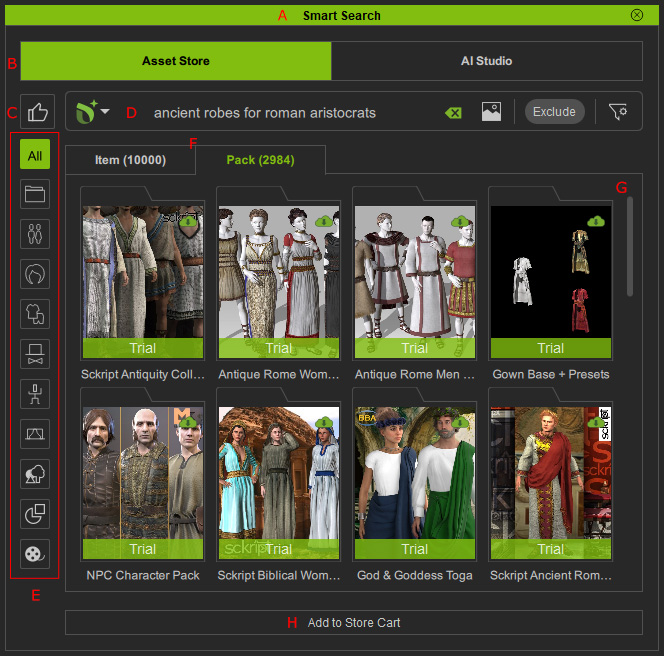
 User Interface Introduction
- Dock / Undock
Double-click on the caption to dock or undock the panel.
- Feature Tabs

Use the tabs to switch between 3D Content and AI Studio content.
- Asset Store tab: Displays 3D content available for purchase in the Reallusion stores.
- AI Studio tab: Displays over 5,000 content items that are not available for purchase in the Reallusion stores and are intended exclusively for use in AI Studio. Access to these assets requires an AI Service subscription. For more information, refer to the AI Studio Online Manual.
- Recommended

Click to view the recommended packs from the Content Store. Available only under the Asset Store tab.
- Search Field

- d1. Search Method: Switch to Deep Search for AI-driven semantic search.
- d2. Search Field: Enter natural-language descriptions or phrases, or upload images to search for specific content.
- d3. Image Search: Upload, drag and drop, or copy and paste an image to search for content with a similar mesh appearance.
- d4. Exclude: Add exclusions during a search session to filter out unwanted content and narrow the search results.
- d5. Filter: Apply filters to search specific stores or refine the search criteria. Available only for 3D content under the Asset Store tab.
- Category Buttons
Click these buttons to view the search result in all or specific content category.
- Content List
Shows the available online content matched to your search strings or image. Use the scrollbar or mouse wheel to browse more content.
- Add to Store Cart | Install Content | View Items | Apply
This button is subject to change for the selected content.
- Add to Store Cart button: Launches the online store website and adds the selected packs or single items to shopping cart for checking out.
- Install Content button: Installs the selected content.
- View Items button : Opens the currently selected downloaded pack in a new tab to display its contents.
- Apply button: Applies the selected item to the viewport.
Keyword Search
Find out content available for purchase, or free-trial, based on the simple text matching approach.
It is divided into Item and Pack sub-tabs.
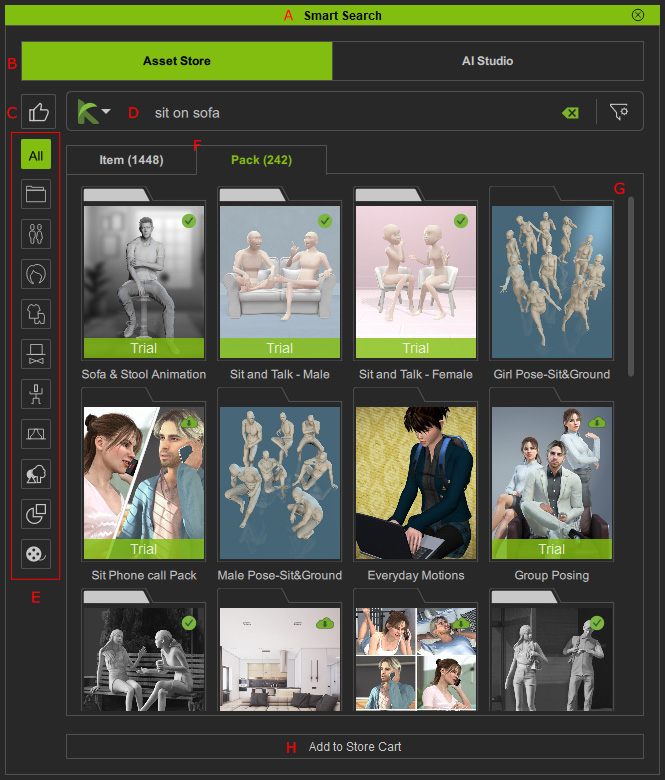
User Interface Introduction- Dock / Undock
Double-click on the caption to dock or undock the panel.
- Feature Tabs
Use the tabs to switch between 3D Content and AI Studio content.
- Asset Store tab: Displays 3D content available for purchase in the Reallusion stores.
- AI Studio tab: Displays over 5,000 content items that are not available for purchase in the Reallusion stores and are intended exclusively for use in AI Studio. Access to these assets requires an AI Service subscription. For more information, refer to the AI Studio Online Manual.
- Recommended
Click to view the recommended packs from the Content Store. Available only under the Asset Store tab.
- Search Field

- d1. Search Method: Switch to Keyword Search for traditional keyword-based searches.
- d2. Search Field: Enter keywords to search for desired content.
- d3. Filter: Apply filters to search specific stores or refine the search criteria. Available only for 3D content under the Asset Store tab.
- Category Buttons
Click these buttons to view the search result in all or specific content category.
- Content List
Shows the available online content matched to your search strings. Use the scrollbar or mouse wheel to browse more content.
- Add to Store Cart | Install Content | View Items | Apply
This button is subject to change for the selected content.
- Add to Store Cart button: Launches the online store website and adds the selected packs or single items to shopping cart for checking out.
- Install Content button: Installs the currently selected content.
- View Items button : Opens the currently selected downloaded pack in a new tab to display its contents.
- Apply button: Applies the selected item to the viewport.
