Creating Videos — References (v1.1.1)
Instead of relying on a Start Frame, the Video Gen tool can generate videos using a combination of reference media and a text prompt.
It supports advanced control through inputs such as AI Actors, images, videos, and audio, helping maintain consistency in character appearance, voice, motion, and environment across multiple shots, dialogues, and camera angle changes.
See also: Tutorial - Seedance Consistency with References
Required Elements
- Reference: Add AI Actors, images, videos, or audio as references.
- Prompt: Enter a custom prompt or apply preset prompts for quick setup.
AI Settings
Select the Video Gen  tool from the left AI Toolbar and complete the tasks in each section under the Create tab.
You can collapse or expand a section by clicking its caption.
tool from the left AI Toolbar and complete the tasks in each section under the Create tab.
You can collapse or expand a section by clicking its caption.
From the Model drop-down list, select a model that supports reference inputs: MiniMax H3-Max, Seedance 2.0 Mini, Seedance 2.0, or Seedance 2.5.
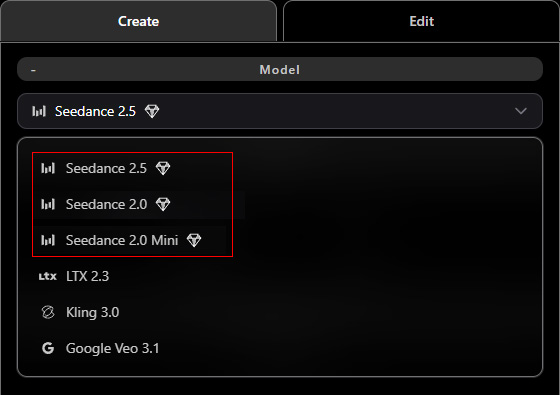
AI models marked with a diamond icon require an AI Service subscription.
Click Upgrade at the bottom to subscribe and access the AI settings.
 Adding References
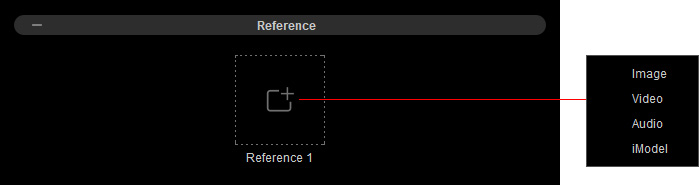
In the References section, click a Reference slot to add inputs that guide video generation and improve consistency in actors, environments, and dialogue, helping bring your storyboard to life.
Supported reference types include AI Actors, images, videos, and audio.
Before adding references, check the requirements for each media type, including format, aspect ratio, resolution, file size, and duration, as shown below.
If a reference does not meet the requirements, a compatibility warning dialog will identify the issue preventing the upload.
AI Model | MiniMax H3-Max (v1.1.1) | |||
| Requirements | AI Actor | Image | Video | Audio |
Max number | Up to 9 | Up to 9
| Up to 3 | Up to 3 |
Formats | iModel | PNG, JPG, JPEG, WebP | MP4, MOV | MP3, WAV |
Aspect ratio | -- | 0.4–2.5 | 0.4–2.5 | -- |
Width / Height | 300–6,000 px | 300–6,000 px | -- | |
File size | 30 MB max per image
| 50 MB max per video | 15 MB max per audio
| |
Duration | -- | 2–15 sec | 2–15 sec | |
AI Model | Seedance 2.0 & 2.0 Mini | Seedance 2.5 | ||||||
| Requirements | AI Actor | Image | Video | Audio | AI Actor | Image | Video | Audio |
Max number | Up to 7 | Up to 9
| Up to 3 | Up to 3 | Up to 10 | Up to 30
| Up to 10 | Up to 10 |
Formats | iModel | PNG, JPG, JPEG, WebP | MP4, MOV | MP3, WAV | iModel | PNG, JPG, JPEG, WebP, BMP, GIF | MP4, MOV | MP3, WAV |
Aspect ratio | -- | 0.4–2.5 | 0.4–2.5 | -- | -- | 0.4–2.5 | 0.4–2.5 | -- |
Width / Height | 300–6,000 px | 300–6,000 px | -- | 300–6,000 px | 300–6,000 px | -- | ||
File size | 30 MB max per image
| 50 MB max per video
| 15 MB max per audio
| 30 MB max per image
| 200 MB max per video | 15 MB max per audio | ||
Duration | -- | 2–15 sec | 2–15 sec | -- | 4–30 sec | 2–30 sec | ||
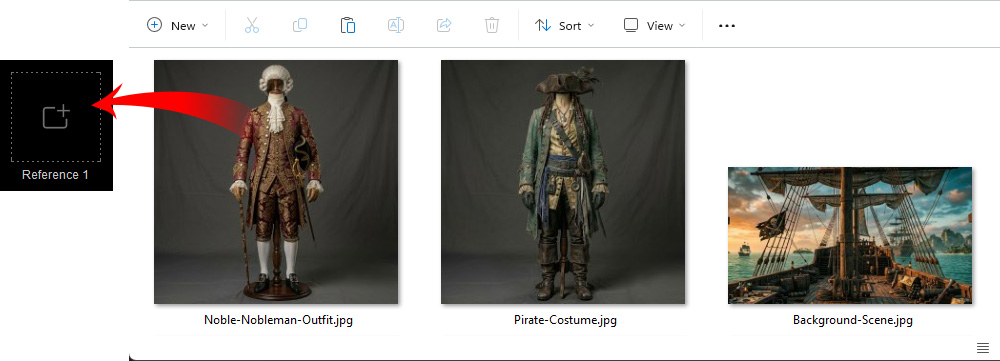
AI Actors and images share a combined limit. For example, you can use 5 AI Actors and 4 images, or 2 AI Actors and 7 images. For a story set on a pirate ship, you might use AI Actors for the characters, outfit reference images for pirate costumes, environment reference images for the ship and surroundings, and dialogue audio to guide character voices and interactions.
- AI ActorSelect AI Actor, choose one or more actors from the AI Actor Library, and click Apply AI Actors.
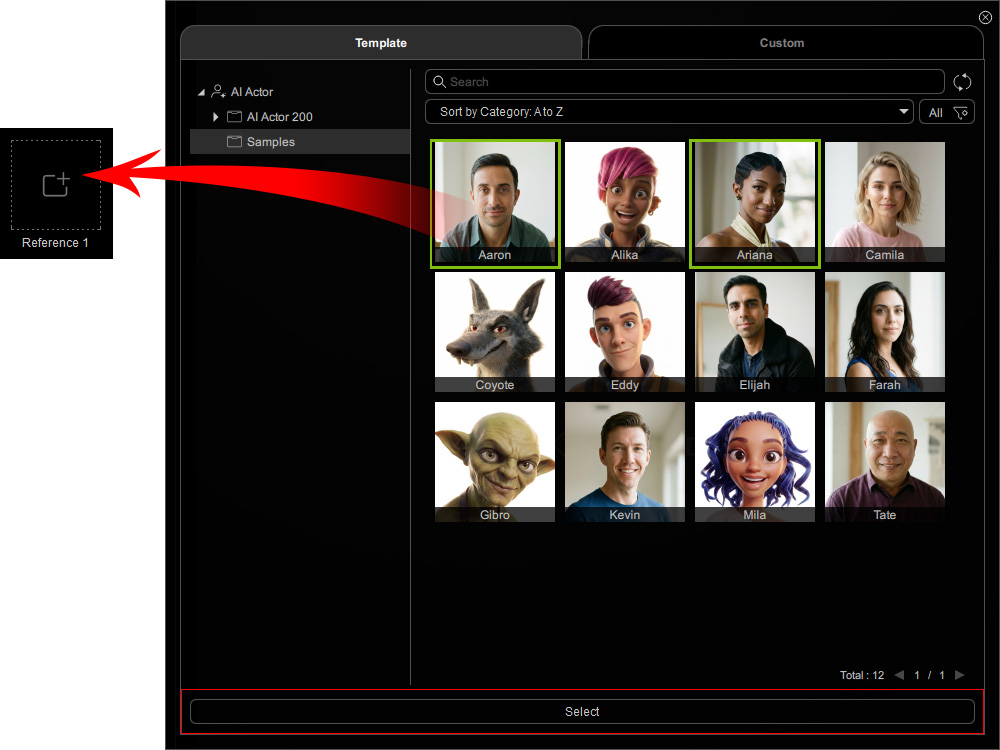
AI Actors marked with a diamond icon in the top-left corner of their thumbnails require an AI Service subscription. - ImageSelect Image and upload an image, such as an outfit or environment reference. You can also drag images directly from the History panel on the right or Windows File Explorer.
- VideoSelect Video and upload a video reference to inherit character motion, voice, visuals, composition, scene layout, music, and overall style, enabling seamless extension of an existing video.
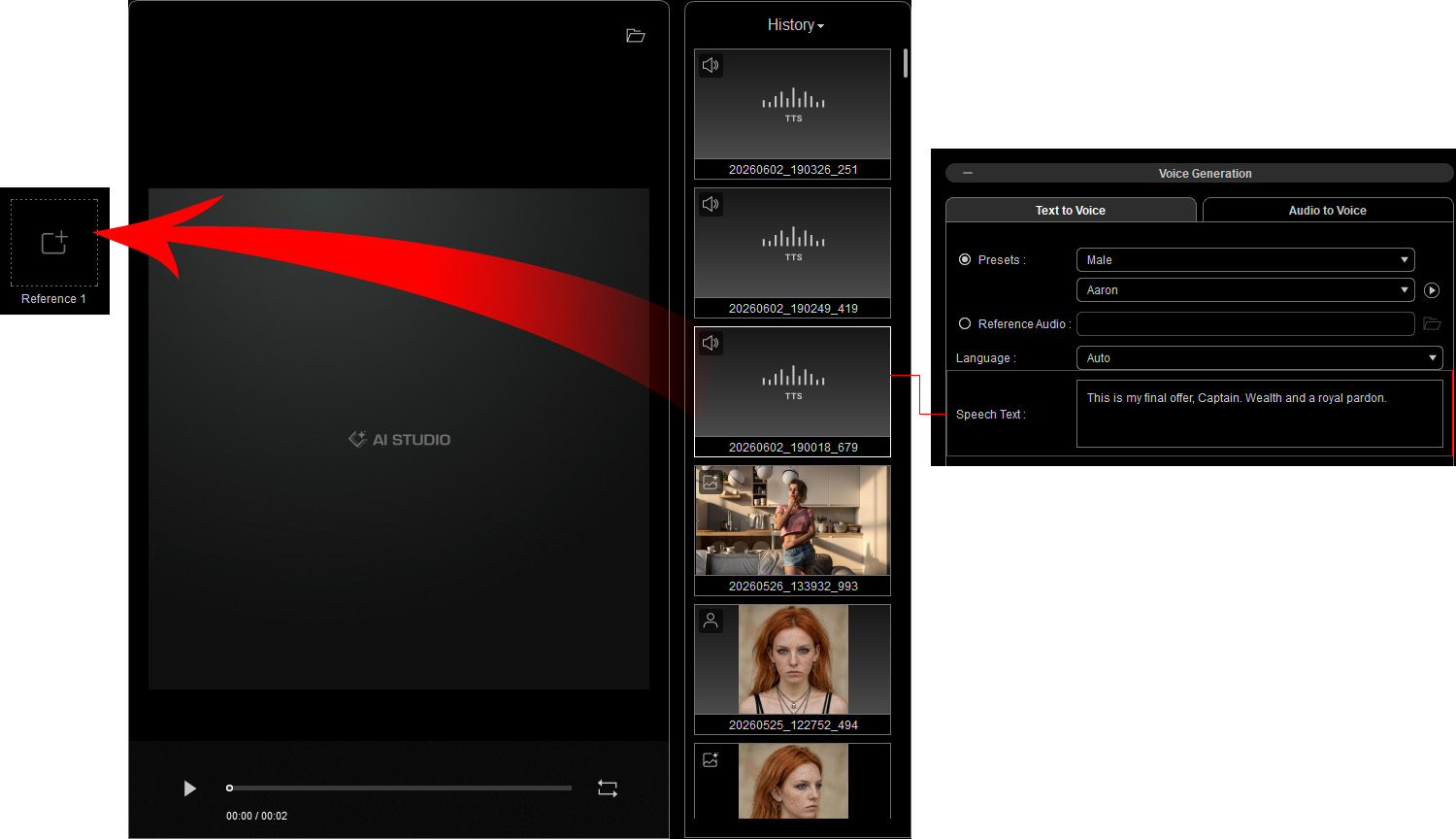
- AudioSelect Audio and upload dialogue audio. You can also generate audio with the Talking Actor tool and drag it from the History panel on the right, or drag an audio file from Windows File Explorer.
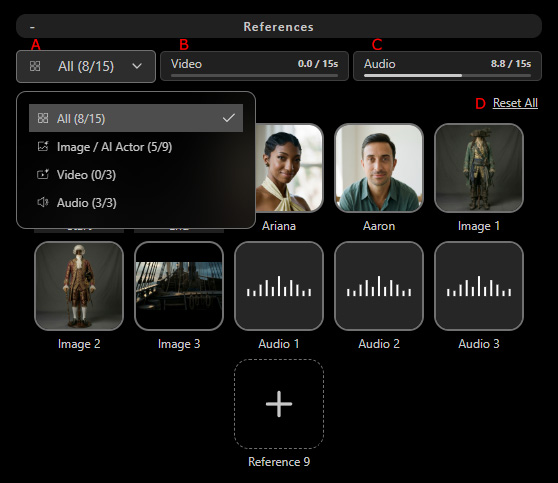
- Reference Filter: Filters references by All, Image, Video, or Audio, and displays the input count for each type.
- Video Duration: Displays the current video input duration and the maximum duration supported by the selected AI model.
- Audio Duration: Displays the current audio input duration and the maximum duration supported by the selected AI model.
- Reset All: Removes all reference inputs, including Start / End frames.
Entering Prompt (v1.1.1)
Each reference is represented by a label tag in the Prompt field for quick editing and reference assignment.
Click the Reset Prompt button to clear the prompt field and start over if needed.
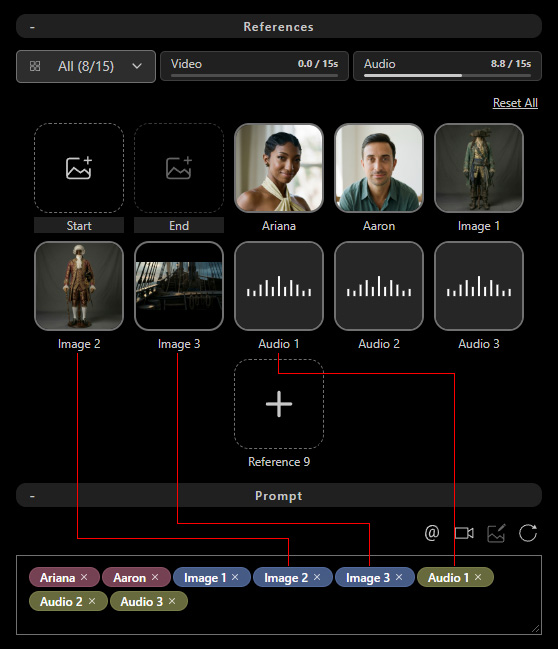
- Drag the tag to reposition it within the prompt.
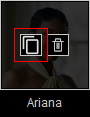
- Click Copy on a reference thumbnail to insert its tag into the prompt.
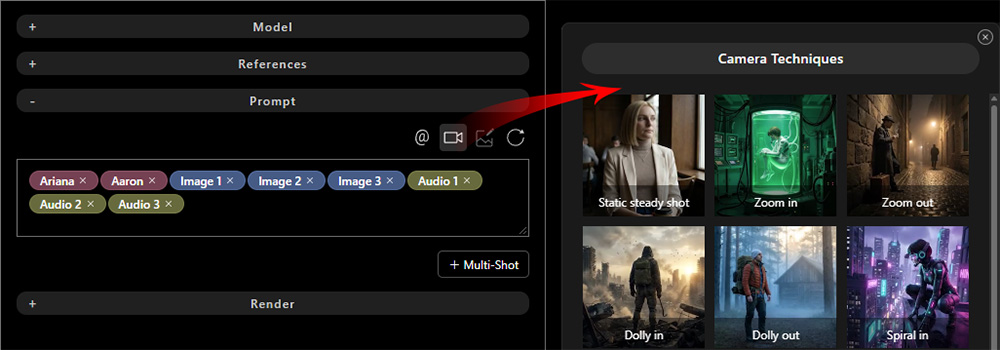
Alternatively, click Add Reference @ or type @ to select a reference tag from the context menu.
Use the Image, Video, Audio, and AI Actor filters to show only references of the selected media type.

|
|
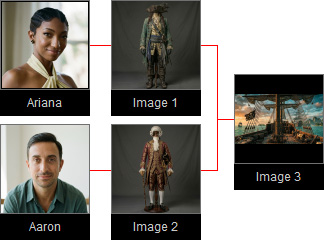

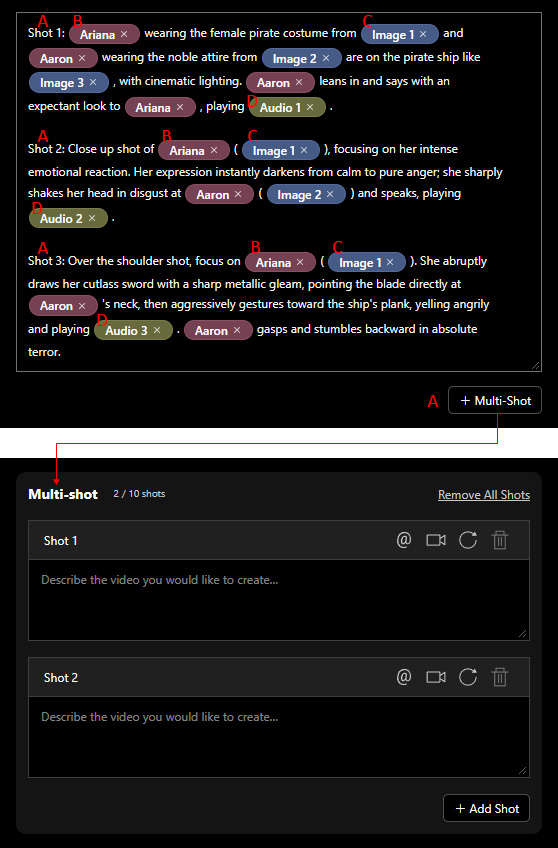
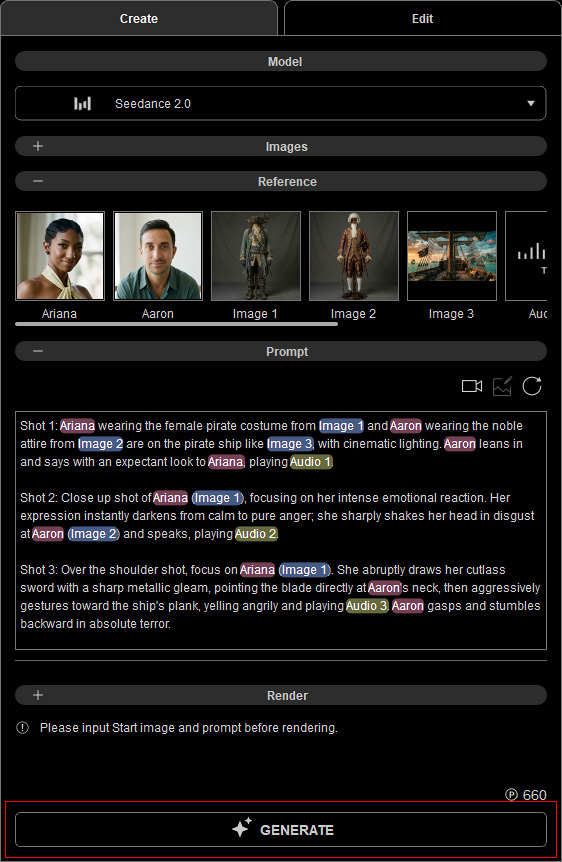
For example, "Shot 1: Ariana wearing the female pirate costume from Image 1 and Aaron wearing the noble attire from Image 2 are on the pirate ship like Image 3, with cinematic lighting. Aaron leans in and says with an expectant look to Ariana, playing Audio 1.
Shot 2: Close up shot of Ariana (Image 1), focusing on her intense emotional reaction. Her expression instantly darkens from calm to pure anger; she sharply shakes her head in disgust at Aaron (Image 2) and speaks, playing Audio 2.
Shot 3: Over the shoulder shot, focus on Ariana (Image 1). She abruptly draws her cutlass sword with a sharp metallic gleam, pointing the blade directly at Aaron's neck, then aggressively gestures toward the ship's plank, yelling angrily and playing Audio 3. Aaron gasps and stumbles backward in absolute terror".
Rendering (v1.1.1)
Set the video output options in the Render section, including aspect ratio, resolution, duration, and audio settings.
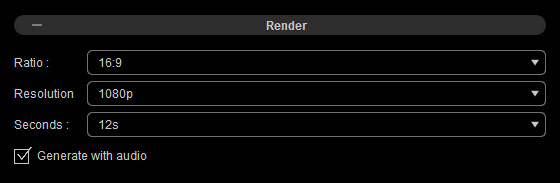
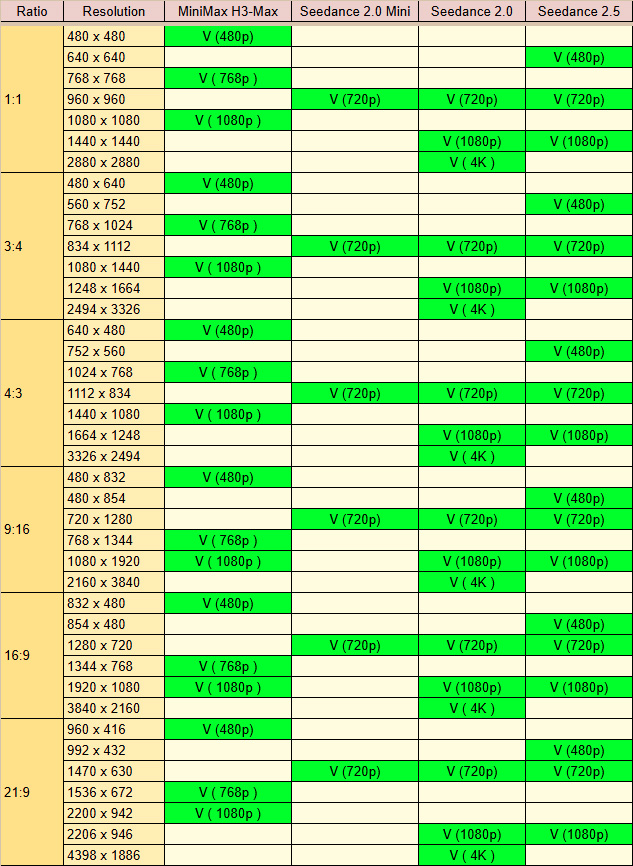
- Ratio and Resolution: Choose the video aspect ratio and resolution from the corresponding drop-down lists.
- Seconds: Select the video duration from the Seconds drop-down list.
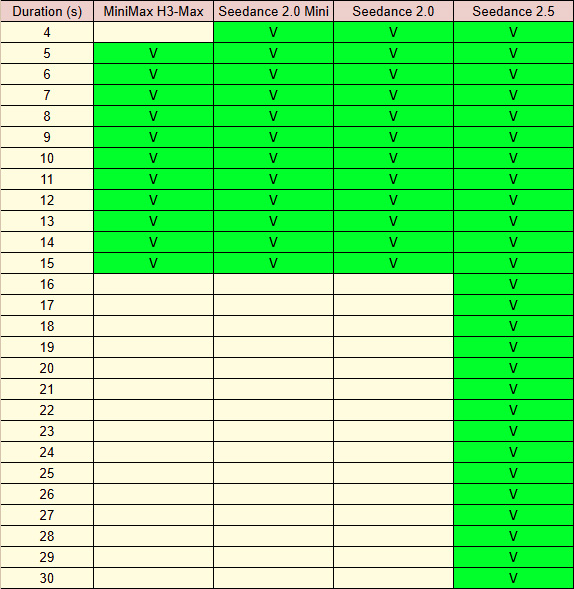
- Generate with Audio: All AI models support audio output.
Some models let you choose whether to include prompt-generated audio in the video.
For videos with dialogue, enable this option before generation.
Note that adding audio may incur additional charges.
Supported AI models include:
- Seedance 2.5
- Seedance 2.0
- Seedance 2.0 Mini
Task Charging
Each submitted task uses available AI Points, Bonus Points, or DA Points.
View your available points in the bottom-left corner of AI Studio, or click the ... button and select Account Settings to check your point balance.
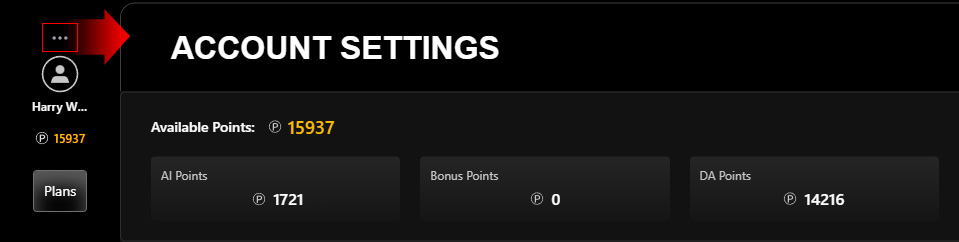
To obtain more credits, click Plans to subscribe to an AI Service Plan for additional AI Points or purchase DA Points to top up your account.
Ensure both references and a text prompt are provided to enable the GENERATE button.
Check the task price displayed above the button before proceeding.
Track progress on the AI Render View or via the new entry in History on the right.
When the submission completes successfully, the AI-generated video will appear.
Click Play to play the video, Loop to repeat it, or drag the playhead to a specific point.
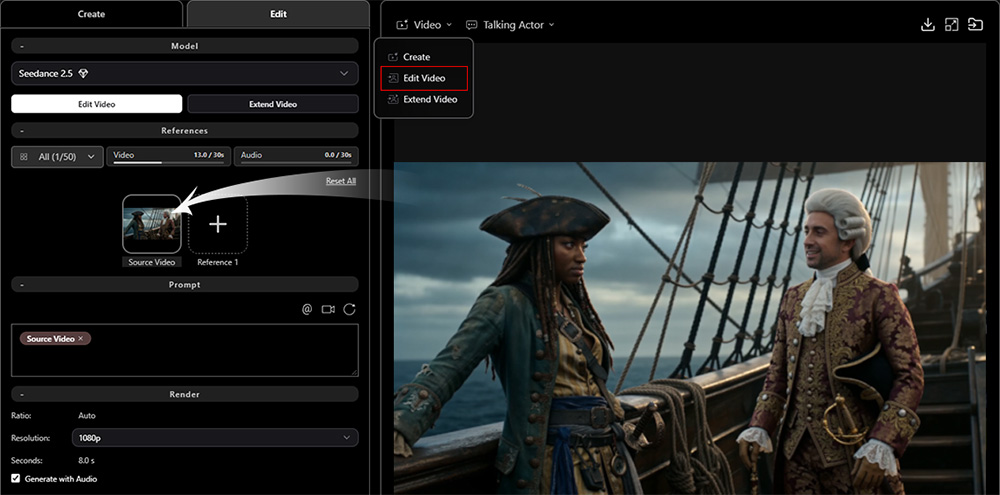
Next, use the Video or Talking Actor options in the Quick Access Menu at the top of the AI Render View to edit the video or load the generated video as a reference to update the dialogue script if needed.