AI Studio Workflow

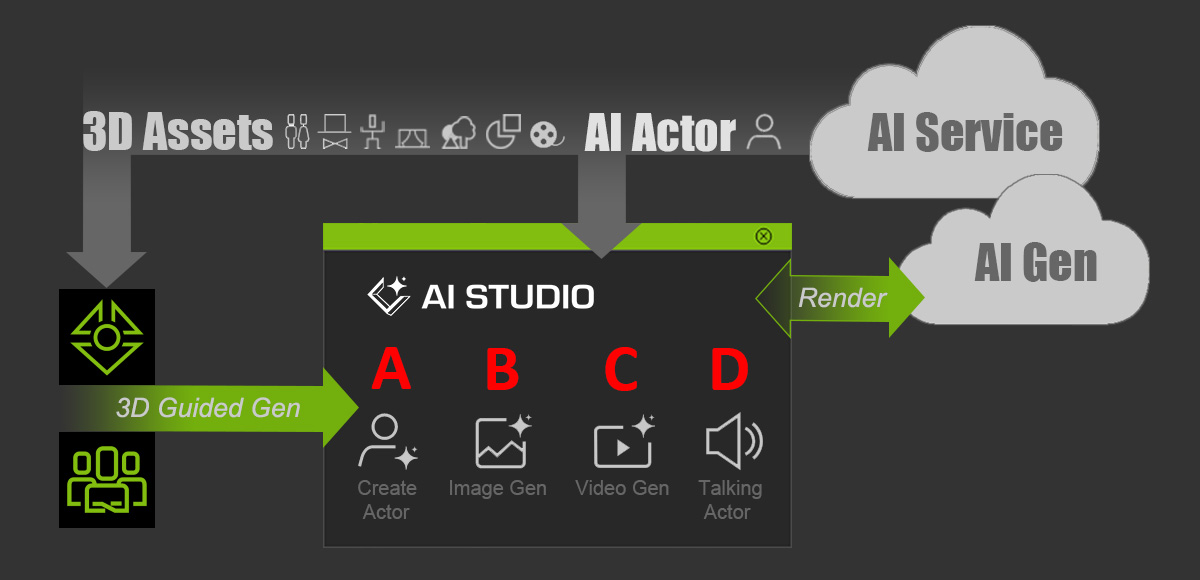
AI Studio delivers a cloud-based AI workspace that brings 3D characters to life with realistic video and audio generation, enabling creators to visualize stories and ideas through dynamic, high-quality visuals while supporting stable and consistent character appearances across all shots, expressive animations, and immersive storytelling workflows. The diagram below illustrates how to export your creations using AI tools.
See also: Tutorial - Getting Started with iClone AI Studio
Steps

Description

Explore Sections

A

Choose AI Workspace

  • Experiences AI-powered rendering in the all-new AI workspace.
  • Access feature templates and explore 200+ AI Actors included in the subscription.
  • Browse 5,000+ assets for previz layout in Smart Search with a subscription.
  • Generates custom AI Actors from general 3D content or from custom images depicting predefined angles and emotions.

B

Create and Edit Images

  • Captures images directly from the 3D viewport.
  • Provides a prompt to create characters, scenes, or landscapes (Text-to-Image).
  • Uses an AI Actor to create images with a consistent character appearance.
  • Edits images by combining, replacing, or removing elements, or apply custom modifications such as camera angles or character outfits.

C

Create and Edit Videos

  • Captures videos directly from the 3D viewport.
  • Imports a first frame, or both first and last frames, to create an animation clip from a still image.
  • Swaps the actor in a video with one from an image.
  • Animates the image actor using the video’s motion.

D

Create Talking Animations

  • Generates talking animations for one or more actors.
  • Supports Text-to-Speech (TTS) with voice cloning and audio input.

E

Upscale

  • Optionally upscales AI-generated images and videos to higher resolution.